Adding an allowance to a project worker's timecard is permission based.
To add an allowance to a project worker's timecard, your account must have one of the following roles enabled:
Role: Company Admin, Company Manager, or assigned Project Coordinator
Custom role with: Projects, People & Approvals/Project management - Full access, or Manage; Payroll & Financials/Allowances - Full access, or Create and manage
Overview
In the New Timecards Experience, authorized production administrators can add allowances directly from a project's Timecards dashboard. Allowances cover additional compensation items such as per diem, mileage, kit fees (also called kit rentals or box rentals), and more. Once added, allowance amounts are reflected in the worker's timecard totals.
How to add an allowance
At the top of the project's Timecards dashboard, click the + Add allowance button
In the Add an allowance popup, click the search bar and then click to select the allowance type that you want to add
Note that there are now two options for per diem: Per diem Non-Taxable appears at the top of the list, and Per diem Taxable appears at the bottom of the list
Under Details:
To add the allowance to more than one day, click the toggle next to Enable multi-date selection
Enter the required and optional information. The details that you're prompted to add depends on the type of allowance selected. Details that are required are marked with an asterisk (*).
When entering the allowance details, you'll have the option to add:
Work location
Notes
Attachments - Click the Select a file button to add a file that's saved to your computer
Account codes
For Workers, click to select the workers that get the allowance, and then click the Continue button
You can enter names and titles into the search bar to find specific workers
If you don't see the worker listed, make sure that they have been invited to the project first.
For Review, verify that the details added are correct. When you're ready, click the Continue button and the allowance will be added.
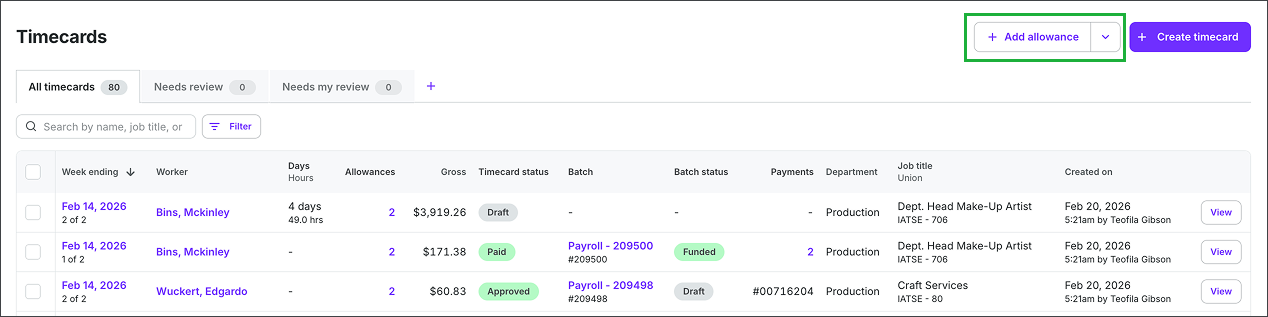
To add an allowance, you can click the + Add allowance button directly on the project's Timecards dashboard
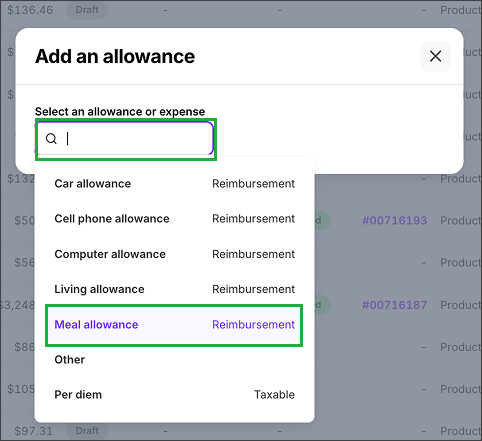
In the Add an allowance popup, click the search bar and then select the allowance type
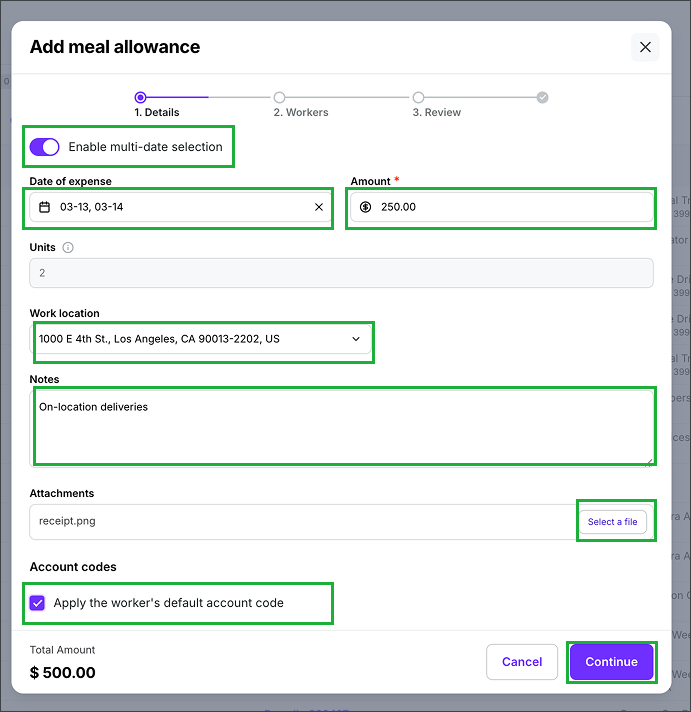
In the popup, enter the required and optional details. To add the allowance to more than one day, click the Enable multi-date selection toggle. To apply worker default account codes, click the checkbox at the bottom of the popup. When you're ready, click the Continue button.
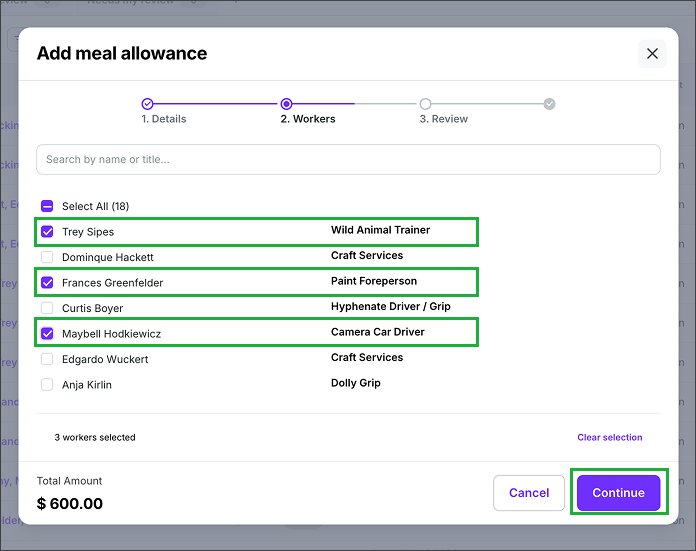
Enter a name or title into the search bar and/or click to choose the project workers that received the allowance, then click the Continue button.
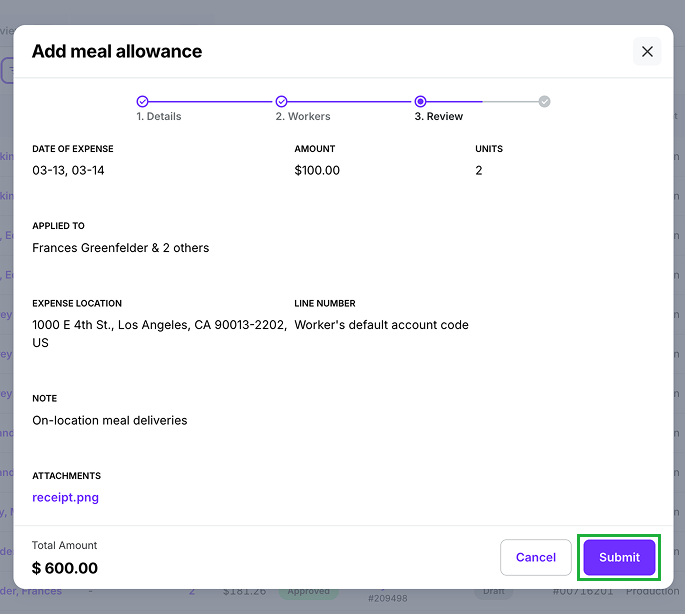
Review the details and then click the Submit button
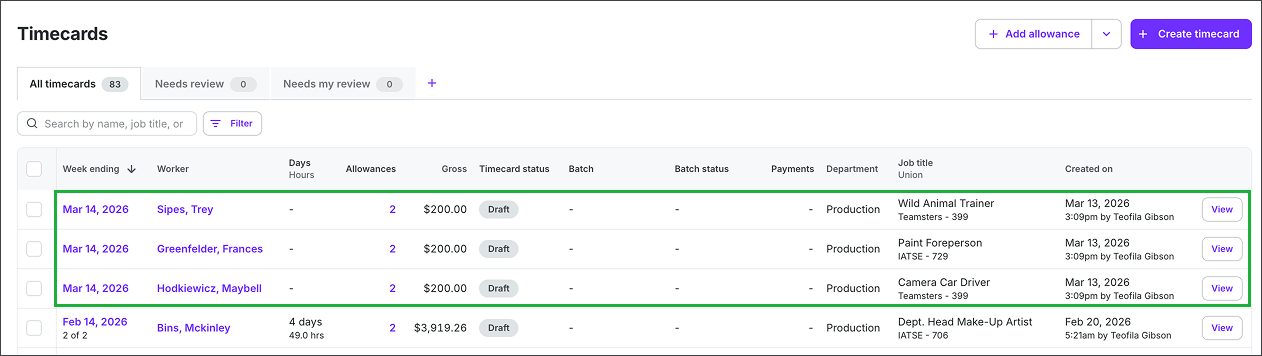
The allowances will be listed on the Timecards dashboard
Allowance types
Click the arrow to see the types of allowances that can be added
Allowance type | Classification | Details needed |
|---|---|---|
Per diem | Non-Taxable | Per diem type Date of expense Daily amount * Units * |
Kit/box feeAlso called: kit rental, box rental, equipment rental fee | Taxable | Date of expense Daily amount * Units * You'll be able to download Wrapbook's inventory template or upload your own inventory file. |
Mileage | Non-Taxable | Number of miles * Standard mileage rate - will be automatically calculated Date of expense Total amount * You'll be able to download Wrapbook's mileage template or upload your own mileage file |
Wardrobe allowance | Taxable | Date of expense Amount * Units * |
Wardrobe cleaning | Reimbursement | Date of expense Amount * Units * |
Buyout - Other | Taxable | Date of expense Amount * Units * |
Buyout residuals | Pensionable` | Date of expense Amount * Units * |
Other wages | Taxable | Date of expense Work location Worker(s) Rate(s) Notes * |
Advance | Taxable | Hours worked * Date of expense Net amount * Units * |
Car allowance | Reimbursement | Date of expense Amount * Units * |
Cell phone allowance | Reimbursement | Date of expense Amount * Units * |
Computer allowance | Reimbursement | Date of expense Amount * Units * |
Living allowance | Reimbursement | Date of expense Amount * Units * |
Meal allowance | Reimbursement | Date of expense Amount * Units * |
Other | Select type of expense:
| |
Per diem | Taxable | Date of expense Amount * Units * |
About Other wages
When adding Other wages, a Notes field is required — use it to briefly explain what the payment is for (for example, "agent fee" or "Bonus for shoot day"). This note is visible to your paymaster and creates a clear record.
In the production administrator allowance workflow, Other wages can only be added by authorized company team members. Invoice-based payment workers may submit an invoice through the separate worker-submitted invoice workflow described in the Managing Timecards FAQ.
Taxable does not mean a specific withholding rate. For Other wages, Taxable identifies the payment as taxable wages or income rather than a non-taxable reimbursement. It does not specify how much will be withheld, and a taxable entry does not necessarily mean taxes will be withheld when payroll runs. Actual withholding can vary by worker type, tax, jurisdiction, and wage base. See Using the admin view of a project worker’s timecard for guidance on dated entries and paystub display.
Other wages vs Other
Other wages — Use this when you need to add a payment classified as taxable wages or income, such as Meal Penalty, Bonus, Agent Fee, Straight Time, Overtime, or another available wage type. The Taxable label identifies the classification; it does not specify a withholding rate or guarantee that withholding will occur.
Other — Choose Reimbursement (non-taxable) for legitimate non-taxable reimbursements, or Invoice for contractor workers who are paid by invoice. For loan-outs, the payment method is configured separately at the project-worker or deal level. Contact your Wrapbook Customer Success Manager or the Support Team if an invoice-based loan-out setup is needed or appears incorrect.
For more information about how Other wages entries affect worker tax withholding and how Other wages appear on a paystub, see Using the admin view of a project worker's timecard.
Wage types to add
When entering Other wages, you'll select a Wage type from the following options:
Wage type | Use this for |
|---|---|
Meal Penalty | Compensation owed when a worker is not provided a meal break within the required timeframe. Typically a fixed amount per missed meal period. |
Straight Time | Additional straight-time wages not captured in the timecard grid — for example, extra days or hours worked at the regular rate. |
Overtime | Additional overtime pay not automatically calculated on the timecard. |
Agent Fees | Covers the worker's agent commission (typically 10% of their earnings). |
Forced Call | A premium owed when a worker is called back before the minimum required rest period between shifts has elapsed. |
Travel Allowance | Compensation for required travel time or travel-related expenses. |
Vacation Payout | Accrued vacation pay per union agreement or company policy. |
Unworked Holiday Payout | Pay for a recognized holiday that falls within the worker's work period when they did not work that day. |
Holiday Not Worked Straight Time | Straight-time rate pay for a recognized holiday not worked, per the applicable agreement. |
Holiday Not Worked Overtime | Overtime rate pay for a recognized holiday not worked, per the applicable agreement. |
Consecutive Pay | A premium for working beyond the maximum number of consecutive days without a day off. |
Program Fee | A fee paid per the applicable agreement for work on a specific program or production. |
Bonus | A one-time supplemental payment for performance, project completion, or other criteria outside of regular wages. |
Stipend | A fixed supplemental payment, often for specific ongoing responsibilities or expenses. |
Session | A fee paid for a specific recording or performance session, per the applicable agreement. |
Other Wage | A catch-all for payments that don't fit any of the named types above — for example, hazard pay or other one-off agreement-specific payments. Use this when none of the other options apply. |
Using a separate timecard for allowances only
By default, a project worker's allowances and wages appear together on one their timecard. If you need to process allowances separately, add or review the allowance on the worker's timecard and then move the selected allowance items to another timecard.
To create a timecard that contains allowances only:
Open the worker's timecard from the project's Timecards dashboard
Select the allowance items you want to process separately
Open the Actions menu and select Move to a new timecard
Review the new timecard to confirm that it contains the selected allowances
Submit and approve the original and allowance-only timecards separately
You can assign the allowance-only timecard to the payroll batch that matches your workflow. Separate timecards can support separate approval, payroll processing, or invoice paths, but moving an allowance does not automatically create a separate invoice.
Combined wages and allowances remain the default. Use this workflow when the allowances need to follow a different review, approval, or payment path from the worker's wages.
Project workers can create additional timecards for the same workweek through their worker timecard.