Using the All allowances dashboard is permission based.
To use a project’s All allowances dashboard, your account must have one of the following roles enabled:
Role: Company Admin, Company Manager, or assigned Project Coordinator
Custom role with: Projects, People & Approvals/Project management - Full access, or Manage; Payroll & Financials/Allowances - Full access, or Create and manage
Overview
The All allowances dashboard gives you a centralized view of every worker allowance submitted across a project — including per diems, kit/box fees, mileage, and other expense types. Use it to review and manage allowance submissions before payroll is processed, filter by status or department, and take action on individual items without leaving the allowances view.
How to access a project’s All allowances dashboard
In the left-side navigation, click the dropdown menu to select the project
In the Project menu, expand Payroll, then click Allowances
Add an allowance from a project’s All allowances dashboard
You can add an allowance to a worker’s timecard directly from a project’s All allowances dashboard by clicking the + Add allowance button.
To learn more about adding allowances in Wrapbook, see Add an allowance to a project worker's timecard.
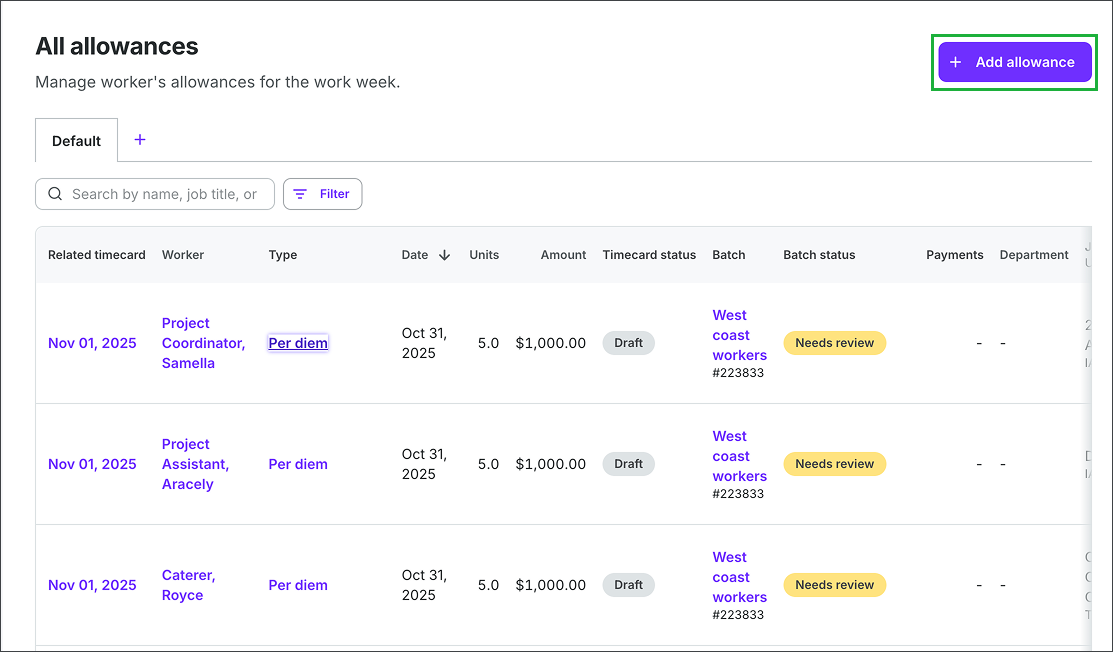
Click the + Add allowance button to add a new allowance to a project worker’s timecard
Search and filter allowances on a project’s All allowances dashboard
Search
Use the Search by name, job title bar to quickly locate a specific worker's allowance by name or job title.
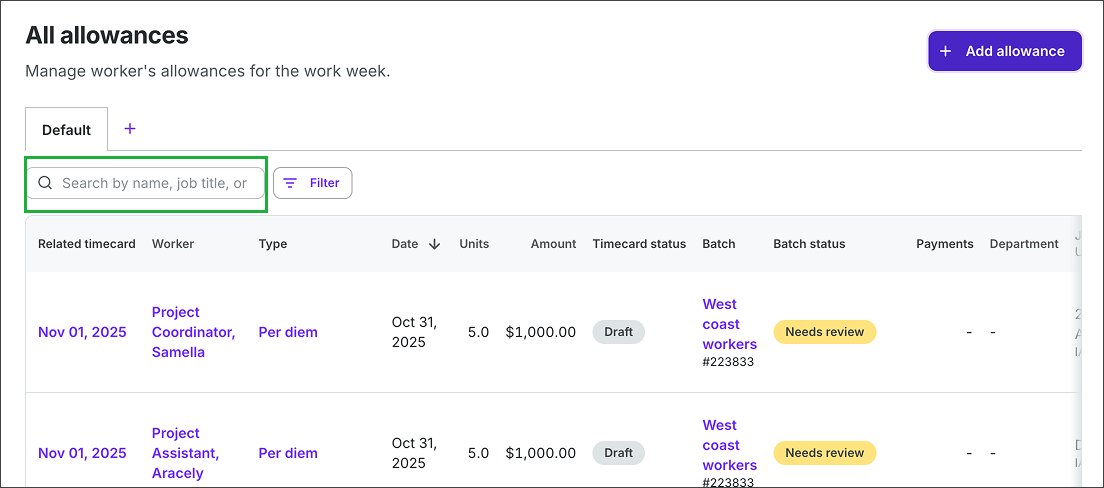
Enter a name or job title in the Search bar
Filter
Click the Filter button to narrow the list by one or more criteria.
You can combine multiple filters at once
To remove a filter, clear the selection from the filter menu
Available filter options are:
Amount
Batch
Batch status
Date
Department
Payment status
Timecard status
Type
Union
Units
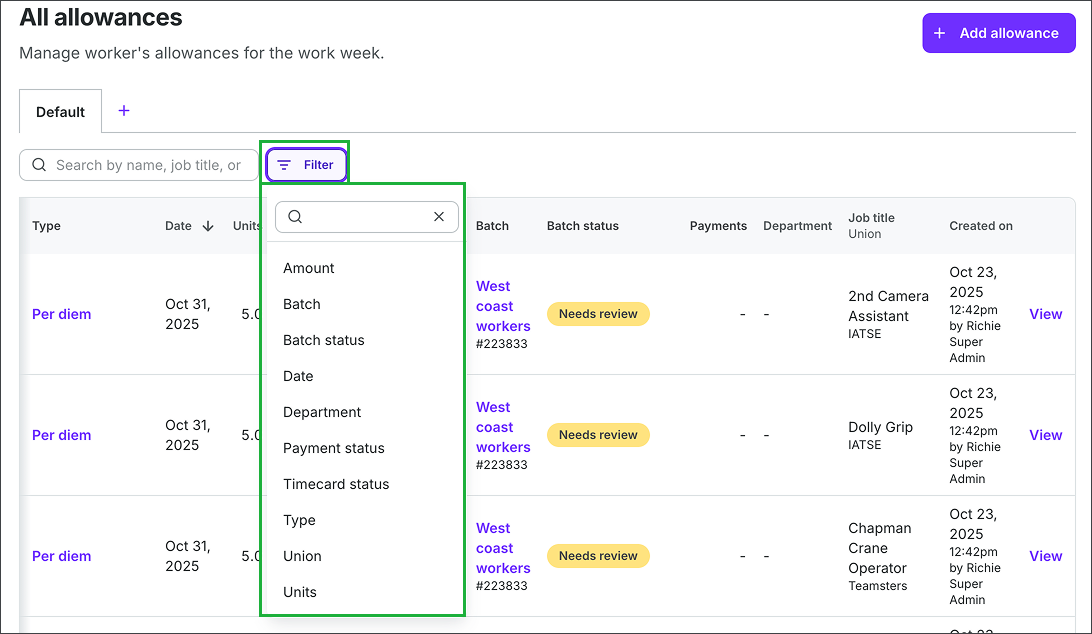
Click the Filter button, the select the filter(s) you want to apply
Saved views
The All allowances dashboard includes a Default view tab. You can create additional saved views to preserve specific filter combinations for quick access.
To create a new view:
Click the + icon next to the Default tab
In the New view modal, enter a name for your view
Click the Save button
To rename, duplicate or delete a saved view, click the small arrow within the saved view tab.
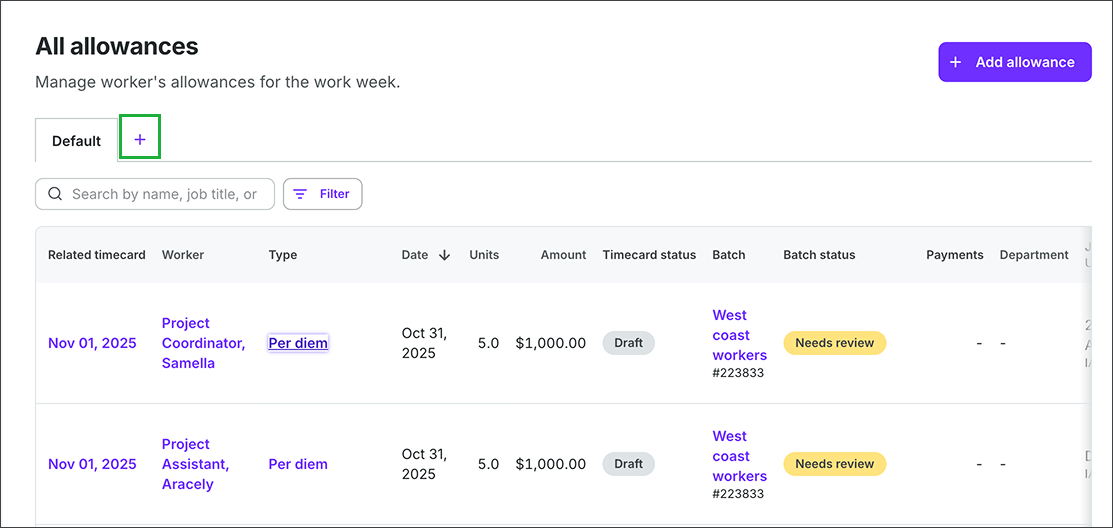
Click the + next to the Default tab
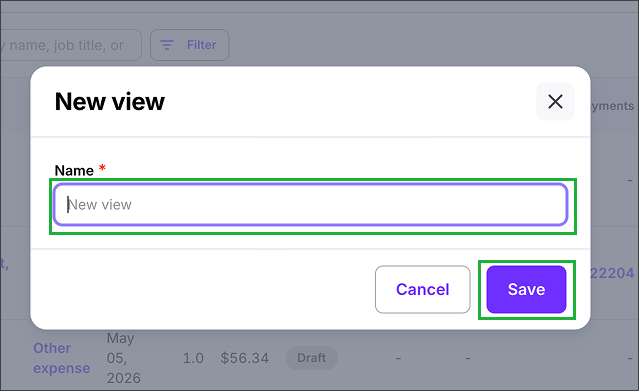
Enter a Name and then click the Save button
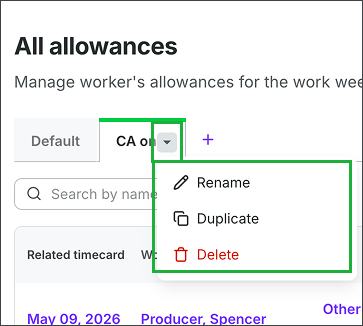
Click the small arrow within a saved view tab to Rename, Duplicate, or Delete it
All allowances dashboard columns and sorting
The table on a project’s All allowances dashboard includes the following columns:
Column | Description |
|---|---|
Related timecard | The timecard date the allowance is linked to |
Worker | The worker's name |
Type | The allowance type (for example Per diem, Kit/box fee) |
Date | The date entered for the allowance |
Units | The number of units submitted |
Amount | The total dollar amount |
Timecard status | The approval status of the related timecard |
Batch | The payroll batch the allowance has been assigned to |
Batch status | The current status of that batch |
Payments | |
Department | The worker's department |
Job title / Union | The worker's job title and union affiliation |
Created on | The date and name of who created the allowance |
You can sort the All allowances table by clicking any of the following column headers:
Worker
Date
Units
Amount
Department
Job title/Union
Created on
Allowance submission status
Each allowance submission on the dashboard has a status that reflects where it is in the review and payroll process. The Timecard status column shows the status of the timecard the allowance is linked to, while the Batch status column reflects the payroll batch it has been assigned to.
The Status field on an individual allowance can be any of the following:
Draft — The allowance submission has been created but not yet submitted into an approval or payroll flow. It can be edited freely at this stage.
Submitted — The allowance submission has been sent for review but has not yet been approved.
Approved — All required approvals are complete. The allowance submission is ready to move forward in payroll processing or batching.
Ready for paymaster — The allowance submission is part of a timecard that requires manual paymaster breakage before it can move forward. It will become available for approval once the paymaster step is complete.
Ready for approval — The allowance submission has been through the paymaster calculation step and is now ready for approval.
Pending — The allowance submission has been approved and is queued for payment processing. It is moving through the payroll disbursement workflow.
Declined — An approver rejected the allowance submission. It returns to the submitter for correction; resubmission restarts the approval flow.
Paid — The allowance submission has been processed and funds have been disbursed. The record is immutable except via reversal workflows.
Cancelled — The allowance submission has been voided and will not be processed for payment. Cancelled allowance submissions are no longer part of the active payroll workflow.
Note: Not all statuses will appear for every allowance or project. The statuses visible on your dashboard depend on your project's approval workflow configuration and payroll setup.
View an allowance and take action
Click View on any row to open the allowance detail panel for that submission.
From this panel, you can take the following actions by clicking the three dots (more actions) button, or the pencil (edit) icon.
Timecard view
Click Timecard view to navigate directly to the related timecard. This is useful for reviewing the full context of a worker's submission alongside their hours.
Download PDF
Click Download PDF to export a PDF copy of the allowance record. This is helpful for record-keeping or sharing with accounting.
Delete
Click Delete to permanently remove the allowance submission.
Note: Deletion is permanent and cannot be undone. Only delete allowances that were submitted in error or are no longer needed.
Export audit log
Click Export audit log to download a record of all actions taken on this allowance item, including who made changes and when.
Edit allowance
Click the pencil icon at the bottom of the detail panel to edit the allowance. You can update fields such as date, units, amount, notes, and attachments.
Note: Editing may not be available for allowances that have already been approved or included in a submitted payroll batch.