Batching project worker timecards is permission based.
To batch project worker timecards, your account must have one of the following roles enabled:
Role: Company Admin, Company Manager, or assigned Project Coordinator
Custom role with: Projects, People & Approvals/Project management - Full access, or Manage; Payroll & Financials/Timecards - Full access, or Create and manage
Overview
Batching is required before running payroll. Items in a batch must be approved before processing.
A batch is a grouped set of timecards and their allowances that will be reviewed together and then processed as one payroll
Batching is the act of creating and managing those groups. This includes naming a batch, adding or removing timecards, keeping items organized by department or union, and preparing the batch for payroll.
Batches are limited to a single Production Entity and cannot mix escrow and non‑escrow items
How to access a project’s Payroll batches dashboard
The Payroll batches dashboard gives you a clear, centralized view of all timecard batches in one place. On the dashboard you can see batch statuses, totals, and any items that need attention so you can finalize approvals and stay payroll‑ready.
The Payroll batches dashboard is accessible at the project level via:
The Project menu, when a project has been selected from the dropdown menu
The project dashboard, in the Payroll section
From the Project menu
To access the Payroll batches dashboard from the left-side navigation:
Click the dropdown menu to select the project
In the Project menu, expand Payroll, and then click Payroll batches
From the project dashboard
To access Payroll batches from a project’s dashboard:
Click the dropdown menu to select the project
On the project dashboard, in the Payroll section, click View payroll batches
Payroll batches dashboard elements
Below is an example of a project’s Payroll batches dashboard.
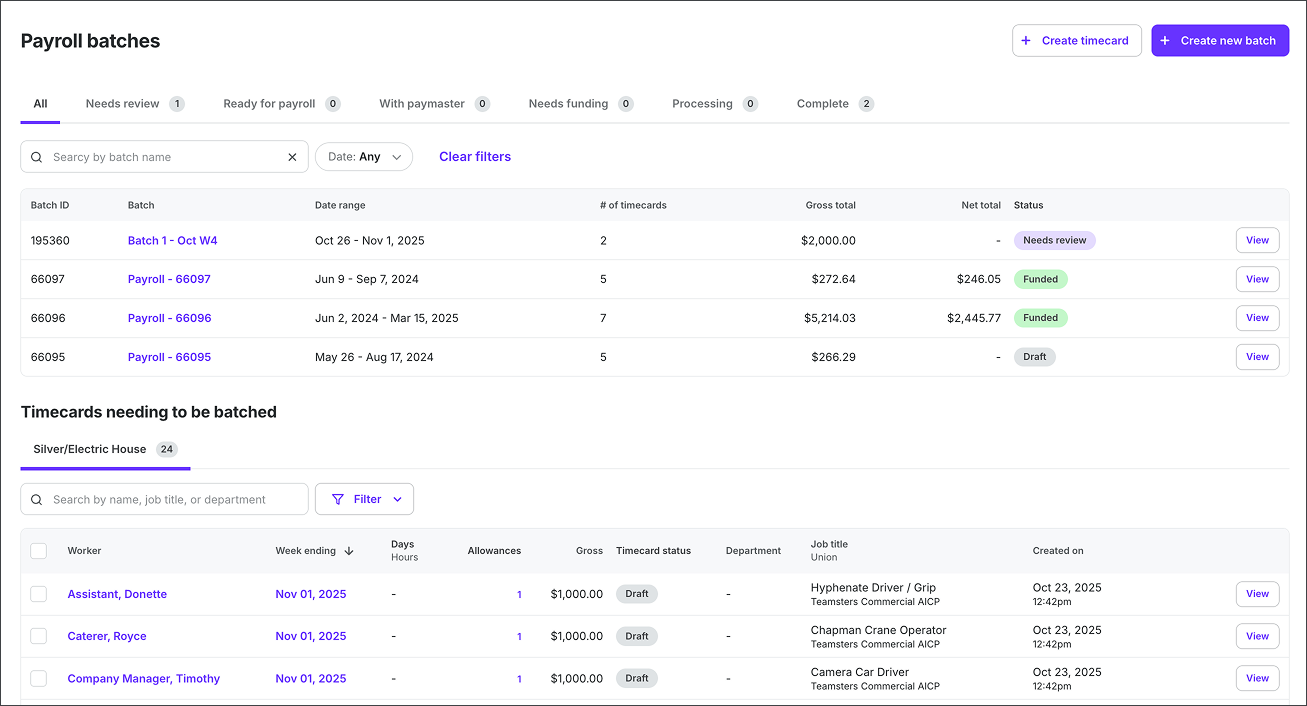
Example of a project's Payroll batches dashboard
The following payroll batch dashboard elements help you understand the state of a payroll batch:
Payroll batch status
In the new timecard experience, payroll batches can have the following status types:
Draft — The batch has been created and is still being assembled or edited before any downstream payroll steps begin
Needs review — One or more timecards in the batch still require company review or approvals before moving forward
Submitted to paymaster / With paymaster — The batch has been sent to the paymaster for wage calculation and validation
Ready for payroll — Company approvals are complete and the batch is ready to be turned into a payroll run
Funding (aka Needs funding) — Payroll has been created and is awaiting funds. Once funding begins, edits are restricted.
Processing — Funding confirmed and the payroll run is in progress. Payments are being issued.
Complete — Payroll for this batch has finished. Use reports and logs for reconciliation and wrap.
Payroll batches dashboard tabs
You can click on the payroll batches dashboard tabs to view batches in the following ways:
All - Shows every batch, regardless of state
Needs review - The batch contains timecards that still require company review or approvals before payroll can proceed. Typical pre‑payroll checks live here.
Ready for payroll - All required timecard approvals are complete and the batch is ready to be turned into a payroll run
With paymaster - The batch is in the paymaster’s queue for wage calculation/validation and submission prep
Needs funding - Payroll has been created and is awaiting funds. No further edits should be made once funding begins.
Processing - Funding confirmed and payroll is in progress. Payments are being issued according to the run’s settings.
Complete - Payroll processing for the batch has finished. Use reports and logs for reconciliation and wrap
Payroll batch grid headers
The payroll batches grid uses the following column headers:
Batch ID - The unique identifier for the batch. Use it to reference or search for a specific batch in reviews and reports.
Batch - The batch name chosen when it was created. Often used to indicate episode, department, union, or pay cycle grouping.
Date range - The work period covered by the batch, typically the earliest to latest work dates of the timecards included
# of timecards - The count of timecards currently included in the batch. This updates as cards are added or removed before processing.
Gross total - Sum of all gross wages for the batch before taxes and deductions. Serves as the pre‑tax control total for reconciliation.
Net total - Sum of all worker take‑home amounts after taxes, deductions, and employer contributions are applied in the payroll run
Status - The current lifecycle state of the batch, used for filtering and workflow.
Timecards needing to be batched
Use this section to find timecards that aren’t in a batch yet, so you can select them, group them into a new or existing batch, and move them toward payroll processing.
If your company has more than one PE, there will be a tab listed for each applicable PE
You can search the list by by name, job title, department
You can filter the list by
Week ending
Gross
Department
Union
Payroll batches dashboard actions
Create a timecard to add to the batch - Click the + Create timecard button to open a drawer where you can search and filter the list project workers. Click the Create button next to the worker.
Create a new timecards batch for payroll - Click the + Create new batch button
Search payroll batches - Use the search bar to find payroll batches
Filter payroll batches by date - Click the Date button to select a timeframe
View the details of a payroll batch - Click the View button next to the batch to go to its Batch page
How to create a batch of timecards for payroll
There are three ways that you can begin creating a new batch of timecards:
From the project’s Payroll batches dashboard - Click the + Create new batch button
From a project worker’s timecards page - Click Add to batch, and then select Create new batch
From the project’s Timecards dashboard, select timecards using the checkboxes, click the Actions button at the bottom of the dashboard, then select Create new batch
In the popup, enter a name for the batch and then click the Create button
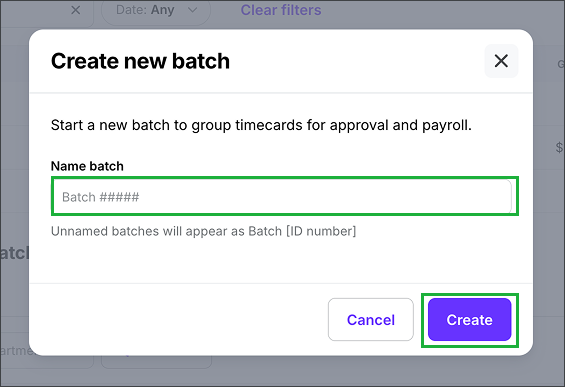
In the popup, enter a name for the batch and then click the Create button
Overview of a Batch page
Once a batch of timecards is created, it will have its own Batch page. The Batch page shows one payroll batch, letting you review included timecards, track status, approve gross after paymaster calculations, and move the batch through funding to run payroll end to end.
How to access a Batch page
You can access a Batch page from a project’s Payroll batches dashboard
To open the Batch page, click the Batch name, or the View button next to it
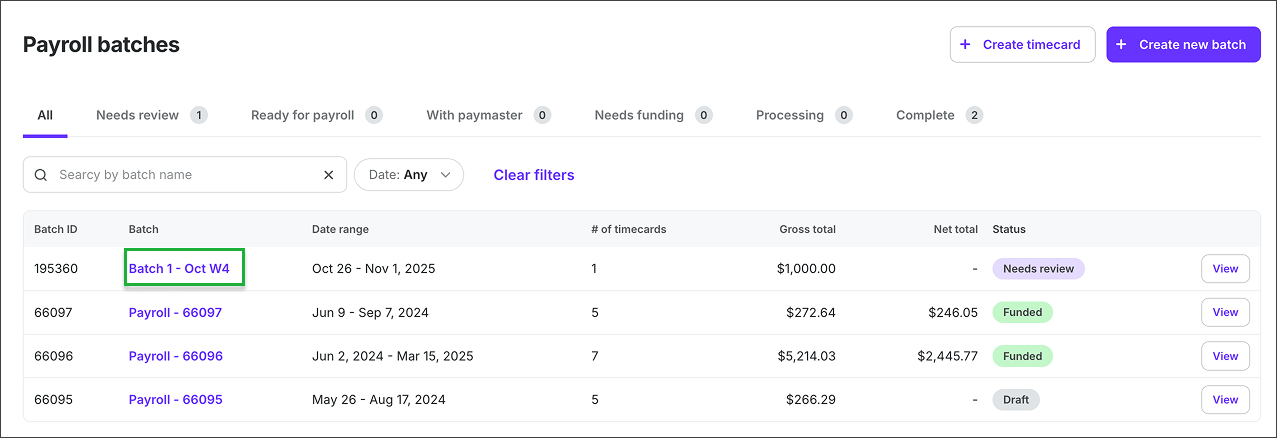
On the Payroll batches page, you can click either the Batch name or the View button next to a specific batch
Batch page elements
Below is an example of a Batch page:
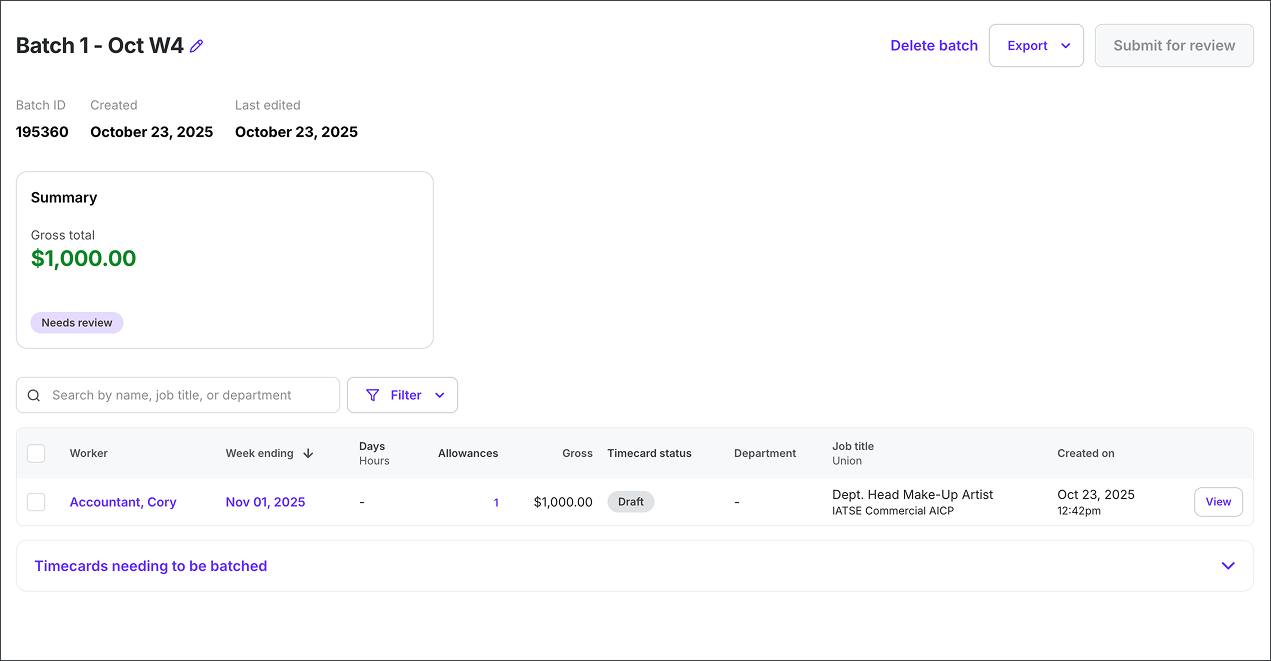
On every Batch page, you’ll find the following:
Batch details
Batch name - To edit the name of the batch, click the edit icon
Batch ID - This number is automatically generated by Wrapbook
Created - Date the batch was created
Last edited - Date the batch was last updated
Batch summary
Gross total - This is the total gross wages for all timecards currently in the batch. It’s the amount paymasters calculate and company users ultimately approve as gross wages prior to funding payroll.
Batch status - The current state of the batch
Batch list headers
The list on a Batch page uses the following column headers:
Worker - The worker’s name on the timecard included in the batch
Week ending - The workweek the timecard covers, shown by its week‑ending date
Days / Hours - A quick tally of worked days and total hours captured on the timecard for that week
Allowances - Count and/or total of additional items added to the timecard (for example, per diem, mileage, kit). These are separated from wages.
Gross - The total gross wages for that timecard as calculated prior to employee deductions and employer taxes
Timecard status - The current state of the timecard submission
Department - The department associated with the project worker or timecard
Job title / Union - The worker’s job title and union/local shown for context and reconciliation
Created on - The timestamp when the timecard submission was created
Batch page actions
From a Batch page, you can take the following actions:
Edit batch name - Next to the batch name, click the edit icon to make your changes. Click the Update button when you’re done.
Delete batch - In the top-right corner of the page, click Delete batch. In the confirmation, click OK
Export a batch - In the top-right corner of the page, click the Export all to pdf button and then select either:
Timecards only
All payables
All paystubs
Direct deposit paystubs
Submit batch for review - Once all items in your payroll batch are approved, click the button in the top-right corner of the dashboard to submit it
If your batch includes union workers, the button will say Submit to paymaster
If your batch does not include union workers, the button will say Submit for review
Once you submit a batch for review, the Delete batch option on the Batch page will be replaced by a Recall batch button, that can be used to cancel the payroll before it’s reviewed by your Paymaster.
Search for timecards in the batch - Use the search bar to find timecards by name, job title, or department. Click the Date button to limit your search to a specific timeframe.
Remove, move, or export worker timecards - Click the checkboxes next to the workers you want to select, then click the Actions button at the bottom of the page and make your selection
See unbatched timecards - Click Timecards needing to be batched to expand the list
Add an unbatched timecard to the batch - Click the checkboxes next to the workers you want to select, then click the Actions button at the bottom of the page and select Add to batch
How to update a batch of timecards
You can update a batch of timecards by going to its Batch page.
You can update a batch any time before it’s funded/credited, but what you can change depends on the batch’s status and the kinds of timecards inside it:
You can edit freely when a batch’s status is Draft
Expect limited but possible adjustments when a batch’s status is Submitted or Ready for Approval
Avoid structural edits after Approved or Ready for Payroll unless you’re prepared to roll back.
Once the status of the batch is Credited, it’s read‑only.
Click the arrow to see how batch status affects your ability to update a batch
Batch status | Rules for updating |
|---|---|
Draft | Fully editable |
Submitted (sent to paymaster for calc.) | Still editable with limits. You can remove a timecard that needs fixes and keep processing the rest. |
Ready for Approval | You can return individual timecards if something’s off. If an approver declines calculations on a timecard, the timecard reverts to Ready for Paymaster and the batch status rolls back to Submitted until the paymaster resubmits calculations. |
Approved | Minimal changes recommended; structural edits may force a re‑review for affected cards. |
Ready for Payroll | Treat as locked unless you roll back status; moving items here will usually push you back to earlier steps. |
Credited | Locked. Funding has been released and payments initiated; you can’t edit the batch contents at this point. |
Add a note to a batch
Once a batch has been submitted to the paymaster, it locks — you can no longer edit timecards or make changes directly. If you need to pass context to your paymaster (a timing request, a correction to expect, or any other information relevant to processing), you can leave a note directly on the batch.
Notes are available until the batch is funded. After funding begins, the option is no longer available.
To add a note to a batch:
Open the batch from the project’s Payroll batches dashboard
Click Add note
Type your message — include any requests, context, or instructions your paymaster needs to know
Save the note. It stays attached to the batch while it remains in the paymaster's queue.
Note: Batch notes are one-way — they are not a back-and-forth conversation. Use notes to pass context to your paymaster; for questions or follow-ups, contact your Wrapbook Paymaster or Customer Success Manager directly.
What paymasters see
Your paymaster sees the note on the payroll summary, displayed prominently so it's visible immediately when they open the batch.
Paymaster acknowledgment
Before your paymaster can send the batch back or release it for funding, they must confirm they have seen your latest note. This acknowledgment step is built into the send-back and release-for-funding workflows — your paymaster cannot skip it if a note is present.
This ensures that context you've added to a locked batch is always reviewed before payroll moves forward.