Accessing the Timecards dashboard is permission based.
To access the Timecards dashboard, your account must have one of the following roles enabled:
Role: Company Admin, Company Manager, or assigned Project Coordinator
Custom role with: Projects, People & Approvals/Project management - Full access, or Manage; Payroll & Financials/Timecards - Full access, Create and manage, Approve only, or View only
Overview
The new Timecards dashboard brings all your project’s submissions, statuses, and approvals into one view, making it easier for you to spot what needs attention first, with clearer labels and sorting that surface pending approvals and exceptions. Filters, tabbed views, and quick actions help you review, approve, or follow up in fewer clicks, so your team moves faster with more confidence.
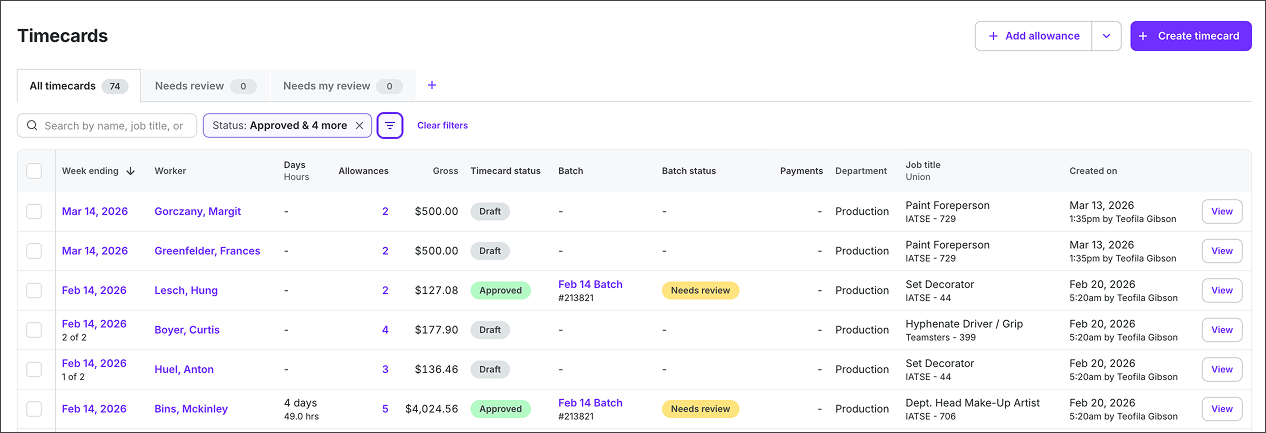
Example of the Timecards dashboard in the new experience
How to access the Timecards dashboard
The Timecards dashboard is accessible at the project level via:
The left-side navigation, when a project has been selected from the dropdown menu
The project dashboard, in the Timecards section
From the left-side navigation
To access the Timecards dashboard from the left-side navigation:
In the left-side navigation, click the dropdown menu to select the project
In the Project menu, expand Payroll menu, and then click Timecards
From the project dashboard
To access the Timecards dashboard from a project’s dashboard:
In the left-side navigation, click the dropdown menu to select the project
On the project dashboard, in the Timecards section, click View timecards
Timecards dashboard elements
Below is an example of a project’s Timecards dashboard:
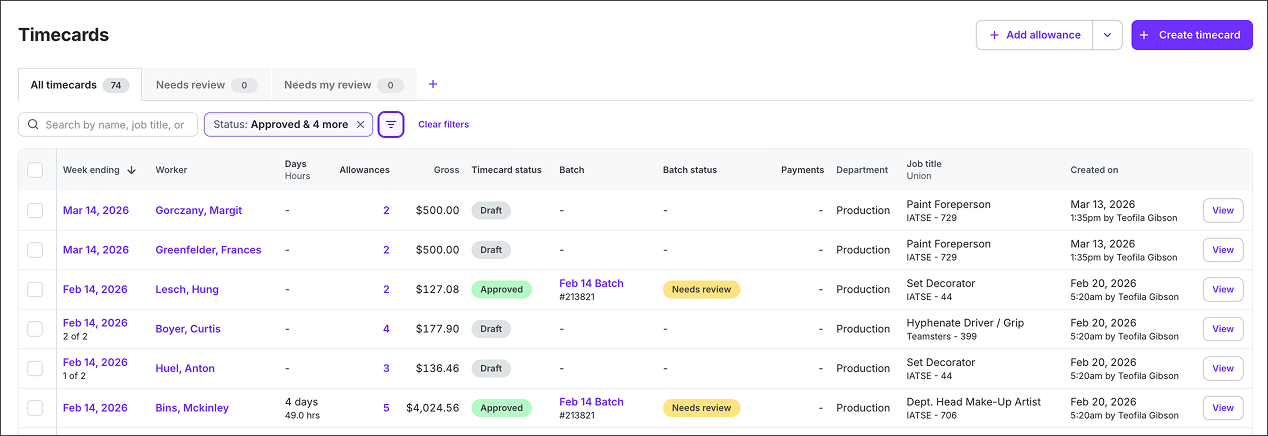
Example of a project's Timecards dashboard
The following dashboard elements help you understand the state of a project’s timecards:
Timecard tabs
You can click the tabs to view:
All timecards - See all timecards that have been created for a project
Needs review - See timecards that need to be reviewed and approved
Needs my review - See timecards that are waiting for your review and approval
You can create tabs to bookmark filtered views of timecards by doing the following:
On the Timecards dashboard, click the + icon next to the timecard tabs
In the New view popup, enter the Tab name, and then click the Create tab button
Each view you create appears as a new tab in the timecard section
Use the filters to customize the view
To rename, duplicate, or delete a tab, click the dropdown icon next to it and choose an option
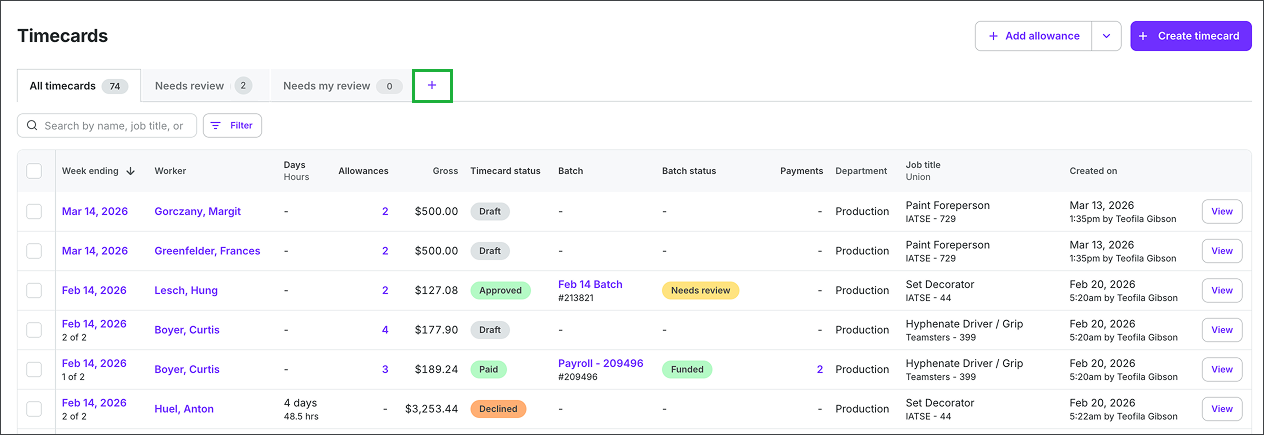
Click the + icon
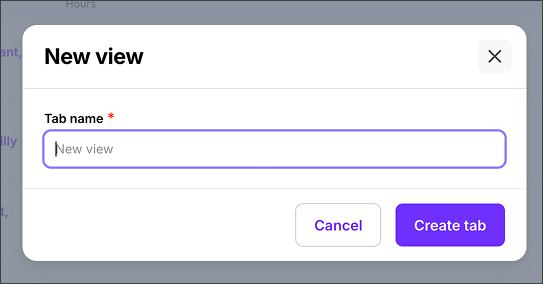
Enter the Tab name, and then click the Create tab button
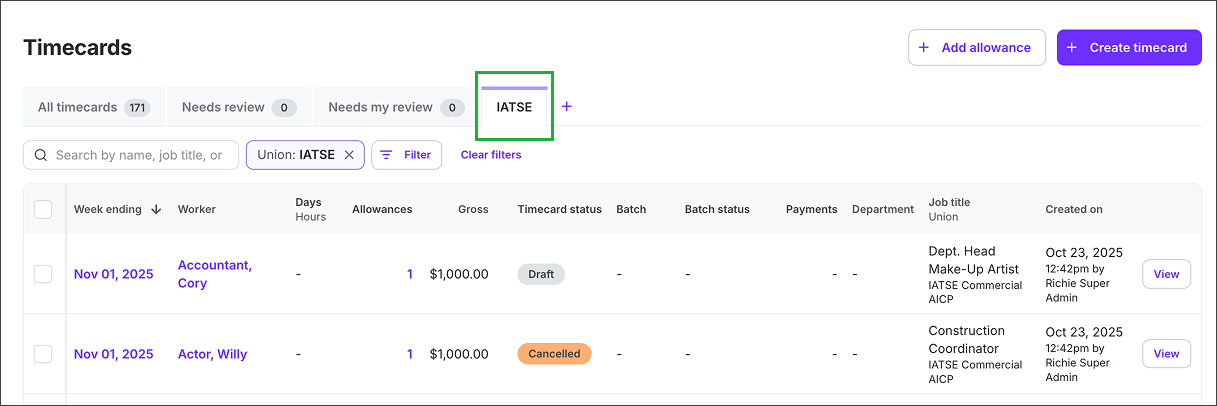
The view you created will be added to the timecard tabs
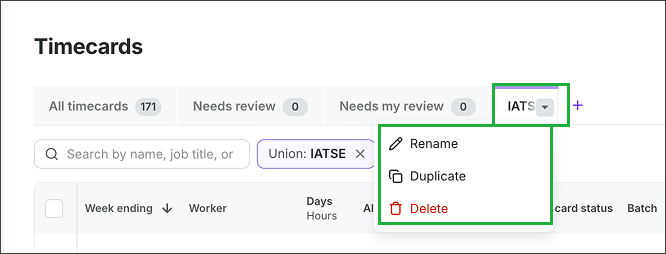
Click the dropdown icon next to the tab to Rename, Duplicate or Delete the tab/view
Timecard status
Timecards can have any of the following status assigned:
Approved - All required approvals are complete. The grid becomes read‑only to general users and the card can move forward in payroll processing or batching
Calculating - Wages and penalties have been computed by paymaster tools or calculation services, but the timecard has not been finally approved or paid yet. It’s ready for financial review and batch placement when applicable.
Canceled - The submission was intentionally withdrawn or voided so it will not proceed in approvals or payroll. Use when the entry should not be processed at all.
Declined - An approver rejected the timecard. It returns to the submitter for changes; resubmission restarts the approval flow.
Draft - The timecard is being edited and hasn’t been submitted into any approval or paymaster flow yet. Edits do not notify approvers
Invalid - Something on the timecard is missing or does not match requirements, so it cannot be processed yet. Update the timecard to fix the issue, then try again.
Paid - The payable has been processed and funds have been disbursed. The timecard is immutable except via reversal workflows.
Pending - The timecard is awaiting action. This commonly means waiting on an approver or paymaster step based on the project’s workflow configuration.
Submitted - The worker or production administrator has sent the timecard for review. It enters the approval queue and can be approved or declined. Updating it may restart approvals.
Timecards grid
The timecards grid contains the following headers:
Worker - The person the timecard belongs to. Shows the worker’s name so you can find and manage the right card.
Week ending - The workweek the timecard covers, keyed to the worker’s workweek configuration. Used for grouping and filtering submissions.
Days / Hours - A quick tally of days worked and total hours for the selected week, derived from the in‑out times entered on the timecard
Allowances - Sum of additional items attached to the timecard such as kit fees, mileage, per diem, or expenses for that week
Gross - The gross wages total for the timecard (before taxes and deductions), including standard and non‑standard earnings
Timecard status - The current lifecycle state of the timecard (for example Draft, Submitted, Approved, Paid), which drives what actions are available
Batch - The payroll batch this timecard is assigned to, if any. Batches are used to organize timecards for processing and funding.
Batch status - The processing state of the associated payroll batch (for example Draft, Calculate, Post, Funding) indicating how close it is to payment
Payments - Payment progress for the worker tied to this timecard, such as whether funds have been issued or are pending within the payroll run
Department - The department the worker is coded to for this project, useful for review, routing, and cost tracking
Job title / Union - The job classification and guild/union affiliation used for correct rates, benefits, and calculations
Created on - The date the timecard submission was created, used for audit history and queue management
Timecards dashboard actions
From the timecards dashboard, you can take the following actions:
Add an allowance - Click the + Add allowance button
Create a timecard - Click + Create timecard button
Search for timecards - Use the search bar to find timecards by name, job title, or department
Filter the list of timecards - Click the filter button to limit the list of timecards by
Batch status
Department
Gross
Issue
Payment
Timecard status
Union
Week ending
Go to a worker’s profile - Click on the worker’s name
Go to a worker’s timecards page - Click the View button next to their name
Bulk select timecards submissions - Click the checkboxes to select timecard submissions, and then click the Action button at the bottom of the dashboard to take any of the following bulk actions:
Approve timecards
Add to batch
Create new batch
Export PDF
Export CSV
Export Audit Log
Export Hot Budget
Export Hot Budget (with headers)