Updating a project worker’s timecard is permission based.
To update a project worker’s timecard, your account must have one of the following roles enabled:
Role: Company Admin, Company Manager, or assigned Project Coordinator
Custom role with: Projects, People & Approvals/Project management - Full access, or Manage; Payroll & Financials/Timecards - Full access, or Create and manage
Overview
While you can update a project worker’s timecards at any time, it’s important to note the following:
✅ You can add allowances to timecards that already have approvals or have been paid
How to update a project worker’s time worked
At the top of the worker’s timecards page, click the dropdown menu to select the end date of the workweek that you want to update
In the Wages grid, click the cells that need updating
If the worker has more than one rate, you can click the cells in the Deal column to select which rate to apply
When you’re done, click the Recalculate button at the top of the page
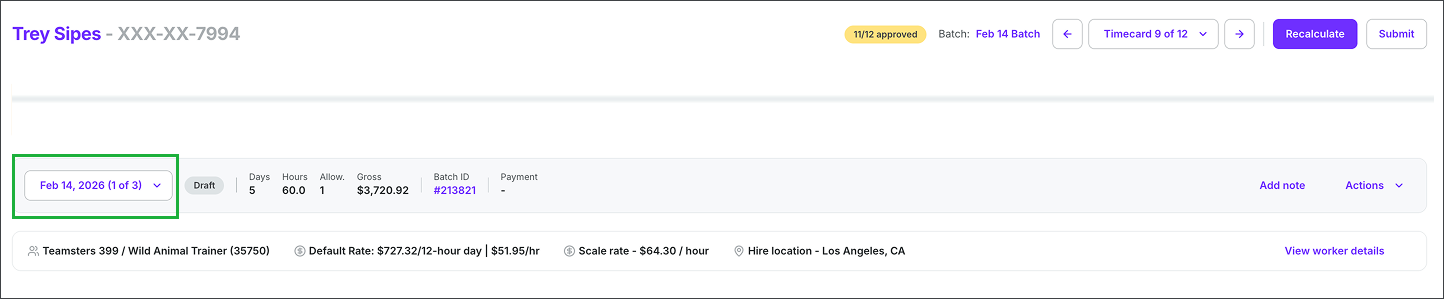
Click the dropdown menu to select the end date of the workweek
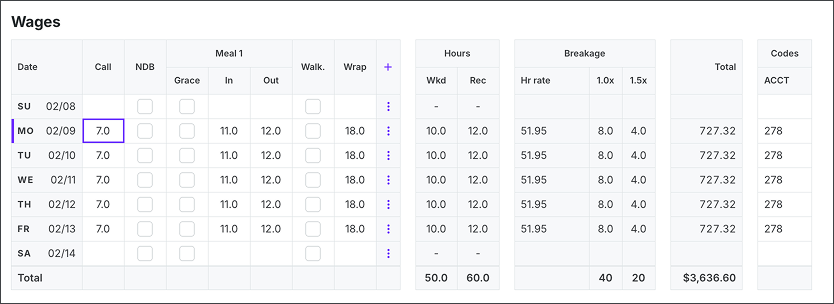
In the Wages grid, click on the cells you want to update

When you’re done, click the Recalculate button
How to update the allowances
At the top of the worker’s timecards page, click the dropdown menu to select the end date of the workweek that you want to update
Scroll down to the Allowances section of the project worker’s timecard
In the Allowances grid, you can:
Update an existing allowance by clicking on the cells and entering your changes
Add an allowance by clicking an empty cell in the Allowance column, making your selection, and then entering the details
Click the dropdown menu to select the end date of the workweek
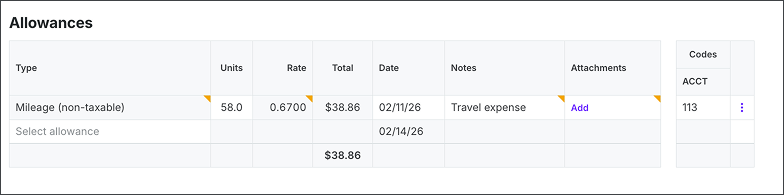
To update an existing allowance, click on the cell and enter your changes. To add an allowance click an empty cell in the Allowance column. Update an existing allowance by clicking on the cells and entering your changes.
How to add a wage adjustment
Wage adjustments can be applied to worker timecards to resolve an error, add missing compensation, or reflect a change in rate or role.
Before making a wage adjustment, be aware of the following:
You can add one wage adjustment per work location shift
The adjustment can be a positive or negative amount
Negative adjustments used for proration are typically not pensionable, so be sure to coordinate these adjustments with your Wrapbook Paymaster/Customer Success Manager to confirm PH&W contributions are calculated correctly
To apply a wage adjustment:
Go to the project worker’s timecards page
At the top of the worker’s timecards page, click the dropdown menu to select the end date of the workweek that you want to add a wage adjustment to
Click the More actions button, and then select Add wage adjustment
In the Add Wage Adjustment popup:
Click to select the Work location if it isn’t already selected
Enter the Wage adjustment amount
Enter a Note explaining why an adjustment was submitted
When you’re ready, click the Add adjustment button
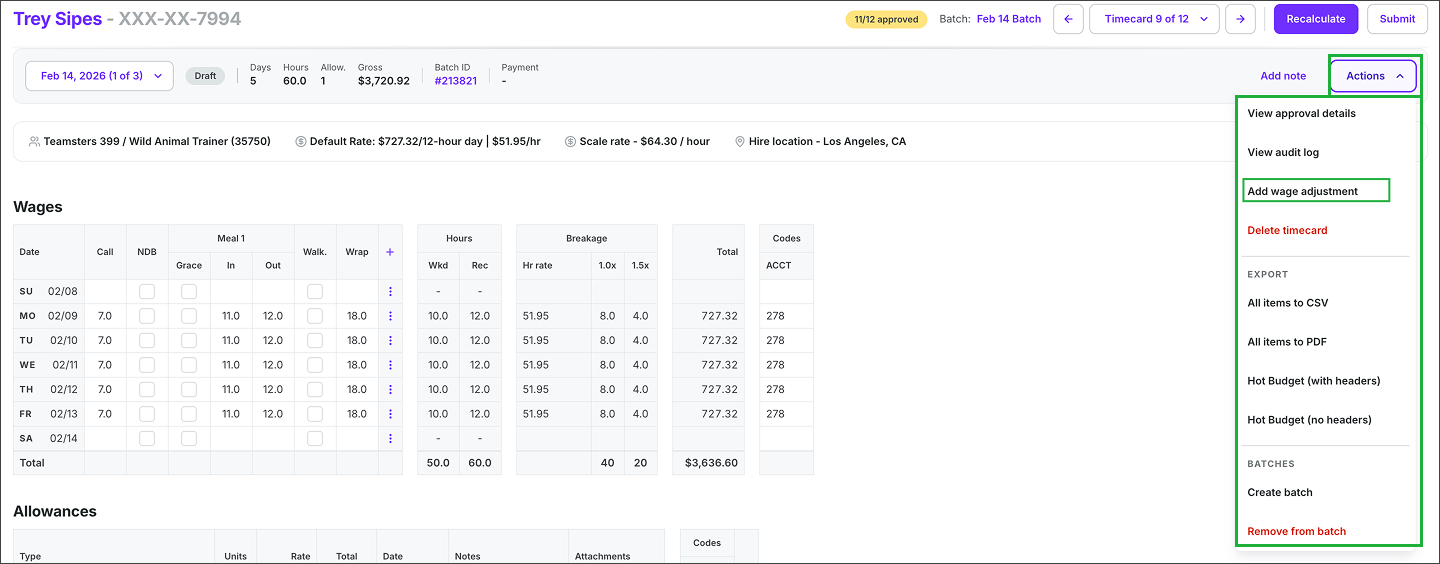
Select the workweek, click the Actions button, then select Add wage adjustment
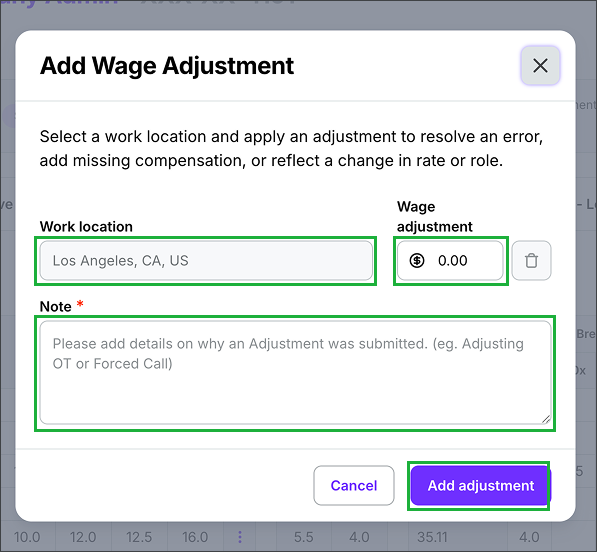
Confirm or select the Work location, enter the Wage adjustment, enter a Note explaining why an adjustment was submitted, and then click the Add adjustment button