Create a timecard for a project worker

Prev Next

This article applies to the New Timecards Experience in Wrapbook.

  • Most companies are using this version

  • If your company is still using the Legacy Timecards Experience, refer to the documentation in Timecards (Legacy Experience)

Overview

Once a project worker has been invited to the project, you can create a timecard for them from the project’s Timecards dashboard.

How to create a timecard for a project worker

Production administrators can use the following steps to create a timecard for a project worker:

  1. At the top of the project’s Timecards dashboard, click the + Create timecard button
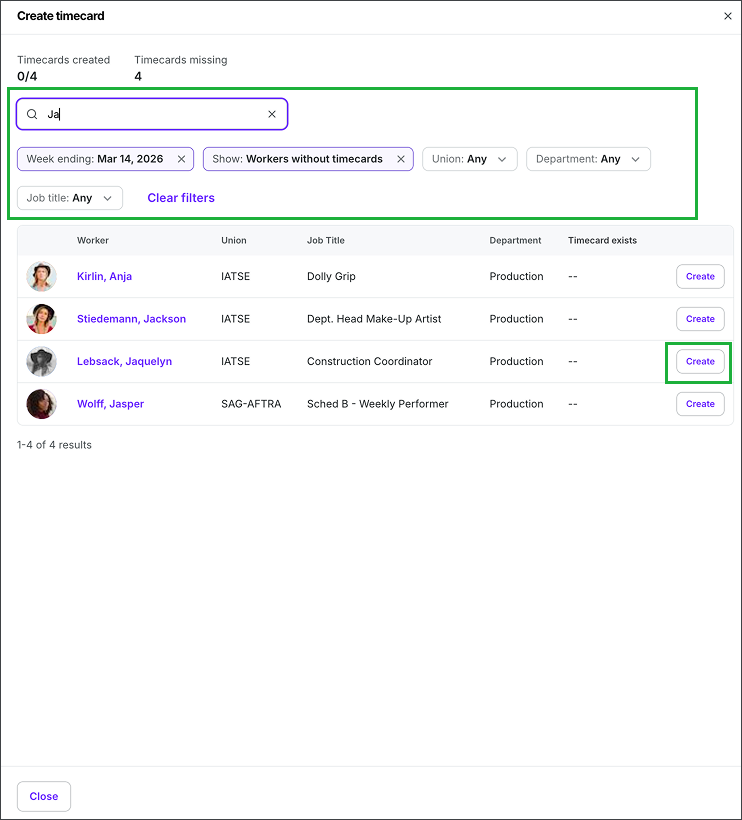
  2. In the Create timecard drawer on the right-side of the screen, use the search bar and the filters to find the project worker that you want to create a timecard for

    • You can search by worker:

      • Name

      • Title

      • Department

    • You can click the filter buttons to display project workers by:

      • Week ending

      • Show - All workers, Workers with timecards, Workers without timecards

      • Union - The options displayed depend on what’s been set in the Project settings/Unions, guilds, and health plans

      • Department

      • Job title

  3. Once you’ve found the worker, click the Create button next to their name

Timecard overview showing worker details, hours, and options to create or add allowances.

On the project's Timecards dashboard, click the + Create timecard button

Timecard creation interface showing workers without timecards for a specific week.

In the Create timecard drawer, use the search bar and the filters to find the project worker that you want to create a timecard for, and then click the Create button next to their name

How to add an allowance from the Timecards dashboard

In the New Timecards Experience, production administrators can add allowances directly from a project’s Timecards dashboard using these steps:

  1. At the top of the project’s Timecards dashboard, click the + Add allowance button

  2. In the Add an allowance popup, click the search bar and then click to select the allowance that you want to add

    • Note that there are now two options for per diem: Per diem Non-Taxable appears at the top of the list, and Per diem Taxable appears at the bottom of the list

  3. Under Details:

    • To add the allowance to more than one day, click the toggle next to Enable multi-date selection

    • Enter the required and optional information. The details that you’re prompted to add depends on the type of allowance selected. Details that are required are marked with an asterisk (*).

    Click the arrow to see the types of allowances that can be added

    Allowance type

    Classification

    Details needed

    Per diem

    Non-Taxable

    Per diem type

    Date of expense

    Daily amount *

    Units *

    Kit/box fee

    Taxable

    Date of expense

    Daily amount *

    Units *

    You’ll be able to download Wrapbook’s inventory template or upload your own inventory file.

    Mileage

    Non-Taxable

    Number of miles *

    Standard mileage rate - will be automatically calculated

    Date of expense

    Total amount *

    You’ll be able to download Wrapbook’s mileage template or upload your own mileage file

    Wardrobe allowance

    Taxable

    Date of expense

    Amount *

    Units *

    Wardrobe cleaning

    Reimbursement

    Date of expense

    Amount *

    Units *

    Buyout - Other

    Taxable

    Date of expense

    Amount *

    Units *

    Buyout residuals

    Pensionable`

    Date of expense

    Amount *

    Units *

    Advance

    Taxable

    Hours worked *

    Date of expense

    Net amount *

    Units *

    Car allowance

    Reimbursement

    Date of expense

    Amount *

    Units *

    Cell phone allowance

    Reimbursement

    Date of expense

    Amount *

    Units *

    Computer allowance

    Reimbursement

    Date of expense

    Amount *

    Units *

    Living allowance

    Reimbursement

    Date of expense

    Amount *

    Units *

    Meal allowance

    Reimbursement

    Date of expense

    Amount *

    Units *

    Other

    Select type of expense:
    Reimbursement (non taxable)

    Invoice

    Per diem

    Taxable

    Date of expense

    Amount *

    Units *

    • When entering the allowance details, you’ll have the option to add:

      • Work location

      • Notes

      • Attachments - Click the Select a file button to add a file that’s saved to your computer

      • Account codes

  4. For Workers, click to select the workers that get the allowance, and then click the Continue button

    • You can enter names and titles into the search bar to find specific workers

    • If you don’t see the worker listed, make sure that they have been invited to the project first.

  5. For Review, verify that the details added are correct. When you’re ready, click the Continue button and the allowance will be added.

Timecard overview displaying worker details, allowances, and payment statuses for payroll processing.

To add an allowance, you can click the + Add allowance button directly on the project's Timecards dashboard

Selecting meal allowance reimbursement from the expense options in the allowance menu.

In the Add an allowance popup, click the search bar and then select the allowance type

Form for adding meal allowance with fields for date, amount, and work location.

In the popup, enter the required and optional details. To add the allowance to more than one day, click the Enable multi-date selection toggle. To apply worker default account codes, click the checkbox at the bottom of the popup. When you’re ready, click the Continue button.

Meal allowance selection for workers including various roles and total amount displayed.

Enter a name or title into the search bar and/or click to choose the project workers that received the allowance, then click the Continue button.

Form for adding meal allowance with details, amount, and submission button highlighted.

Review the details and then click the Submit button

Timecard overview displaying worker details, hours, allowances, and payment information for review.

The allowances will be listed on the Timecards dashboard

How to add an unworked holiday

An unworked holiday is holiday pay for a day the worker did not work.

To add an unworked holiday:

  1. On the project’s timecards dashboard, click the arrow icon within the +Add allowance button

  2. Select Add unworked holiday

  3. In the Add unworked holiday popup, click on the fields to add the Workers & rate details, and then click the Continue button

  4. Next, add the Hours & details, and then click the Continue button

  5. Review the details and then click the Submit button

Timecards interface showing options to add allowance and unworked holiday.

Click the arrow icon in the +Add allowance button, and then select Add unworked holiday

Form to add unworked holiday with details like date, location, and worker information.

In the Add unworked holiday popup, select the Date, Work location, and then use the search bar to find the worker(s).  Click the checkbox next to worker(s), select the Rate, and Timecard workweek end date. When you’re ready, click Continue.

Form for adding unworked holiday with details like rate, hours, and notes.

Next, add the Hours & details. When you’re ready, click the Review button.

Form for adding unworked holiday details, including worker information and submission button.

Review the details, and then click the Submit button

Overview of a project worker’s timecards page

The new worker timecards page delivers a clear, streamlined view of each submission and status, making it faster and easier to review and take action.

When managing project worker timecards, it’s important to note that some elements within the timecard grid appear dynamically to reflect Project and Payroll settings and details within worker profiles.

Wage details for Trey Sipes, including hours worked and total earnings for the week.

Example of a project worker's timecards page

How to access a project worker’s timecards

You can access a project worker’s timecards page via:

  • Their project-level worker profile - Click the Manage worker timecards button to go to the worker’s timecards dashboard

  • The project’s Timecards dashboard - In the timecards grid, click the View link

Summary of Trey Sipes' job details as a Wild Animal Trainer including pay and allowances.

From the project-level worker profile, click the Manage worker timecards button

Timecard overview showing worker details, hours, and payment status for review.

To view a worker's timecard from the project’s Timecards dashboard, click the View link in one of their submissions listed in the grid

Project worker timecard page elements - top section

Below is an example of the top section of a project’s worker’s timecard page:

Wage details for Trey Sipes, including hours worked and total earnings for the week.

Example of the top section of a worker’s timecard page

The following worker timecards page elements help you understand the state of a worker’s timecards:

Project worker timecard summary

At the top of a project worker’s timecards page, directly under their name, you can click the date to select the timecard you want to see. Individual timecards are identified by the end date of the applicable workweek.

In the summary you’ll see:

  • The status of the selected timecard

  • The number of days in the timecard

  • The hour worked

  • The number of allowances added

  • The gross pay

  • A link to the payment if it's been processed

Project worker details

Directly under the timecard summary are the details for the project worker including:

  • Union affiliation / Department - The worker’s guild or union for this project and the department they’re working in. This determines available job titles, benefit and overtime rules, and can affect rates and day types.

  • Default rate - The primary rate that pre-fills on the timecard for this worker and job. It’s the rate most entries will use unless you select a different rate for a given day or segment.⁠⁠​

  • Scale rate - The contractually defined minimum for the worker’s union and classification. It’s a reference point to ensure the paid rate meets or exceeds union minimums for the applicable agreement.

  • Hire location - The work location on file for the worker’s engagement. This influences tax handling and which local rules may apply when the timecard is calculated.

Click View worker details to see the following without leaving the page:

  • Identity and classification

    • Worker name and preferred name

    • Employment type indicator, including loan‑out or contractor status

    • Last four of SSN for ID verification

    • Union affiliation and Department

    • Production Entity, if the project uses multiple entities

  • Rates and pay context

    • Rate info for the worker’s current job setup, including available rates

    • Default rate that pre‑fills on the grid

    • Agreement‑driven context that affects how wages calculate

  • Coding and accounting defaults

    • Default account coding for the worker that seeds the Line # / Account code cells on the Wages grid

  • Location and compliance

    • Hire state or hire location used for tax and rule application

  • Allowances and other key info

    • Project‑worker allowances and related settings that impact payables and totals

Wages grid

The headers that appear in the Wages grid depend on the Project and Payroll settings and the detail on the worker’s profile page.

Click the arrow to see the list of headers that can appear in the wages grid

Default headers

  • Call - Call time for the day, used to derive hours and premiums

  • Meal 1, Meal 2 - Meal in and out times that drive meal breakage and penalties

  • Wrap - End of day time, used to compute total and consecutive hours

  • Account code - The cost code applied to that day’s work so payroll dollars land in the right place in your budgets and accounting

Time and day context headers

  • Hours worked — Computed total hours for the day from in‑out times

  • Hours recognized — Hours that count toward pay per rules (may differ from raw hours when caps/thresholds apply)

  • Travel duration — Travel time counted for pay where applicable

  • Consecutive hours — Hours since last wrap, used for turnaround rules

Pay, rates, and overtime headers

  • Rate — The applicable base rate for the segment/line of work (shows 1.0x, 1.5x, 2.0x etc. as needed)

  • Wages ST — Straight‑time earnings for the day

  • Wages OT (1.5x, 2.0x, 3.0x) — Overtime buckets and their earnings

  • Other — Other wage components tied to the day (for example, holiday pay, special day types)

Location and coding

  • Work location — Where the work occurred, used for taxes and compliance

  • Line # / Account code — Cost code applied to the day for accounting and reporting; defaults can be overridden inline.

Context and controls

  • Notes — Per‑day notes for approvers and payroll review

  • Day type / Work type — Labels like regular, sixth/seventh day, holiday, idle, which determine rules and rates. Shown when required by a union agreement.

  • Work zone — Geographic/zone

  • Breakage (read‑only) — System‑computed penalties and adjustments; visible to help check math prior to submission.

Project worker timecards page actions - top section

From the timecards dashboard, you can take the following actions:

  • Select the timecard date - At the top of the page, click date dropdown button to select a timecard based on its week ending date

  • Add to batch - Click Add to batch to add to a new or existing batch

  • Add a note - Click Add note to open a drawer where you can review and add notes that the project worker can see

  • See approval details, View audit log, Add other item, Add wage adjustment, Delete timecard - Click the Actions button and make your selection

  • Toggle between timecards - When a worker has multiple timecards for the workweek that have been added to a batch, you can click the arrows at the top of the page

  • Go to the timecard batch - When a timecard has been added to a batch, you can click the batch name

    • Export

      • All items to CSV

      • All items to PDF

      • Hot Budget (with headers)

      • Hot Budget (no headers)

  • Run wage calculations - Click the Calculate / Recalculate button at the top of the page

  • Submit the timecard for review - Click the Submit button

Project worker timecard page elements - lower section

The lower section of a worker’s timecard page displays additional pay items and a summary of how the timecard totals are calculated.

Detailed breakdown of allowances and wages including mileage and reimbursements.

Example of the lower section of a worker’s timecard page

This section includes the following areas:

  • Allowances

  • Other wages

  • Breakdown

These sections allow production administrators to review additional compensation items and see how they affect the worker’s total pay for the selected timecard.

Allowances

The Allowances section displays allowance items that have been added to the worker’s timecard.

Each row represents a specific allowance entry and may include the following fields:

  • Type – The allowance type selected

  • Units – The quantity associated with the allowance

  • Rate – The rate used to calculate the allowance

  • Total – The calculated amount for the entry

  • Date – The date associated with the allowance

  • Notes – Optional notes added to the entry

  • Attachments – Files that can be uploaded to support the allowance

  • Codes / ACCT – The account code associated with the entry

When an allowance is added, the calculated amount appears in the Total column.

Allowance amounts are included in the totals shown in the Breakdown section.

Other wages

The Other wages section allows you to add additional pay items that are separate from the standard wages grid.

Each entry includes fields such as:

  • Type – The selected expense or wage type

  • Rate – The amount associated with the entry

  • Total – The calculated total for the item

  • Dates – The date associated with the entry

  • Attachments – Files that can be uploaded to support the entry

  • Notes – Optional notes

  • Codes / ACCT – The account code applied to the item

To add an entry, select an option from the Select expense type field and complete the available fields.

Items added in this section are included in the totals shown in the Breakdown section.

Breakdown

The Breakdown section provides a summary of the amounts calculated for the worker’s timecard.

This section displays totals derived from the wages grid and any additional items entered in the Allowances or Other wages sections.

You can use the Show codes toggle to display the account codes associated with each item.

The breakdown is organized into the following groups.

Wages

The Wages portion summarizes earnings generated from the worker’s time entries.

Common rows include:

  • Straight Time

  • Overtime

Each row may display:

  • Units

  • Multiplier (Mult)

  • Rate

  • Amount

  • Work location

  • Deal

  • ACCT (account code)

A Subtotal row displays the total earnings from wages.

Additional items

The Additional items portion lists items added outside of the wages grid, including entries from the Allowances and Other wages sections.

Each item includes information such as:

  • Units

  • Rate

  • Amount

  • Work location

  • Deal

  • Account code

A subtotal is displayed for these additional items.

Total

At the bottom of the section, the Total reflects the combined amount of:

  • Wages

  • Allowances

  • Other wage items

This total represents the full value of the timecard for the selected workweek.
