Creating a timecard for a project worker is permission based.
To create a timecard for a project worker, your account must have one of the following roles enabled:
Role: Company Admin, Company Manager, or assigned Project Coordinator
Custom role with: Projects, People & Approvals/Project management - Full access, or Manage; Payroll & Financials/Timecards - Full access, or Create and manage
Overview
Once a project worker has been invited to the project, you can create a timecard for them from the project’s Timecards dashboard.
How to create a timecard for a project worker
Production administrators can use the following steps to create a timecard for a project worker:
At the top of the project’s Timecards dashboard, click the + Create timecard button
In the Create timecard drawer on the right-side of the screen, use the search bar and the filters to find the project worker that you want to create a timecard for
You can search by worker:
Name
Title
Department
You can click the filter buttons to display project workers by:
Week ending
Show - All workers, Workers with timecards, Workers without timecards
Union - The options displayed depend on what’s been set in the Project settings/Unions, guilds, and health plans
Department
Job title
Once you’ve found the worker, click the Create button next to their name
Click on the fields to enter the project worker’s information and time worked. To learn more, see Using the admin view of a project worker's timecard.

On the project's Timecards dashboard, click the + Create timecard button
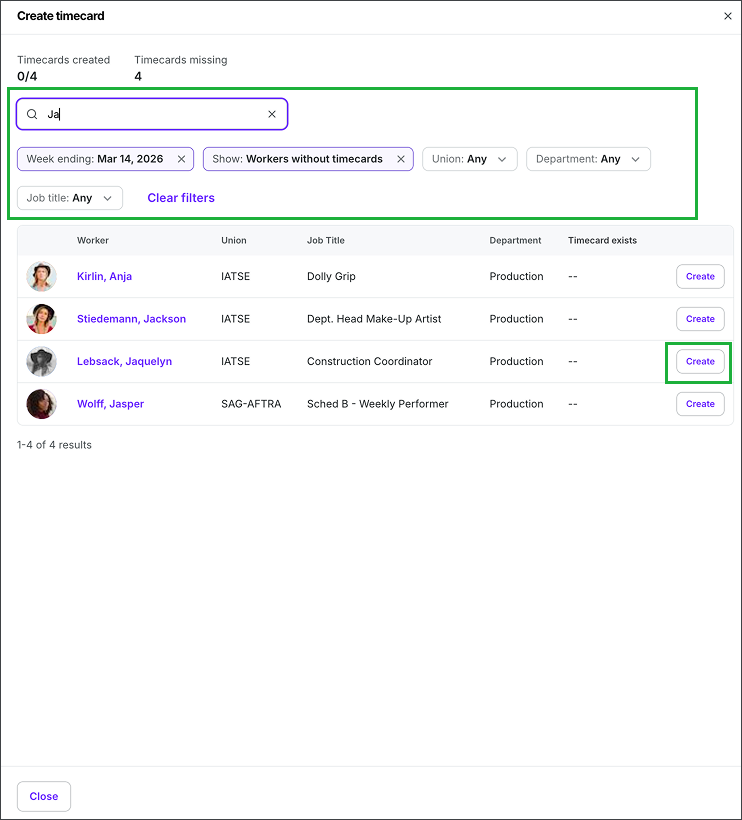
In the Create timecard drawer, use the search bar and the filters to find the project worker that you want to create a timecard for, and then click the Create button next to their name
Keeping wages and allowances on separate timecards
In the admin view of a project worker’s timecard, the project worker's wages and allowances appear together by default. If you need to review or process selected wages and allowances separately, you can move those items to another timecard for the same worker and workweek.
To move selected items to another timecard:
Open the worker's timecard from the project's Timecards dashboard
Select the wages or allowances you want to move
Open the Actions menu and select Move to a new timecard
Review the new timecard and confirm that it contains the items you selected
Review, submit, and approve the original and new timecards separately
Project workers can create additional timecards for the same workweek through their worker timecard.