Adding an unworked holiday to a project worker’s timecard is permission based.
To add an unworked holiday to a project worker’s timecard, your account must have one of the following roles enabled:
Role: Company Admin, Company Manager, or assigned Project Coordinator
Custom role with: Projects, People & Approvals/Project management - Full access, or Manage; Payroll & Financials/Allowances - Full access, or Create and manage
Overview
An unworked holiday is holiday pay for a day the worker did not work. Production administrators can add unworked holidays directly from the project's Timecards dashboard to ensure workers are compensated correctly for applicable holidays.
How to add an unworked holiday
An unworked holiday is holiday pay for a day the worker did not work.
To add an unworked holiday:
On the project’s timecards dashboard, click the arrow icon within the +Add allowance button
Select Add unworked holiday
In the Add unworked holiday popup, click on the fields to add the Workers & rate details, and then click the Continue button
Next, add the Hours & details, and then click the Continue button
Review the details and then click the Submit button

Click the arrow icon in the +Add allowance button, and then select Add unworked holiday
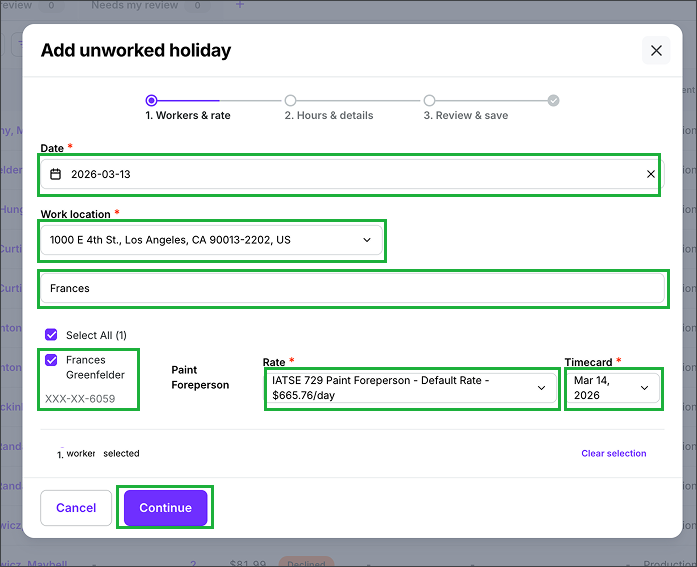
In the Add unworked holiday popup, select the Date, Work location, and then use the search bar to find the worker(s). Click the checkbox next to worker(s), select the Rate, and Timecard workweek end date. When you’re ready, click Continue.
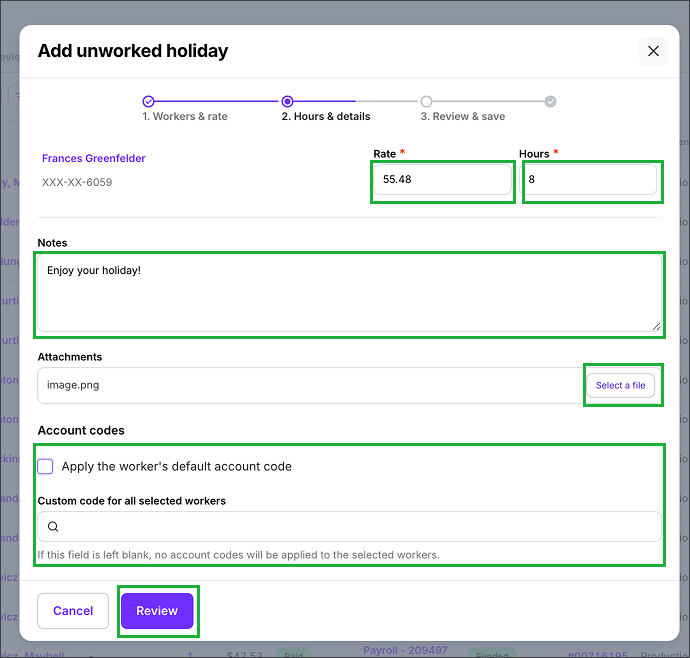
Next, add the Hours & details. When you’re ready, click the Review button.
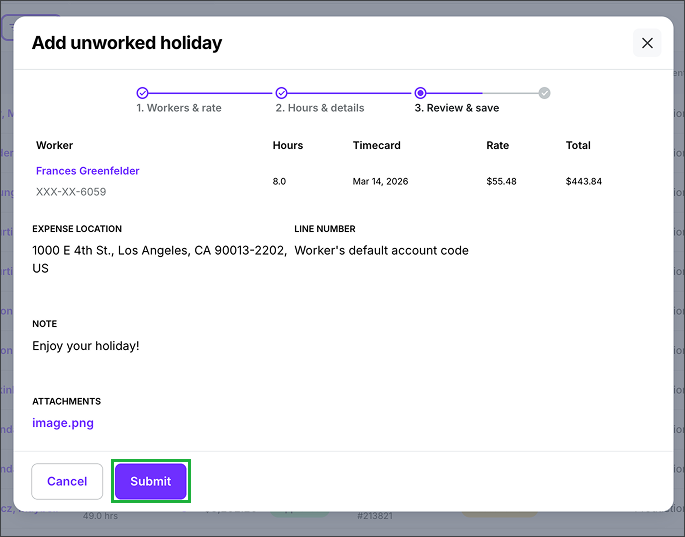
Review the details, and then click the Submit button