This help article is related to Cost tracking
In Wrapbook, production accountants and administrators can manage accounting tasks using either Cost tracking or the Production Accounting Suite
To understand the differences, click here
Merging vendors in Cost tracking is permission based
To merge vendors in Cost tracking, your account must have one of the following roles enabled:
Role: Company Admin, Company Manager
Custom role with: Accounting & Cost Tracking: Vendors - Full access
Overview
If your company has the same vendor entered more than once, you can use the vendor merge tool to combine them into a single record. Merging preserves all linked invoices, payment history, and W-9 documents for both vendors — no data is lost. This is useful for cleaning up your vendor list before tax season or when you notice duplicate records that were created at different points in time.
How to merge duplicate vendors
Use these steps to merge duplicate vendors:
Go to your company’s All vendors dashboard
Click the Merge duplicate vendors button in the top-right corner of the All vendors dashboard
On the Merge duplicate vendors page, use the Search bars under Vendor 1 and Vendor 2 to find and select the two vendors that you want to merge, then click the Continue button
On the Select the information to keep page, review each field where the two vendor records differ. Click to choose the version you want to keep, then click Continue.
Where both vendors have identical information, Wrapbook will note this and no selection is needed
If both vendors have an empty or blank field, you don't need to make a selection for that field
In the Confirm vendor merge popup, review the information that you’ve chosen to keep. If it looks correct, click the Continue button.
Merging vendors is permanent and cannot be reversed. Make sure to review the confirmation summary carefully before clicking Continue button. If you need to un-merge vendors, please contact the Wrapbook Support Team for assistance.
If you need to adjust the information you chose to keep on the previous page, click the Back button
What happens next:
After merging, you'll be taken to the updated vendor's detail page
A confirmation banner will appear
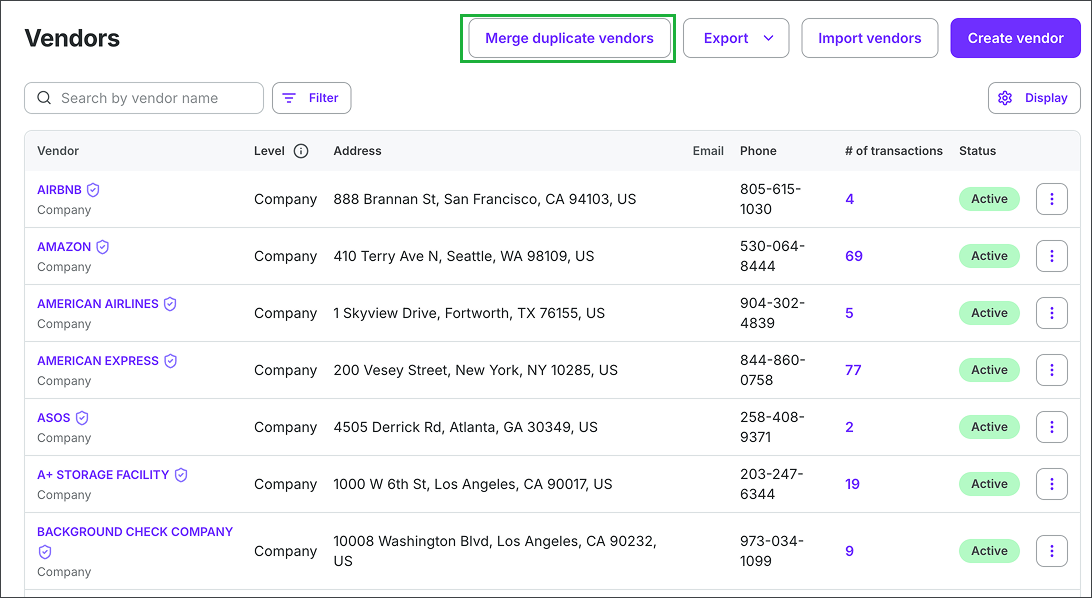
Click the Merge duplicate vendors button
.png)
Click the Search bars under Vendor 1 and Vendor 2, then search for and select the two vendors you want to merge
.png)
Compare the two vendor records, then select the details you want to keep. When you’re ready, click Review.
.png)
Review the information to be included for the vendor once merged, then click the Merge duplicate vendors button
FAQ
To help you manage duplicate vendors in Cost tracking, we’ve put together this list of frequently-asked questions.
Click the arrow next to a question to see the answer.
Can I merge two vendors that both come from my accounting integration?
No. You can only merge one integration-managed vendor with one Wrapbook-managed vendor. If you try to merge two integration-managed vendors, you'll receive an error. To resolve duplicate vendors that both exist in your accounting system, update them directly in your external accounting system (integration) so the changes sync to Wrapbook.
What happens to the invoices and payment history from both vendors after the merge?
All invoices and payment history from both vendor records are preserved and linked to the merged record. Nothing is deleted.
Can I undo a merge?
No — merges are permanent and cannot be reversed from within Wrapbook. If you need to undo a merge, contact the Wrapbook Support Team.
Why are some fields greyed out and pre-selected on the merge screen?
Fields from your integration-managed vendor are controlled by your accounting integration and can't be edited in Wrapbook. Those fields will automatically carry over to the merged record. To change them, update the vendor in your external accounting system (integration) and let the changes sync.
Can I merge more than two vendors at once?
Not at this time. The merge tool supports combining two vendors at a time. If you have a large number of duplicates to clean up, contact the Wrapbook Support Team for assistance.