Overview
The All vendors dashboard is where you can manage vendors that your company works with.
How to access the All vendors dashboard
Company-level vendor access is available through All vendors. The Vendors dashboard option may also appear in the Project menu for PAS projects.
Company view
In the left-side navigation, under Company, click …More
In the …More menu, click All vendors
PAS project view
In the left-side navigation, click the dropdown menu
Select the PAS project you want to open
In the Project menu, click Vendors
Both paths open the All vendors dashboard.
See an overview of vendor details
On the All vendors dashboard, vendor names are listed along with the following details: Level, Address, Email, Phone, # of transactions, and Status
Search for vendors
To find vendors, enter the vendor’s name in the Search by vendor name field
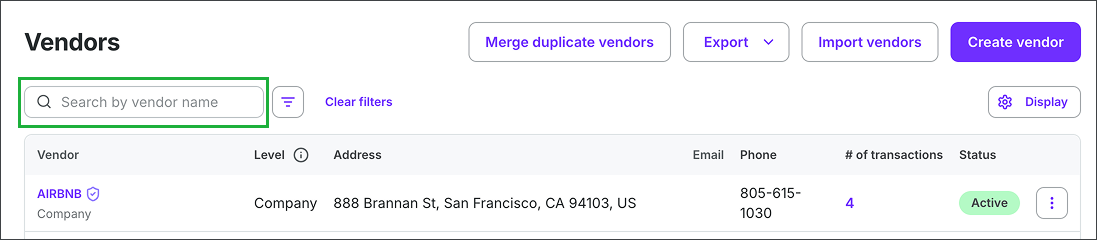
Search by vendor name
Customize and sort the list of vendors
You can use the Display button on the All vendors dashboard to:
Show/hide and reorder columns
Sort vendors in the list
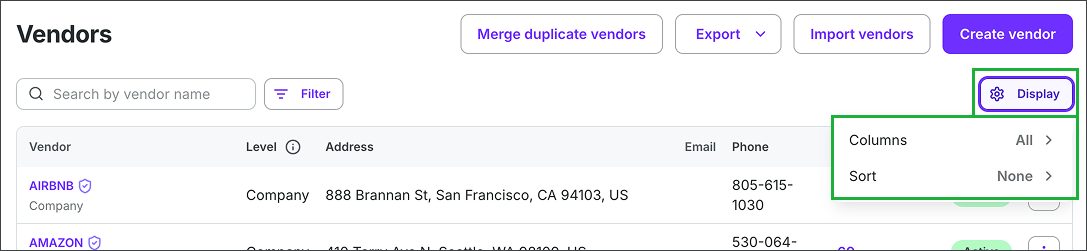
Click the Display button and then select either Columns or Sort
Show/hide and reorder columns
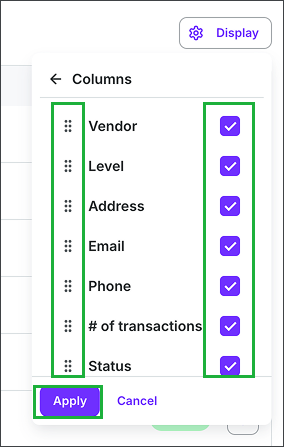
Click on the dots next to a column and drag to reposition it in the column order. Click on the checkboxes to show/hide columns. When you’re done configuring the columns, click the Apply button.
Sort vendors in the list
On the All vendors dashboard, click the Display button
Select Sort
In the Sort by menu you can select either:
Vendor - Low to High
Vendor - High to Low
Email - Low to High
Email - High to Low
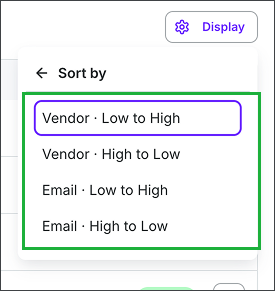
Click to select the sorting method for the vendors list
Filter vendors
Click the Filter button to display vendors by:
Level - select Company or Project level
Transactions by project - select a project
Vendor status - Any, Active or Inactive
Vendor type - Any, Company or Individual
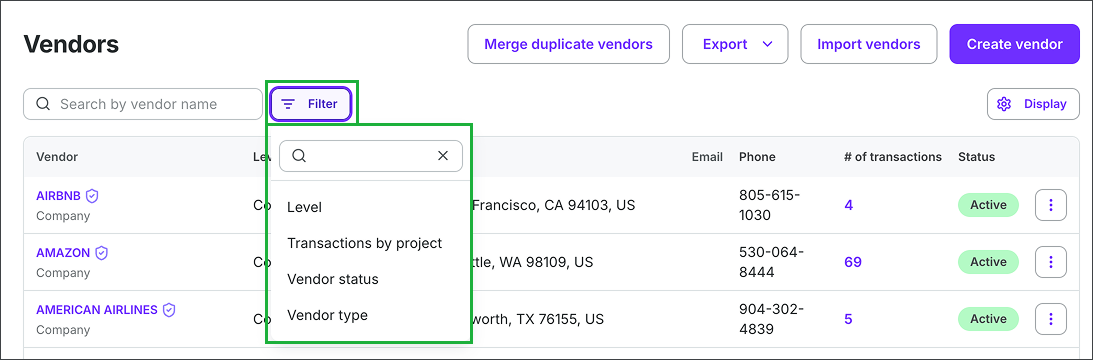
Click the Filter button to refine the Vendors list
Vendor access levels
In Wrapbook, vendors can be created at the company and project levels. You can see what level of access a vendor record has on the Vendor dashboard in the Level column.
Company-level vendors are shared across projects and have persistent records managed centrally by the company
Project-level vendors are tied to a specific project and are added at the time of invoice or PO creation. Creating a vendor at the project level does not replace or change any existing company-level vendor record for the same vendor. See Managing duplicate vendor records to learn more.
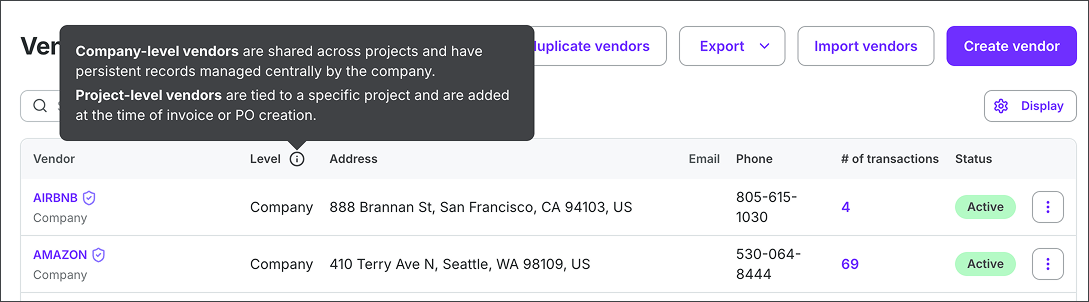
You can see what level of access (Company or Project level) a vendor record has on the Vendor dashboard in the Level column
View vendor transactions
To see the list of transactions associated with a vendor, click the number in the # of transactions column
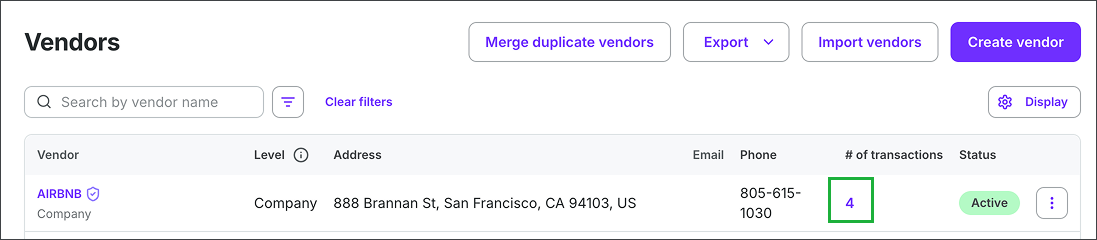
Click the number in the # of transactions column to view the list of vendor transactions