Vendors is permission based
To update, your account must have one of the following roles enabled:
Role: Company Admin, Company Manager
Custom role with: Vendors - Full access, Project access
If your company has stopped using a vendor, but you want to preserve their information in Wrapbook, you can deactivate them. When a vendor is deactivated, you won’t be able to select them when managing projects and vendor processes.
To deactivate a vendor:
Go to the Vendors dashboard
On the Vendors dashboard, click on the name of the vendor you want to deactivate
On the Edit vendor page, scroll to the bottom and click the Enable vendor status to active toggle to deactivate the vendor
Click the Save button
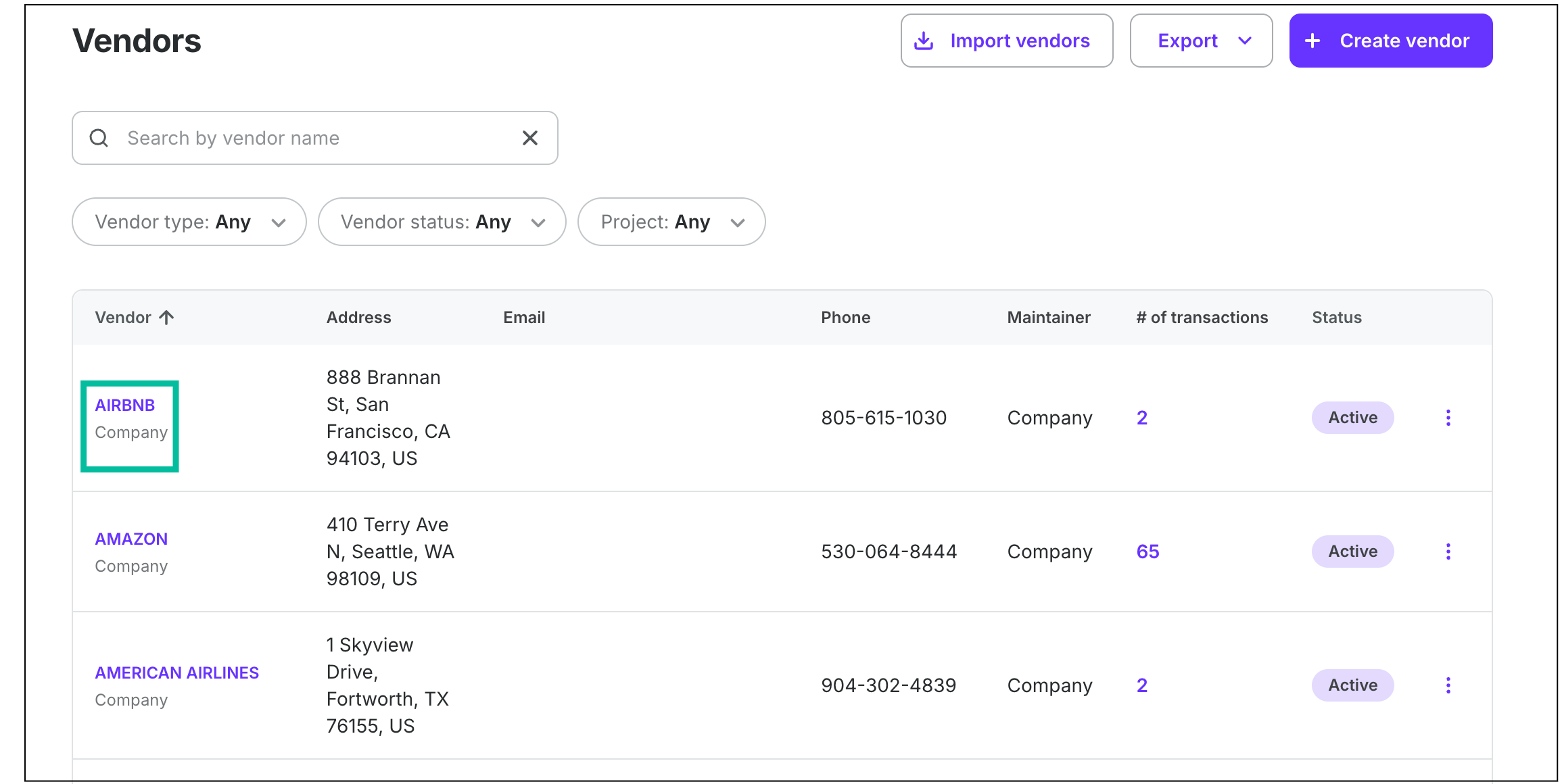
From the Vendors dashboard, click on a Vendor name
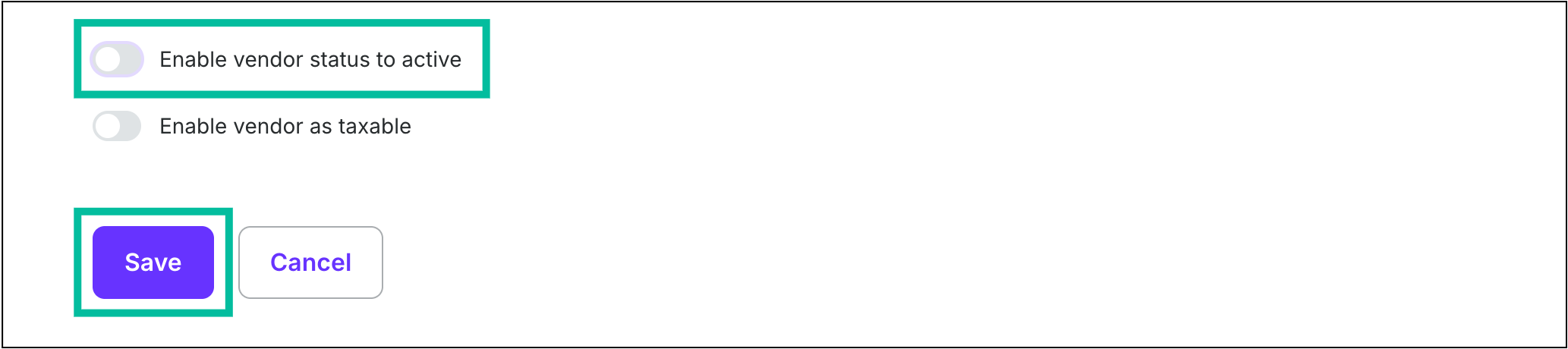
Click the toggle to disable Enable vendor status to active, then click the Save button