This help article is related to the Production Accounting Suite
In Wrapbook, production accountants and administrators can manage vendors using either the Production Accounting Suite or Cost tracking. To understand the differences, click here.
Managing Vendors using the Production Accounting Suite (PAS) is permission based
To manage vendors in PAS, your account must have one of the following roles enabled:
Role: Company Admin, Company Manager
Custom role with: Accounting & Cost Tracking: Vendors - Full access
Overview
When your production company works with many vendors across multiple projects, it's easy for the same vendor to get entered more than once — sometimes with slight differences in name or details. Duplicate vendor records can cause confusion in your accounts payable workflow, make reporting harder to reconcile, and create issues at tax time.
Wrapbook's Production Accounting Suite (PAS) helps you catch and resolve duplicates in two ways:
Duplicate detection hints alert you in real time when a vendor name you're entering closely matches one that already exists in your vendor database, so you can check before accidentally creating a new duplicate
Merge duplicate vendors lets you combine two existing duplicate vendor records into a single entry — consolidating their transaction history, AP invoices, and payment records — without losing any data
Duplicate detection alerts
When you enter a vendor name — either while creating a new AP invoice or PO, and while creating a new vendor in Company settings — Wrapbook will alert you if a vendor with a similar name already exists.
How it works
When the name you've typed matches an existing vendor, a warning banner appears below the name field:
A vendor with that name already exists. Check before saving this vendor, as it may create a duplicate. View [vendor name]
If more than one match is found, the message will reflect the number of matches (for example, 2 vendors with that name already exist).
Clicking View [vendor name] opens a side panel showing the existing vendor's full details, including vendor type, legal company name, EIN, jurisdiction of incorporation, federal tax classification, and contact information. This lets you confirm whether the vendor you're creating is truly new or is already in your database under a similar name.
Where this appears
In the Vendor drawer when creating or updating an AP invoice or PO
What to do when you see an alert
If the existing vendor is the one you need, you can select it instead of adding a new vendor
If you've confirmed the new vendor is genuinely different, you can proceed to create the vendor
If you're unsure whether the records should be combined, you can use the Merge duplicate vendors feature
Merge duplicate vendors
If your company’s Vendors database already contains duplicates, you can combine them into a single record using the Merge duplicate vendors button.
All linked invoices, payment history, and transaction records from both vendors will be preserved and consolidated under the merged entry.
Note: Merging vendors cannot be undone. Review your selections carefully before confirming. If you need to un-merge vendors, please contact the Wrapbook Support Team for assistance.
How to merge vendors in PAS
Use these steps to merge vendors in PAS:
Go to your company’s All vendors dashboard
Click the Merge duplicate vendors button in the top-right corner of the All vendors dashboard
On the Merge duplicate vendors page, use the Search bars under Vendor 1 and Vendor 2 to find and select the two vendors that you want to merge, then click the Continue button
On the Select the information to keep page, review each field where the two vendor records differ. Click to choose the version you want to keep, then click Continue.
Where both vendors have identical information, Wrapbook will note this and no selection is needed
In the Confirm vendor merge popup, review the information that you’ve chosen to keep. If it looks correct, click the Continue button.
Merging vendors is permanent and cannot be reversed. Make sure to review the confirmation summary carefully before clicking the Continue button.
If you need to adjust the information you chose to keep on the previous page, click the Back button
What happens next:
After merging, you'll be taken to the updated vendor's page
A confirmation banner will appear
The transaction history tab will show all records from both original vendors — AP invoices, payroll, journal entries, and vendor payments — consolidated under the single entry
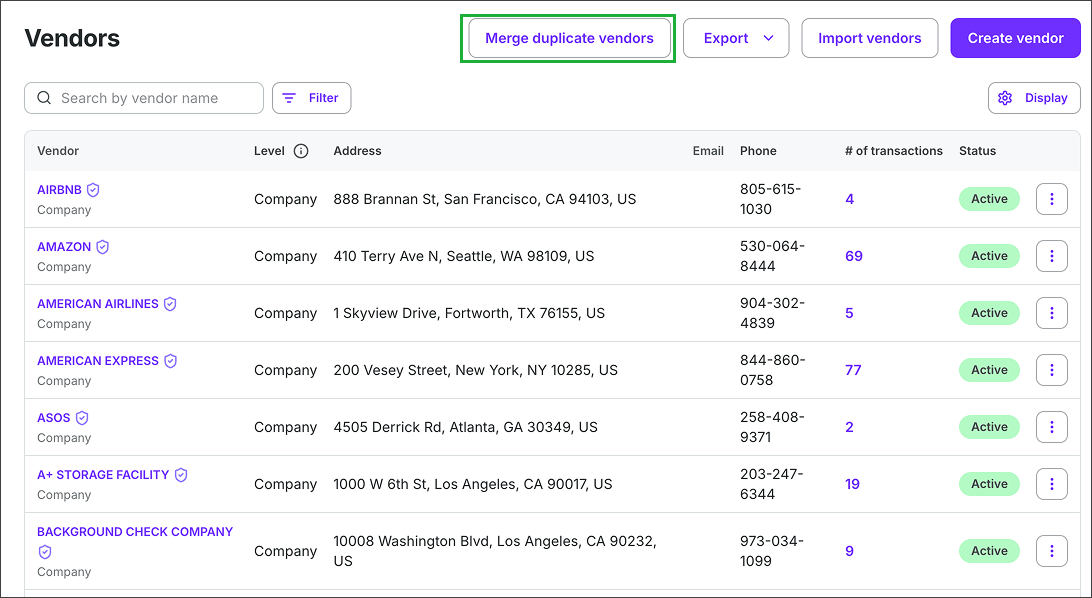
Click the Merge duplicate vendors button
.png)
Click the Search bars under Vendor 1 and Vendor 2, then search for and select the two vendors you want to merge
.png)
Compare the two vendor records, then select the details you want to keep. When you’re ready, click Review.
.png)
Review the information to be included for the vendor once merged, then click the Merge duplicate vendors button
FAQ
To help you manage duplicate vendors in PAS, we’ve put together this list of frequently-asked questions.
Click the arrow next to a question to see the answer.
Will merging vendors affect my existing AP invoices or payment history?
No. All linked invoices, payment history, and transaction records from both vendors are preserved and reassigned to the merged vendor record.
Can I merge more than two vendors at once?
No, the merge tool combines exactly two vendors at a time. If you have three or more duplicates for the same vendor, you'll need to run the merge process more than once.
Can I undo a merge?
No. Merging vendors is permanent and cannot be reversed. Make sure to review the confirmation summary carefully before clicking Merge duplicate vendors. If you need to un-merge a vendor, contact the Wrapbook Support Team for assistance.
I see the duplicate warning but I want to create the new vendor anyway. Is that okay?
Yes — the warning is informational, not a blocker. If you've confirmed the vendor is genuinely different from the existing one, you can proceed and save. If you later discover they should be combined, use the Merge duplicate vendors feature.