Overview
A cost report in Wrapbook compares budgets to actual expense transactions, including purchase orders (POs).
Cost reports can be used by production accountants to:
Track budget versus actual spending
Monitor department costs
Forecast remaining expenses
Cost reports can be generated to include any of the following:
Summary view
Detail view
Combined summary/detail
Episodic productions: If your project is set up with seasons and episodes, you also have access to the cost report episodic summary and cost report episodic detail — two additional report types designed specifically for episodic projects.
Cost reports can be exported in multiple formats:
PDF
XLSX (Excel)
CSV (raw data export)
How to create a cost report
In order to create a cost report, Wrapbook’s Production Accounting Suite must be enabled.
Once PAS is enabled, you can begin creating your report by going to Accounting reports dashboard:
In the left-side navigation, click the dropdown menu
In the dropdown menu, select the name of the project that you want to create a cost report for
In the left-side navigation, expand the ACCOUNTING menu, and click Accounting reports
On the Accounting reports dashboard, click the Create report button next to Cost report
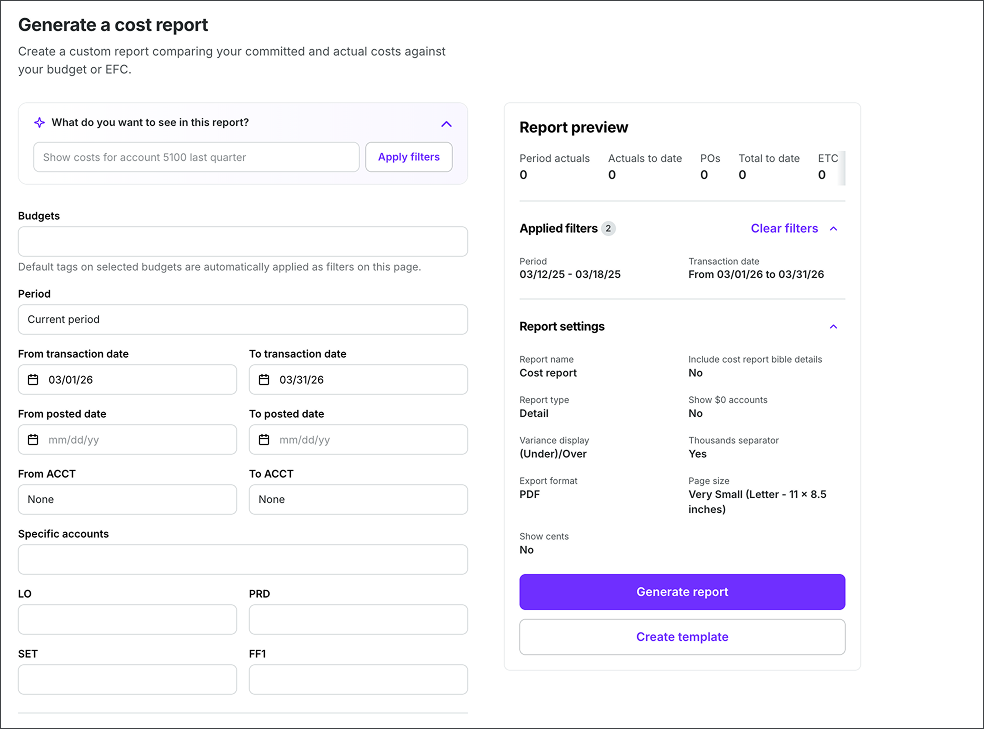
Screenshot of the Generate a cost report page
With PAS enabled, you can also access cost reports from the project’s Budget/EFC dashboard:
In the left-side navigation, click the dropdown menu
In the dropdown menu, select the name of the project that you want to create a cost report for
In the left-side navigation, expand the ACCOUNTING menu, and click Budget/EFC
On the Budget/EFC dashboard, click the Reports button and select
When you open a Cost report from the Budget/EFC dashboard, the filters selected in the dashboard carry forward to the Cost report. Review the filters before generating the report to confirm that the report reflects the intended period or effective date, project-specific filters, date filters, ETC selection, and zero-dollar-account setting.
What do you want to see in this report?
On the Generate a cost report page, under What do you want to see in this report?, you can use simple conversational language to describe what data you want to include in the report.
Here’s how it works
Under What do you want to see in this report? type a description of the data you want to show in the report
.png) Type a description of the information that you want to see in the report
Type a description of the information that you want to see in the report
Cost report manual filters
You can apply the following filters to the cost report:
Period range
Transaction date range
Posted date range
ACCT numbers
LO
PRD
SET
FF1
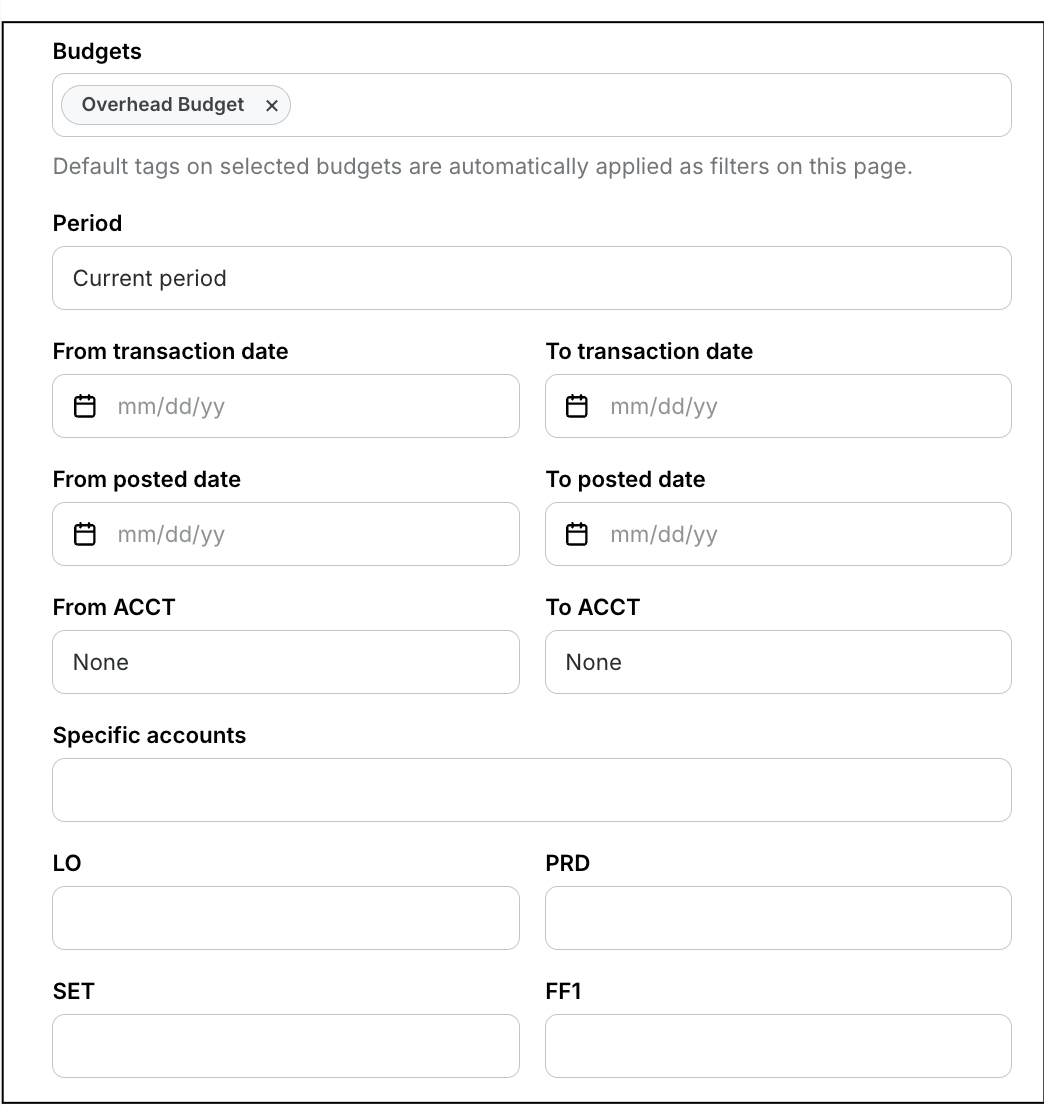
Screenshot of the cost report filter options
Effective-date reporting for POs
Use the Effective Date filter when you need the Cost Report to show purchase order information as it existed during a selected effective-date range. This is different from the posted-date range, which filters transactions based on when they were posted to the General Ledger.
When PO history is available for a project and a PO changes over time, the report reflects the PO state applicable to the effective date being reviewed. For effective dates before July 24, 2026, the report shows the PO status as open or closed based on the status on July 23, 2026.
PO history is available for projects with the Purchase order history available setting enabled.
Cost report settings
Before you generate a cost report, you’ll be prompted to enter the following information in the Report settings section:
Report name
Report type (Detail or Summary)
Export format (PDF, XLSX, or CSV)
Page size (Letter, Legal, Ledger/RA3 or 2x Ledger/RA2)
Filter display — choose how applied report filters appear in your PDF:
Show in header (default) — filter details appear in the report header at the top of the document
Move to final page — filter details are placed on a separate last page, making it easy to remove before sharing
Omit — filter details are not included in the PDF. This setting applies to PDF exports only.
Hyperlinks — choose whether to include or exclude hyperlinks in your PDF. When included, supported report columns contain links that open the corresponding record in Wrapbook. Choose Exclude when sharing with recipients who do not have Wrapbook access. This setting applies to PDF exports only and is available only for reports that support embedded links.
Show native accounts (available when a COA mapping is selected) — when generating a Mapped Cost Report, this enables the display of your native account codes and descriptions beneath the mapped accounts in the exported PDF. The setting applies to that report/export and resets when the page is refreshed. See COA Mapping (PAS) for details.
You’ll also have the the options to:
Include cost report bible details
Show $0 accounts
Decide how variance/period period should be displayed
Show cents
Edit the report columns
Under Report columns, you can click the Customize button to the following columns:
Account
Description
Period actuals
Actuals to date
POs
Total to date
ETC
EFC
Budget
Approved overages
Total budget
Variance
Period variance
% complete
After clicking Customize, use the customize Report Columns popup to:
Select or remove columns — check or uncheck the boxes next to each column name
Rename a column — click an existing column name and type a new one
Reorder columns — hover over the four-dot icon to the left of a column name, then drag it to a new position
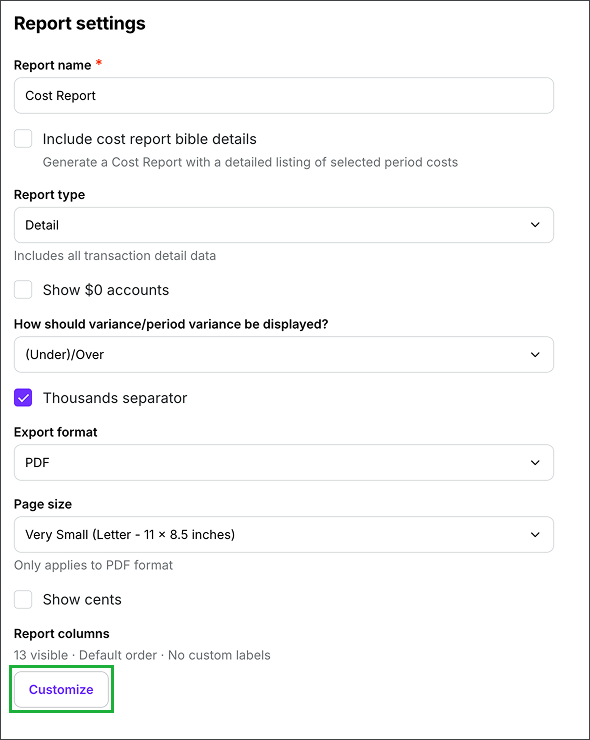
Screenshot of cost report settings options. Click the Customize button to choose which columns to include in the report, update column names, and change the column order.

Check the columns you want to include, click a column name to rename it, and use the four-dot handle to drag it into a new position
Preview your cost report
In the Report preview section of the Generate a cost report page, you can see how the report will appear based on the filters and settings you’ve applied.
Generate your cost report
On the Generate a cost report page, click the Generate report button
After you click the button, your report will begin automatically downloading to your computer. You’ll receive an email once it’s ready.
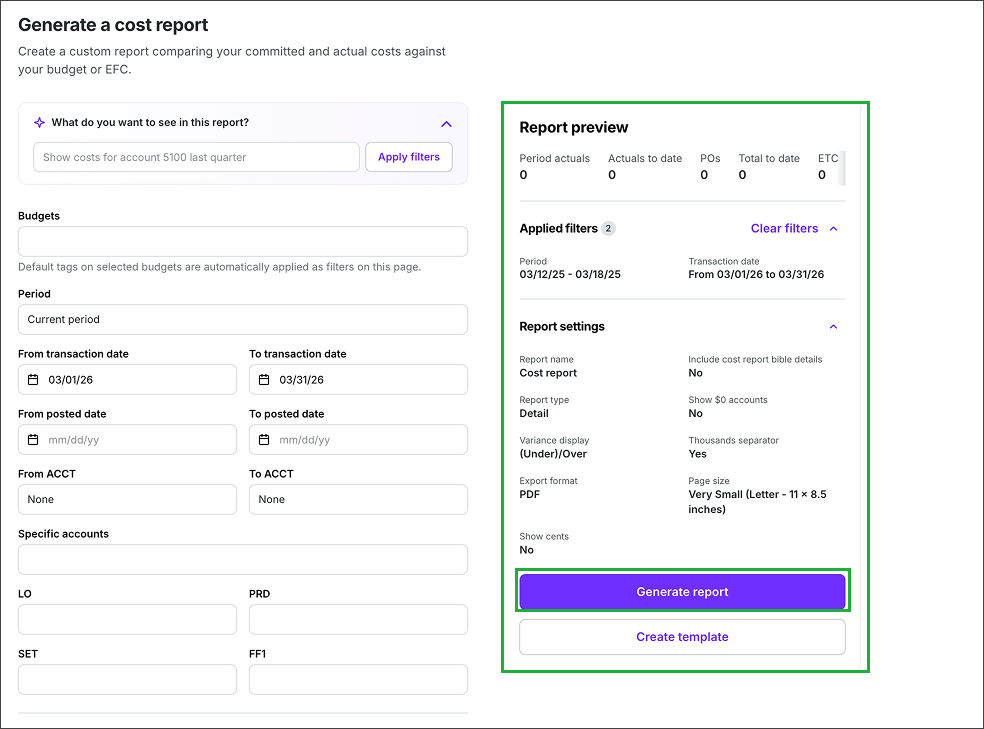
Use the Report preview to see an overview of the data in your report, then click the Generate report button
Exporting multiple budgets as a single PDF
When you generate a Summary or Detail Cost Report in PDF format and select two or more budgets, use the export options to choose how the reports are packaged. This feature is available for in-app exports only; it does not apply to scheduled or emailed reports.
Under Report structure, choose one of the following:
Consolidated report — combines the selected budgets into one report and exports them as a single PDF
Separate reports — keeps each budget's report separate. Under Export options, choose:
Single file — packages the separate reports into one PDF
Separate files — downloads one PDF for each budget
There is no maximum number of budgets you can select for this export.
Scenario | Recommended option |
|---|---|
Delivering one combined report package | Consolidated report |
Keeping budgets separate while sending one PDF | Separate reports → Single file |
Downloading one PDF per budget | Separate reports → Separate files |
Note: These options appear when you select PDF as the export format and two or more budgets for a Summary or Detail Cost Report. They are not currently available for Combined summary/detail, Episodic summary, or Episodic detail reports.
Create a cost report template
Report templates allow you to save your preferred settings for your trial balance reports. Instead of adjusting settings every time you generate a report, you can create and save templates for quick access to your preferred views.
Create a template
Go to the Generate a cost report page
In the Apply filters section, add the filters that you want to use for your report template. Use the Report preview to see an overview of what will be included in the report.
Once you are satisfied with the way the report is configured, click the Create template button
In the Create template popup, enter a template Name. You can click the checkbox to Set as default (optional)
Click the Save button
The template that you’ve just created will now appear as an option in the Custom template dropdown menu when you return to the Generate report page. If you set the template to be the default, it will automatically be selected in the dropdown menu.
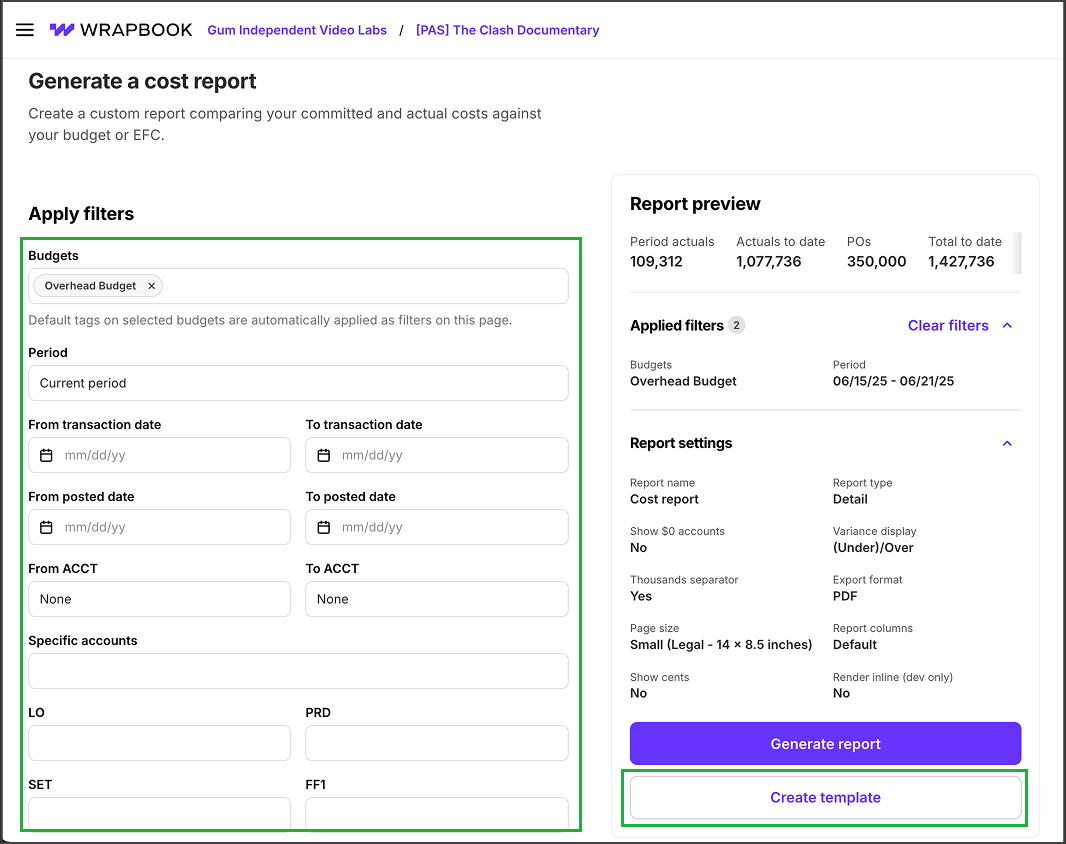
Click to apply filters, then click the Create template button
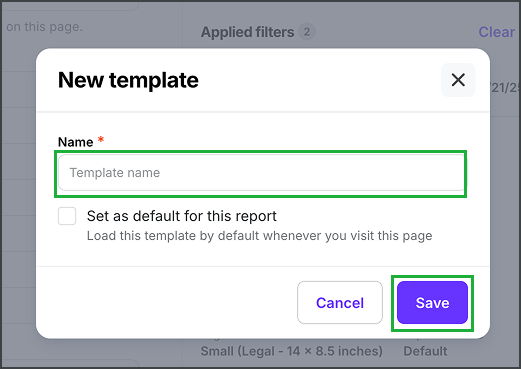
Enter a Name, click to Set as default for this report (optional), and then click the Save button
Set as default, rename, duplicate, or delete an existing template
Once a template has been created, you can set it as the default, update its name, duplicate it, or delete it using the following steps:
In the left-side navigation, click the dropdown menu
In the dropdown menu, select the project that you want to update a cost report template for
In the left-side navigation, expand the ACCOUNTING menu and then click Accounting reports
On the Accounting reports dashboard, click the Create report button next to Cost report
On the Generate a cost report page, under Templates, click the dropdown menu to select the template that you want to update
Click the gear icon, and then select an option: Set as default, Rename, Duplicate, or Delete
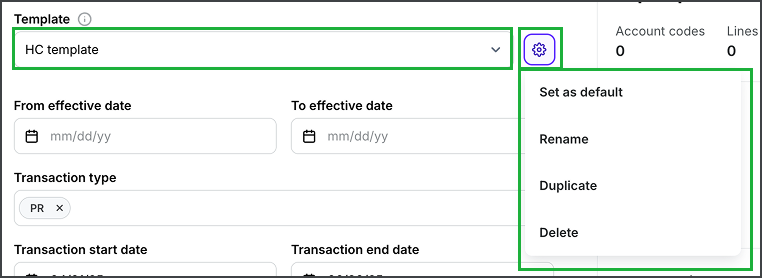
Select the template, click the gear icon, and then make your selection
Updating a template
If you make changes to a template, a Save changes button will appear next to the template’s name
To preserve the changes be sure to click the Save changes button before running a report or leaving the page

Click the Save changes button to update the template
Episodic cost reports
Wrapbook offers two episodic-specific cost report types for productions organized by episode: the cost report episodic summary and the cost report episodic detail. Both appear as separate entries on the Accounting reports dashboard alongside the standard cost report.
Report | Best for |
|---|---|
Cost report episodic summary | A high-level, season-level view — one summarized row per episode showing overall spending at a glance |
Cost report episodic detail | Line-item, account-level detail broken down by episode — for granular analysis across two or more episodes |
How episodic projects are structured in Wrapbook: Episodic projects typically have one budget per episode. When running either report, you use the Budgets field to select which episode budgets to include in the output.
Cost report episodic summary
The cost report episodic summary consolidates episode-level spending into a single view, giving stakeholders a high-level picture of overall project spending across an entire season.
What it shows
By default, the report displays one row per episode/budget and includes the following columns:
Episode — the production/episode code (e.g., 101, 102, 103)
Location — the default location(s) associated with that budget
Budget name — the episode budget name (e.g., Episode 1, Episode 2)
Period actuals — spending within the selected period
Actuals to date — cumulative actuals
POs — purchase orders
Total to date — actuals to date plus POs
ETC — estimated to complete
EFC — estimated final cost
Total budget — budgeted amount
Variance — budget vs. total to date
Period variance
A Report total row at the bottom summarizes all selected episodes.
Customizing columns: The columns listed above reflect the default display. You can customize which columns appear in the report — use the column settings within the report output to show or hide columns as needed.
This is a summary view only — one row per episode. For line-item, account-level detail within each episode, use the cost report episodic detail.
How to generate a cost report episodic summary
In the left-side navigation, click the dropdown menu and select the name of your project
Expand the ACCOUNTING menu and click Accounting reports
On the Accounting reports dashboard, locate the Cost report episodic summary and click Create report
In the Budgets field, select the episode budgets you want to include in the report. You can select one episode, multiple episodes, or all episodes.
Apply any additional filters and configure your report settings
Click Generate report
A "Generating report..." confirmation will appear. Your report will automatically download and will also be available in Wrapbook.
Cost report episodic detail
The cost report episodic detail provides account-level detail across two or more episodes within the same project. It follows the same format as a standard cost report — showing estimated, actual, and budgeted amounts for each account — but adds a breakdown by episode/budget within each account.
Use the cost report episodic summary for a season-level overview, and the cost report episodic detail when you need granular, account-by-account analysis across episodes.
Tip: The report total at the bottom of the episodic detail report matches the per-episode totals shown in the episodic summary report, making it easy to cross-reference between the two.
What it shows
The report groups rows by account number (e.g., 1001 STORY, 1101 WRITER, 1201 PRODUCER). Within each account group, there is one row per selected episode budget, followed by an account subtotal. The same columns appear as in the episodic summary report.
Customizing columns: The columns shown reflect the default display. Like the episodic summary, you can customize which columns appear — use the column settings within the report output to show or hide columns as needed.
How to generate a cost report episodic detail
In the left-side navigation, click the dropdown menu and select the name of your project
Expand the ACCOUNTING menu and click Accounting reports
On the Accounting reports dashboard, locate Cost report episodic detail and click Create report
Under Budgets, select the episode budgets you want to include in the report. You can select one episode, multiple episodes, or all episodes.
Apply any additional filters and configure your report settings
Click Generate report
A "Generating report..." confirmation will appear. Your report will automatically download and will also be available in Wrapbook.
Filters and report settings
Both episodic report types support the same filters and report settings.
Filters
Filter | Description |
|---|---|
Budgets | Select which episode budgets to include. Default tags on selected budgets are automatically applied as additional filters. |
Period | Select the period range (e.g., Current period, custom date range) |
Select currencies to include in report | Filter by currency |
From / To transaction date | Filter by transaction date range |
From / To posted date | Filter by posted date range |
From ACCT / To ACCT | Filter by account number range |
Specific accounts | Include only specific account numbers |
LO | Filter by location code(s) |
PRD | Filter by production code(s) |
SET | Filter by set code(s) |
FF1 | Filter by free field 1 |
Report settings
Setting | Description |
|---|---|
Report name | Customize the report file name |
Report currency | Set the currency for the report |
Currency rate | Select the currency rate to use (e.g., Current budget) |
Show $0 accounts | Include or exclude accounts with zero balances |
Variance display | Choose display format (e.g., (Under)/Over) |
Thousands separator | Show or hide thousands separators |
Export format | PDF or CSV |
Page size | e.g., Letter (11 × 8.5 in) |
Show cents | Include or exclude cents |
Render inline | Display report inline or as a download |