Project creation is permission based:
To create a project, your account must have the following role enabled:
Role: Company Admin, Company Manager
Custom role with: Project management - Full access, Manage projects and funding sources
Overview
In Wrapbook, a Project is a container for managing the finances, worker payments, and startwork documents for an individual production. For example, a project could be for a specific movie, show, commercial, music video, or short that your company produces.
There are two ways to create a project in Wrapbook:
Create a new project
Duplicate an existing project
In this guide, we’ll cover the steps for creating a new project. To learn how to duplicate an existing project from the All projects dashboard, see Duplicate a project.
Create a new project
To create a new project, you’ll need to go to the company’s All projects dashboard:
In the left-side navigation, click the dropdown menu
Select All projects
On the All Projects page, click the + Create project button
On the Create a Project page, enter details about your production
Access project drafts
After you create a new project, you’ll be guided through steps to complete its configuration.
Note: You don’t have to enter all the information in one session. Once you add the Project details in the first step, you’ll be able to save the project as a Draft and return to it when you are ready to enter the rest of the information.
To access a company’s project drafts:
At the top of the left-side navigation, click the dropdown menu
Select All projects
This will take you to the All Projects dashboard where you can view all your projects by Active, Draft, Wrapped, and All.
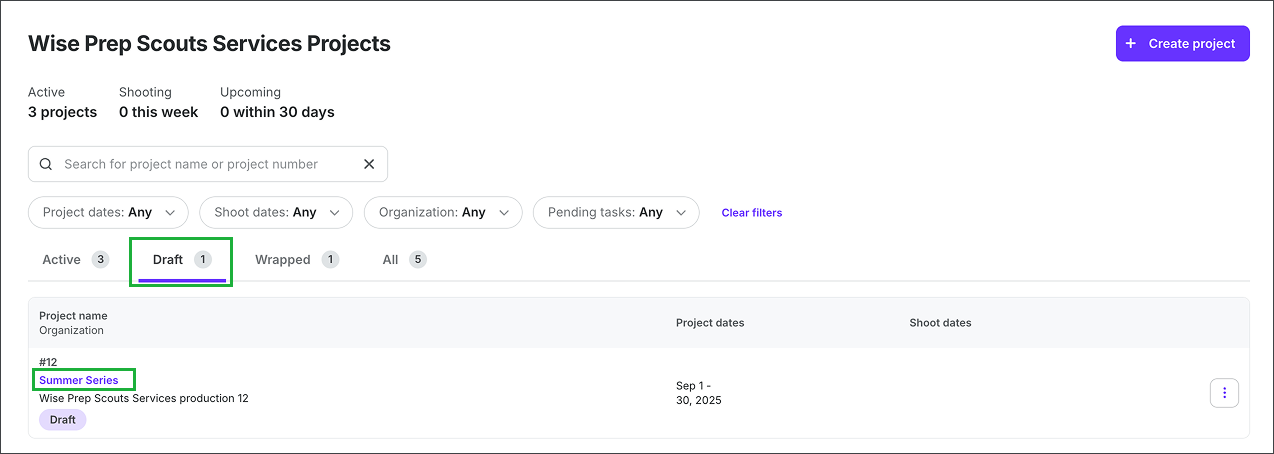
You can click the Draft tab on the All projects dashboard to continue setting up a project that’s been created
Project setup steps
Click the + Create project button to start the guided setup. After setup is complete, you can access Project Settings to view and update details as needed.
Notes:
Once configured, some settings may be restricted based on compliance requirements or your Wrapbook permissions
The information collected during project setup will vary based on the project type
If your project involves union agreements, Wrapbook will reach out after you complete the Unions, guilds & health plans step to finish project setup with you. During this time, Wrapbook's Labor Relations team will review your union agreement(s) and determine which agreements, side letters, and tiers apply to your project to ensure everything is accurate before you begin onboarding union workers.
In Wrapbook, projects are setup using these steps: