This help article is related to the Production Accounting Suite
In Wrapbook, production accountants and administrators can manage PCards using either the Production Accounting Suite or Cost tracking. To understand the differences, click here.
PCard access is permission based
To access PCards, your account must have one of the following roles enabled:
Role: Company Admin, Accountant
Custom role with: Accounting & Cost Tracking / PCards - Full access, Manage, or View only
Overview
A PCard (purchasing card) is a type of company-issued credit card used by productions to pay for day-to-day expenses.
Access the PCards dashboard (PAS)
With the Production Accounting Suite (PAS) enabled for your company’s account, you can manage PCards on a project’s PCards dashboard:
In the left-side navigation, click the dropdown menu
Select the project that you want to manage PCards for
In the left-side navigation, expand the ACCOUNTING menu, then click PCards
On the PCards dasbhoard are three tabs:
PCards
All new transactions
All journaled transactions
You can click on any tab to see its list of PCard transactions. From any tab, you can use the Search box and filters to find specific transactions.
PCards
Click the PCards tab to see the list of PCards that have been added to a project and connected to their card-issuing banks.
PCards are listed by PCard # and include an overview of the following details:
PCard # - The identification number for the purchasing card
Nickname - A user-defined name to easily identify the PCard
Cardholder - The worker to whom the PCard is issued and who is authorized to make purchases with it
Custodian - The team member responsible for managing and overseeing the PCard
Date issued - The date when the PCard was assigned to the cardholder
New transactions - The current number of recently-imported transactions that have not yet been processed or journaled
Journaled transactions - The current number of **transactions that have been reviewed, categorized, and entered into the accounting system
Total spend - The cumulative amount of money spent using the PCard
You can filter the list of PCards that have been added to the project by:
PCard #
Cardholder
Custodian
Date issued
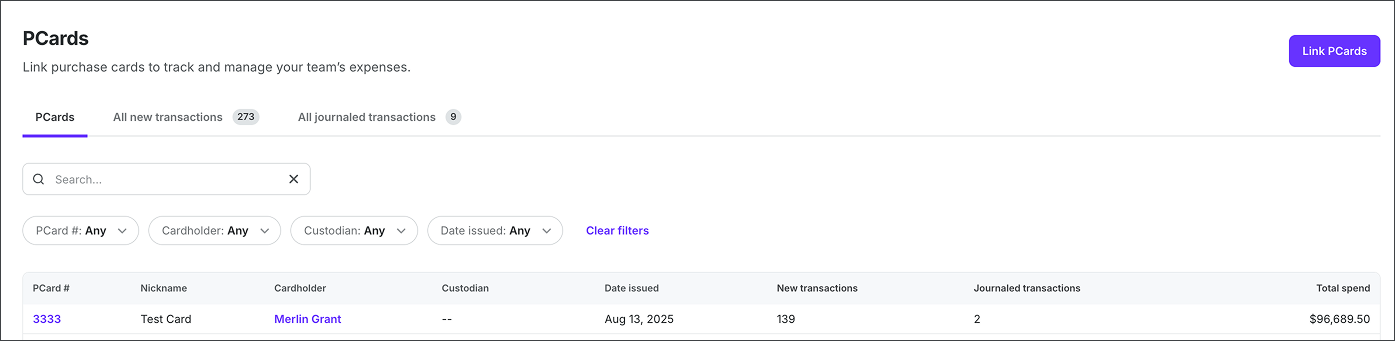
Example of the PCards tab view of the PCards dashboard in PAS
All new transactions
Click the All new transactions tab to see the list of PCard transactions that have been imported but have not yet been processed or journaled. You can use this tab to review, assign, before creating journal entries for the transactions. Once a PCard transaction is posted, it moves from the All new transactions tab to the Journaled transactions tab on the PCards dashboard.
PCard transactions are listed by PCard # and include an overview of the following details:
PCard # - The identification number for the purchasing card
PCard Trans. # - The transaction identification number for the specific purchase
Trans. date - The date when the transaction occurred
Merchant - The name of the vendor or store where the purchase was made
City - The city where the transaction took place
State - The state where the transaction took place
Post date - The date when the transaction was posted to the account
Cardholder - The worker to whom the PCard is issued and who is authorized to make purchases with it
Description - Details about the transaction
LO - Location (accounting code)
PRD - Production (accounting code)
ACCT - Account code (accounting code)
SET - Set (accounting code)
FF1 - Free Field 1, a customizable field for additional transaction categorization
FF2 - Free Field 2, another customizable field for additional transaction categorization
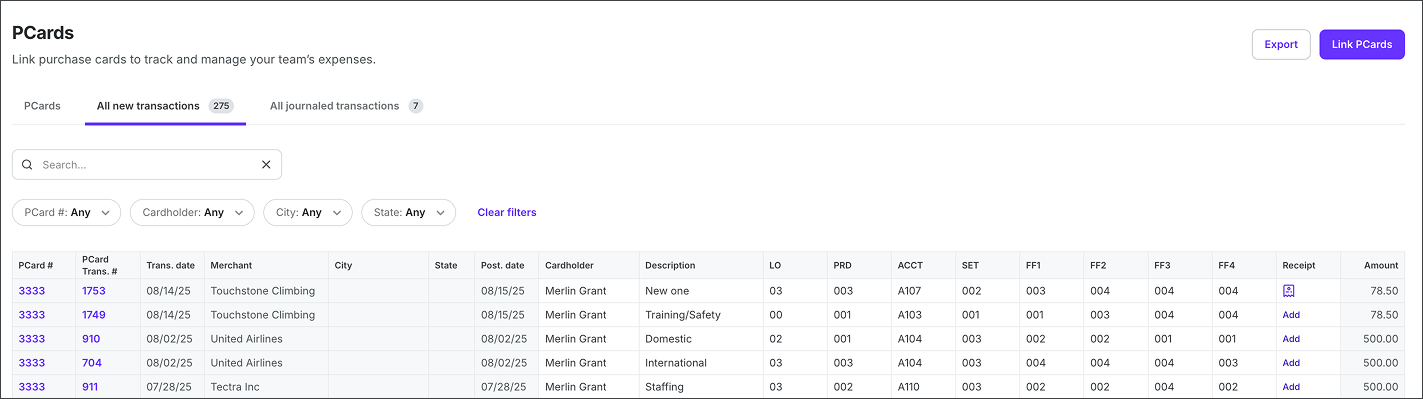
Example of the All new transactions tab view of the PCards dashboard in PAS
All journaled transactions
Click the All journaled transactions tab to see the list of PCard transactions that have been reviewed, categorized, and posted.
PCard transactions are listed by Envelope # and include an overview of the following details:
Envelope # - A unique identifier assigned by the production accountant for grouping related PCard transactions
PCard # - The identification number for the purchasing card
PCard trans. # - The transaction identification number for the specific purchase
Trans. date - The date when the transaction occurred
Merchant - The name of the vendor or store where the purchase was made
City - The city where the transaction took place
State - The state where the transaction took place
Post date - The date when the transaction was posted to the account
Cardholder - The worker to whom the PCard is issued and who is authorized to make purchases with it
Description - Details about the transaction
LO - Location accounting code
PRD - Production accounting code
ACCT - Account code for categorizing the expense
SET - Set accounting code
FF1 - FF4 - Free Fields 1-4, customizable fields for additional transaction categorization
Receipt - Indicates whether a receipt has been attached to the transaction
Amount - The monetary value of the transaction
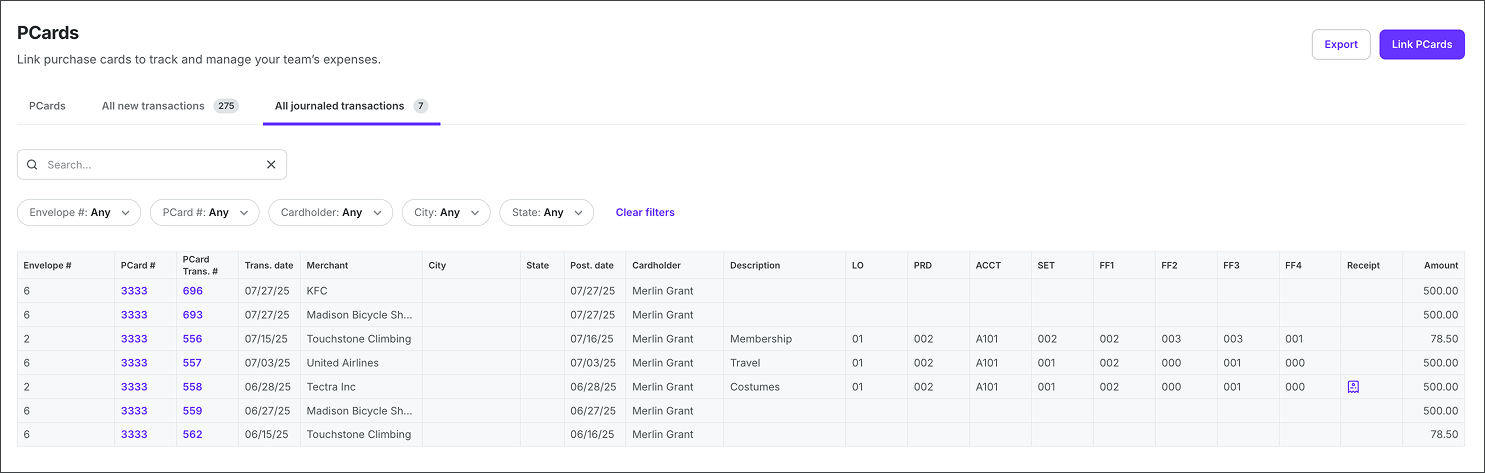
Example of the All journaled transactions tab view of the PCards dashboard
Add PCard activity (PAS)
First, sign in to your PCard provider’s website and export your card transaction data as a CSV file.
Then, make sure the file has the required format and upload it through the journal-entry import workflow. If you don’t see the import option, contact Wrapbook Support to confirm which workflow is available for your account.
Update PCard details in Wrapbook (PAS)
Once a PCard is added to Wrapbook, you can update its details, including who it’s been assigned to, using the following steps:
In the left-side navigation, click the dropdown menu
Select the project that you want to update PCard details for
In the left-side navigation, expand the ACCOUNTING menu, then click PCards
On the PCards dashboard, click on the PCard # number of the purchase card that you want to update
On the PCard page, click the Edit PCard button to open the Edit PCard drawer
In the Edit PCard drawer you can click the fields beneath the PCard # to update its: Nickname, Custodian, Cardholder, and code the Cardholder advance account
Use the Cardholder advance account field to assign the account to which funds are added. When funds are spent and journaled this account will be noted in the entry that’s created.
If you make any changes, be sure to click the Save button before closing the Edit PCard drawer
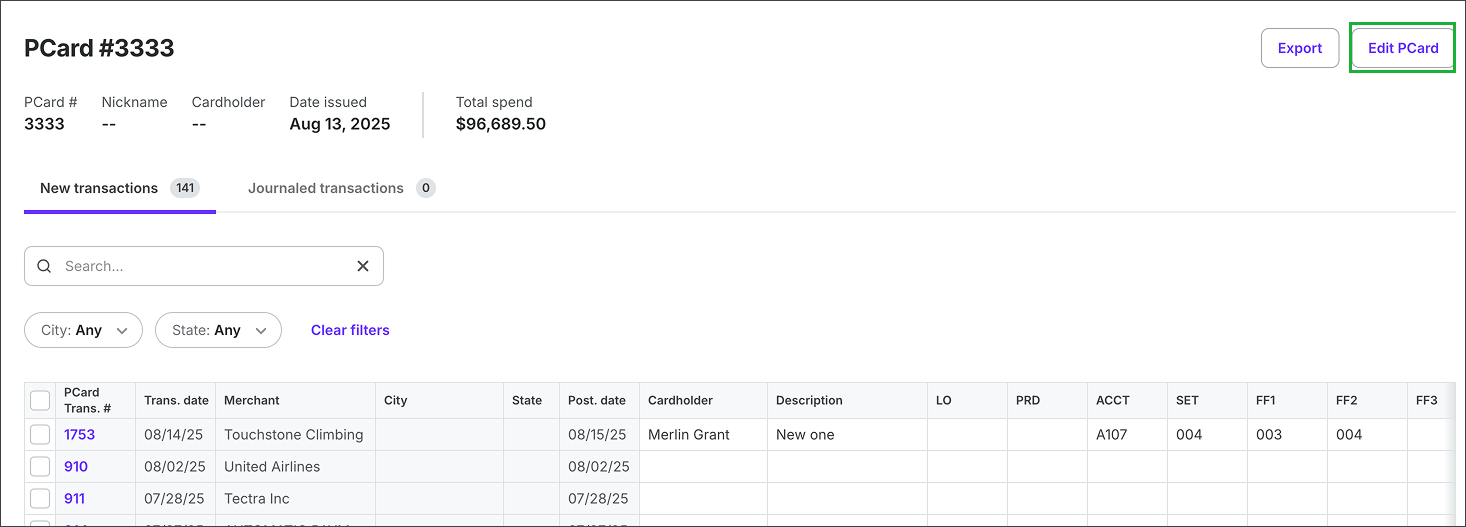
Click the Edit PCard button
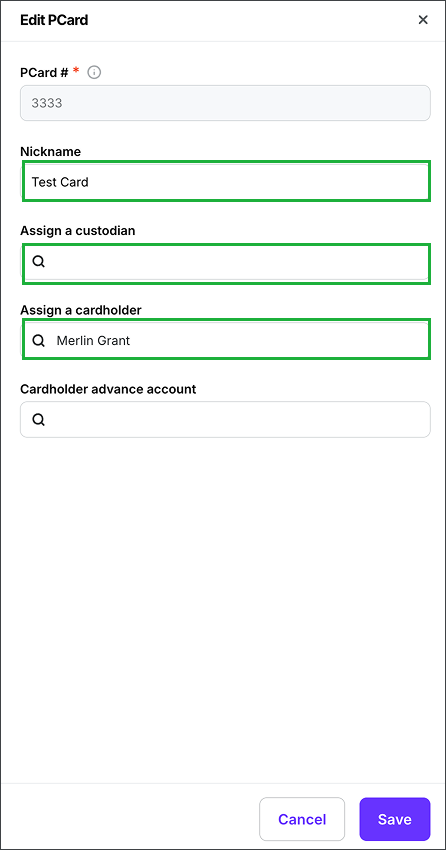
Click to update the Nickname, Assign a custodian, and Assign a cardholder fields
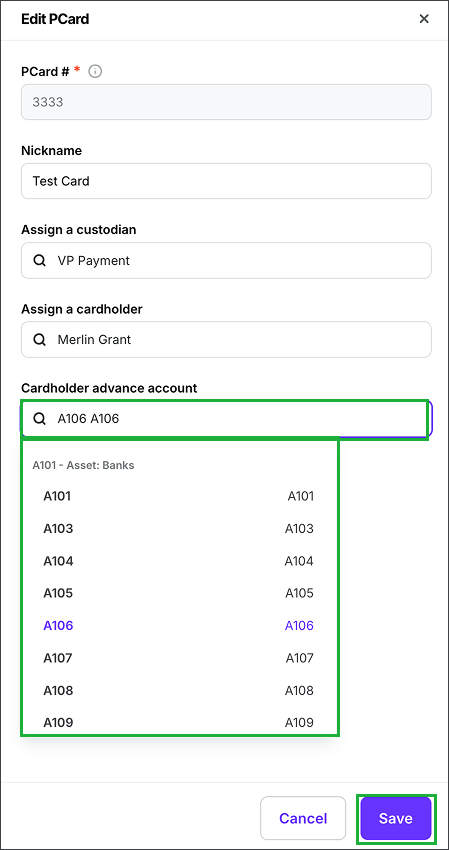
Use the Cardholder advance account field to assign the account to which funds are added. When funds are spent and journaled, the account number will be noted in the entry that’s created. When you’re done editing the PCard details, click the Save button.
Envelope and journal PCard transactions (PAS)
Authorized production administrators who’ve been assigned PCard transactions can use the Envelope and journal feature to group related PCard transactions together for easier processing.
When transactions are journaled, they’ll move from the All new transactions tab to the All journaled transactions tab on the PCard dashboard.
To envelop and journal PCard transactions:
Go to the project’s PCard dashboard
From the PCards tab, click on the PCard #
On the PCard page, click the checkboxes next to the transactions that you want to batch and process, and then click the Envelope and journal button
In the Envelope and journal popup, click the Envelope and journal button
If a selected PCard transaction doesn’t have a receipt attached, an alert will appear in the popup. You’ll still be able to envelope and journal the transaction, but this gives you an opportunity to add a receipt before journaling.
After clicking the button, the transactions will move to the All journaled transactions tab on the project’s PCards dashboard
In the left-side navigation ACCOUNTING menu, click Journal entries
On the Journal entries page, the PCard transaction and its details will appear as a journal entry with a Post status of Draft
To finalize the journal entry and post to the GL, click the dashes under the TRX# to enter the required details. You can click the View envelope link to see the transactions in the All journaled tab of the PCards dashboard. When you’re done finalizing the transaction, click the Save button. An alert will appear confirming that the JE transaction has been saved.
Click the Post button and select Go to posting
On the Posting page, click to select the journal entry and then click the Post button
In the Confirm posting popup, you can configure the post settings, including the option to Generate a post report after posting. When you’re ready, click the Confirm and post button.
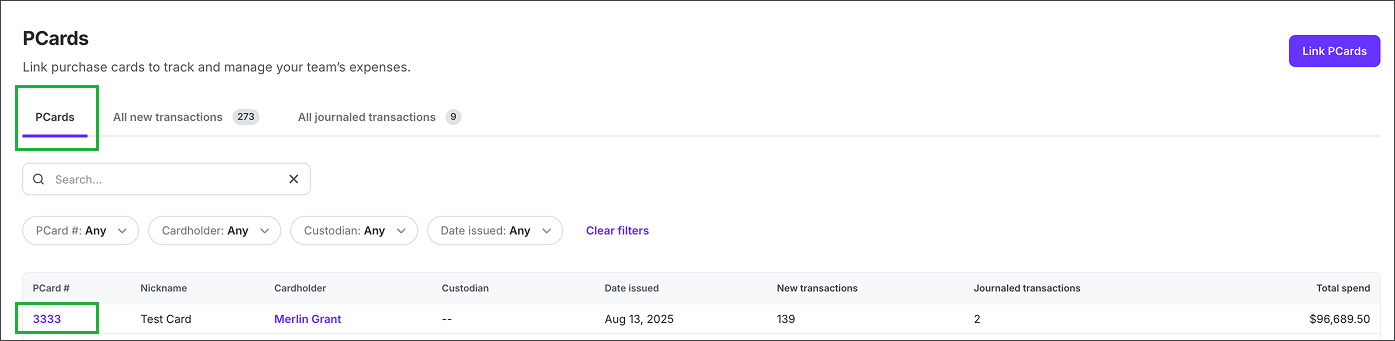
On the PCards tab, click the PCard #
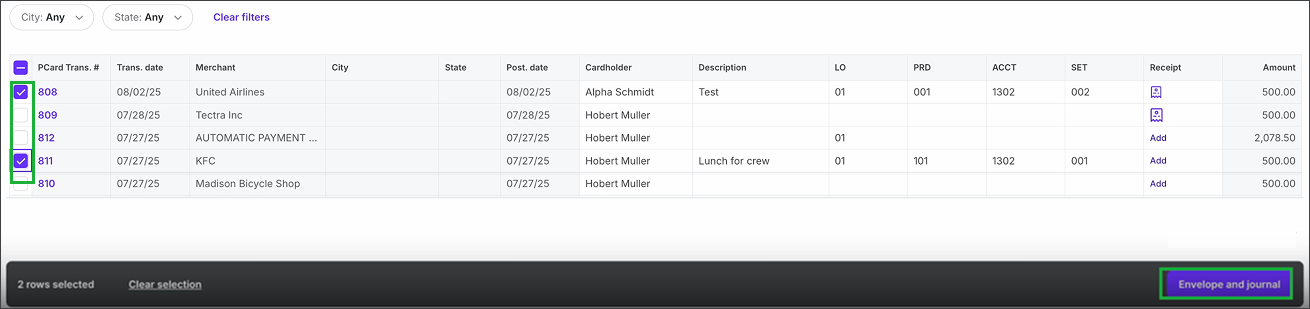
Click to select the PCard transactions and then click the Envelope and journal button
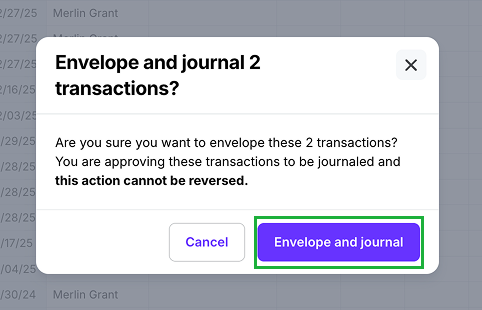
In the popup, click the Envelope and journal button
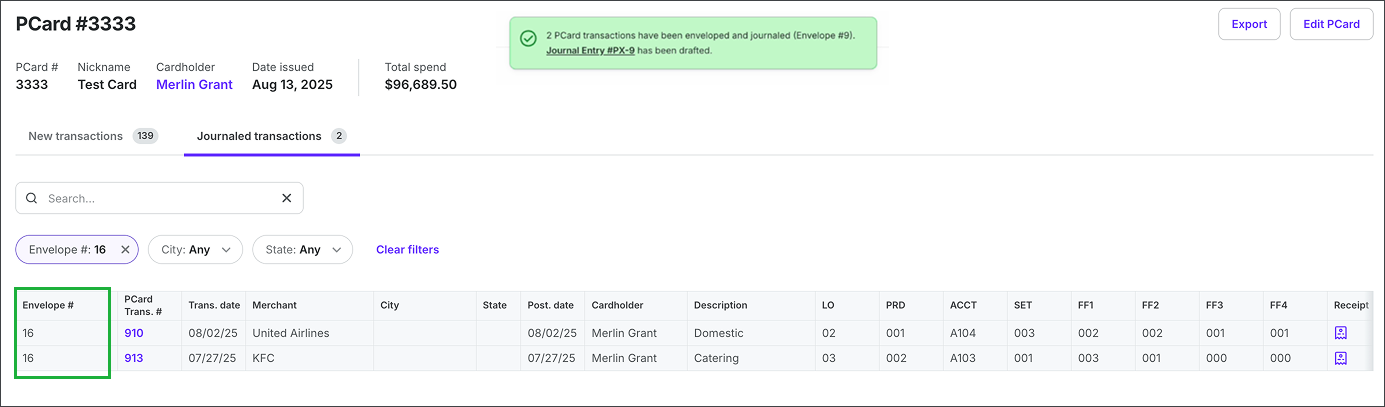
A confirmation will appear and the PCard transactions will be moved to the Journaled transactions tab
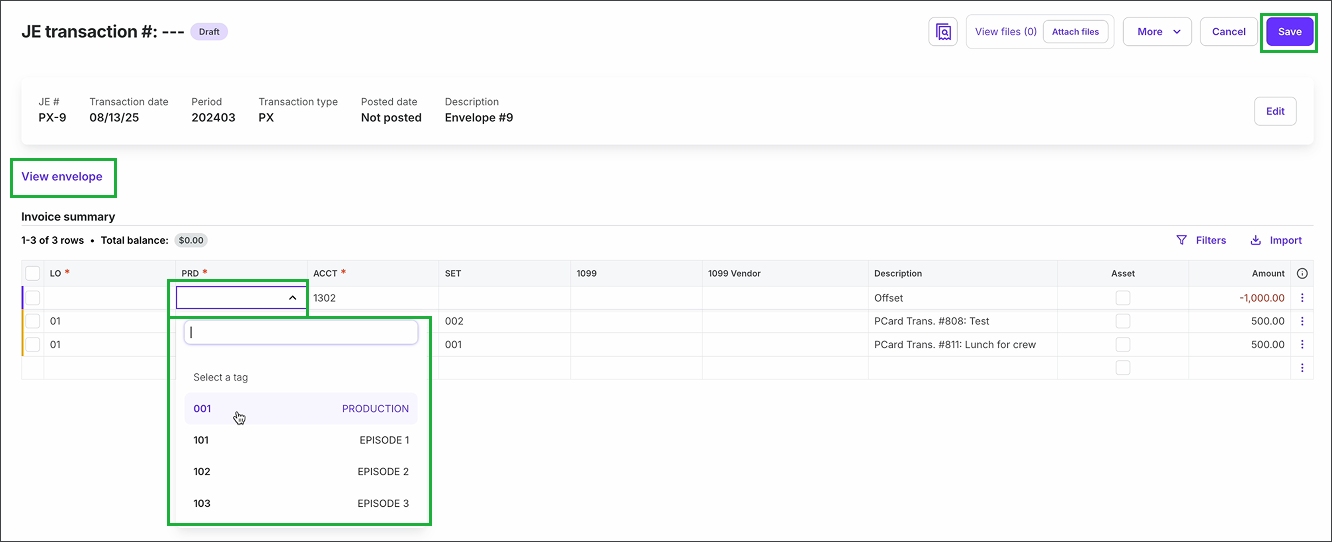
Click on the fields to add the required details to the transaction. You can click the View envelope link to see the transactions in the All journaled tab of the PCards dashboard. When you’re done finalizing the transaction, click the Save button.
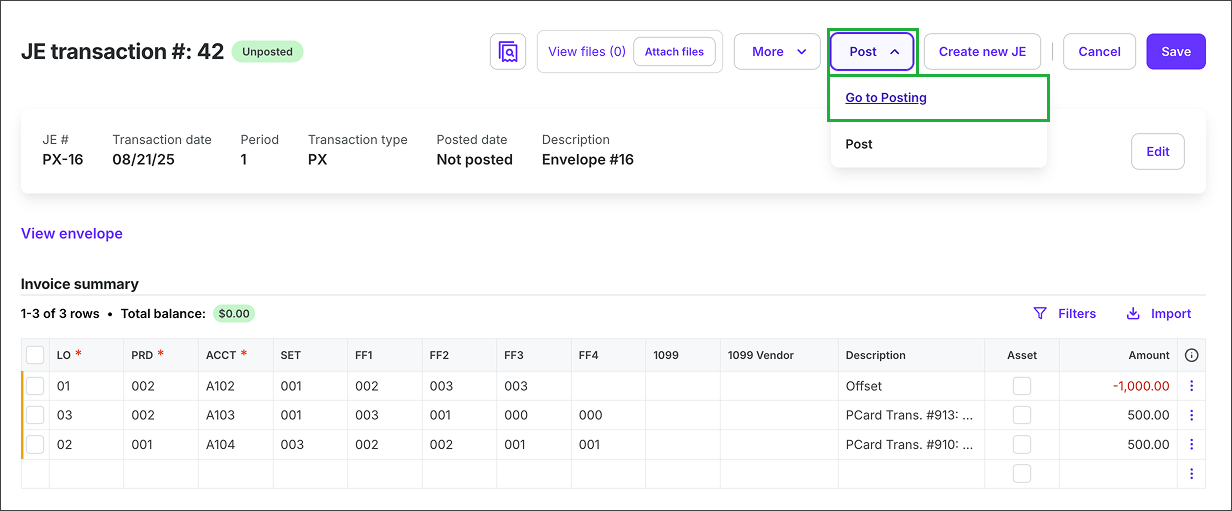
Click the Post button and select Go to Posting
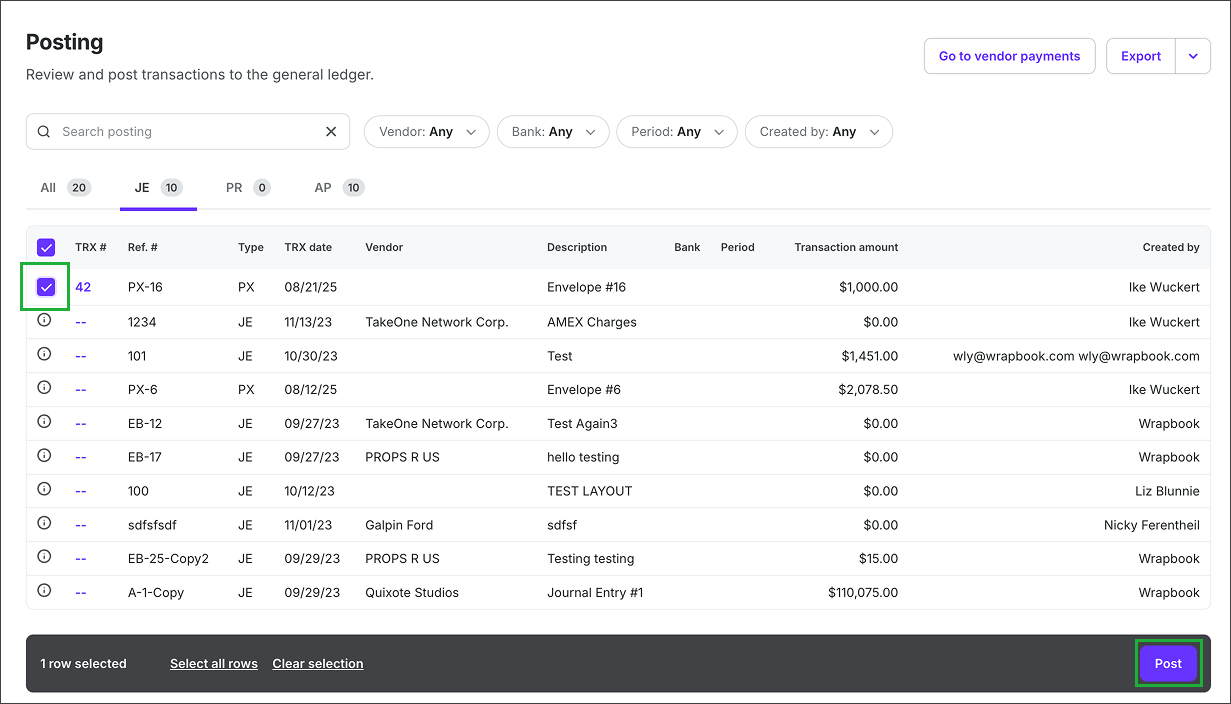
Click to select the journal entry, then click the Post button
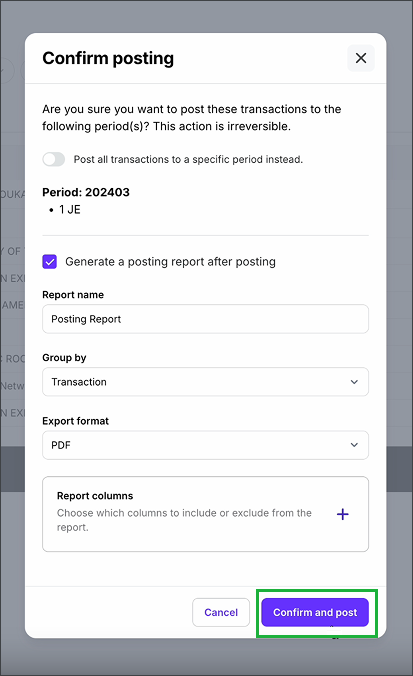
In the Confirm posting popup, you can configure the post settings. When you’re ready click the Confirm and post button
Export PCard transaction data in Wrapbook (PAS)
Authorized production administrators can export PCard transaction data in Wrapbook as a CSV or PDF file, allowing for easy integration with external accounting systems and record-keeping purposes.
To export a PCard data:
In the left-side navigation, click the dropdown menu
Select the project that you want to export PCard data for
In the left-side navigation, expand the ACCOUNTING menu, then click PCards
On the PCards dashboard, you can export data from either the All new transactions tab or the All journaled transactions tab. To begin your export from either tab, click the Export button. The file will automatically download to your computer and will also be available for future reference in your Downloads drawer.