Overview
With Wrapbook, you can fund payroll by either:
Linking your company’s bank account(s)
Setting up a drawdown account to fund project payrolls
Access Funding methods
Funding methods are permission based
To access, your account must have one of the following roles enabled:
Role: Company Admin
Custom role with: General settings - Full access, Funding methods - Full access, View only
To access Funding methods:
In the left-side navigation, click the dropdown menu
In the dropdown menu, select All projects
In the left-side navigation, click Company settings
Scroll down the page until you see Funding methods
Bank accounts
Before linking a bank account to a company in Wrapbook, you’ll need to notify your bank that you’ll be running payroll through. This will prevent unnecessary delays when processing payroll.
Our full legal name: TakeOne Network Corp
Our bank: JP Morgan Chase Bank
Transactions in your company’s bank history from Wrapbook will be displayed as "TakeOne Network".
Link a bank account
Funding methods are permission based
To update, your account must have one of the following roles enabled:
Role: Company Admin
Custom role with: General settings - Full access, Funding methods - Full access
Wrapbook uses Plaid to connect your bank accounts. Plaid is a secure financial platform that serves as a trusted intermediary to protect your sensitive banking information.
To link a bank account:
On the Company settings page, in the Funding methods section, click the Manage button next to Bank accounts
On the Bank account settings page, click the Link bank account(s) button
In the popup, click Continue as guest
Select the name of the bank for the account. You can scroll through the choices, or enter the bank’s name in the search box.
Click the Continue to login button
In the new tab, login to the bank account
Choose how you’d like to verify your identity. Your options are based on the bank account’s multi-factor authentication preferences.
Once a bank account has been successfully linked to a company in Wrapbook, you’ll see it listed on the Bank accounts settings page.
.png)
Click the Link bank account(s) button
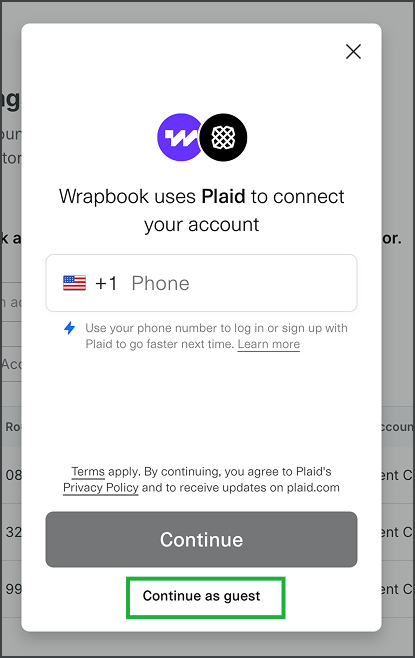
In the popup, follow the instructions from Plaid to connect your bank account. If you don't want to enter a phone number, you can use the Continue as guest option.
.png)
Click on the bank for your funding account. You can use the Search bar or scroll to see your options.
.png)
Click the Continue to login button to open your bank's login page, and then enter your credentials for the banking account
Verify a company bank account with micro-deposits
After you click Link bank account(s), Plaid lets you choose Instant or Manual. Instant is the recommended option and lets you sign in to your bank. Manual lets you enter your routing number and account number. Depending on eligibility, Plaid may link the account instantly or send a $0.01 micro-deposit that arrives in 1–2 business days.
For Manual verification, enter your:
Routing number
If the routing number matches multiple institutions, Plaid may also show Enter account number instead.
Account number
Name on account
The name must match the name listed on the account.
Account type
If Plaid asks you to select an institution, select the institution that matches your account. I
When a micro-deposit is required, the Company bank accounts dashboard shows the account as Pending verification. After the deposit arrives:
Return to the dashboard
Click Verify next to the pending account
Plaid opens the Enter the 3-letter code modal
Enter the first 3 letters after the # symbol in the $0.01 transaction description
The account must be verified before you can use it for payroll funding or Direct ACH vendor payments
On the Company bank accounts dashboard, the Payroll and Direct vendor ACH columns show each account’s eligibility.
A linked account may also show the number of projects connected to it. You can open an account to review Account eligibility and use the Edit action for Payroll or Direct vendor ACH when available.
Troubleshooting Plaid and bank account linking in Wrapbook
To help you quickly solve Plaid disconnection issues, we’ve created this FAQ. Click on the arrow next to any question to see the answer.
What does Unlinked accounts detected mean?
Plaid disconnections can happen due to seemingly minor events, such as a password change or MFA update in the client’s banking portal. Wrapbook proactively alerts authorized production admins when their company’s payroll-funding bank account is disconnected from Plaid, and it poses a risk to payroll timelines
You can resolve a bank disconnection issue before it impacts payroll funding, by doing the following:
In the left-side navigation, click the dropdown menu and select All projects
In the left-side navigation, click Company settings
On the Company settings page, scroll down to the Funding methods section and click the Manage button next to Bank accounts
Click Relink next to the disconnected bank, which will be highlighted in yellow
Why am I seeing a transfer blocked error after re-linking the bank?
This usually occurs when the re-linked account hasn't been verified properly, or there's a hold due to a previous failed transaction.
Please ensure the account verification documents (for example, a voided check or bank letter) have been uploaded and contact the Support team to clear the transfer block if urgent.
Why does the Plaid connection fail even though our info is correct?
Even when credentials are correct, Plaid may fail to connect if:
The bank is undergoing maintenance or isn’t supported by Plaid at the moment
MFA or security steps aren't being passed through Plaid
The account type isn't supported (for example, some business accounts)
In these cases, we recommend manually uploading a bank letter or voided check and then contacting the Support team to request a manual connection.
Why is Plaid failing to verify our bank account?
Plaid might fail to verify an account due to mismatched information (name or address), unsupported banks, or timeouts during the verification process. If that happens:
Go to the project’s Documents dashboard and upload a voided check or official bank letter with your company name, routing number, and account number
Then, contact the Support team so they can manually connect your business account
Can someone help us connect our business account to Wrapbook?
Absolutely! If Plaid is unsuccessful:
Go to the project’s Documents dashboard and upload a voided check or official bank letter with your company name, routing number, and account number
Then, contact the Support team so they can manually connect your business account
What are micro-deposits?
Micro-deposits are small deposits used to confirm that you own or can access the company bank account you’re linking.
Can I choose Instant or Manual?
Yes. Plaid lets you choose Instant or Manual. If you choose Manual, Plaid determines whether the account can be linked instantly or requires a $0.01 micro-deposit.
How do I verify a micro-deposit?
Wait for the $0.01 deposit, then return to the Company bank accounts dashboard. Click Verify next to the pending account and enter the first 3 letters after the # symbol in the transaction description.
What should I do if I don’t see the deposit?
Wait 1–2 business days. If you still don’t see it, confirm that you entered the account details correctly and contact the Support Team for help.
What if I can’t complete Plaid or micro-deposit verification?
Upload a voided check or official bank letter with your company name, routing number, and account number, then contact the Support Team for help with manual verification.
Does this verify a worker’s payout account?
No. This process verifies a company funding bank account. Worker payout account validation is a separate workflow.
Drawdown accounts
A drawdown account is an account set up in Wrapbook that a company uses to fund payroll instead of having it directly debited from external bank accounts.
If you want to use a drawdown account, please contact your Wrapbook Customer Success Manager to request setup.
Always confirm that there are sufficient funds in the drawdown account before running payroll
You can send money to your company’s Wrapbook drawdown account by initiating either a wire or ACH transfer from your bank
It typically takes one business day to see the funds applied to the drawdown account. Wrapbook will email you a notification once funds have been applied.
When a payroll is run, Wrapbook will withdraw the funds from the drawdown account
See your drawdown account balance
On the Drawdown balance page, you can view the account balance at any time, along with a complete transaction history. The drawdown balance link will only be visible in the left-side navigation if there’s an active drawdown account in place.
To see your drawdown account balance:
In the left-side navigation, click the dropdown menu
In the dropdown menu, select All projects
In the left-side navigation, click Payroll
Under Payroll, click Drawdown balance