Setting up a New Mexico tax incentives project in Wrapbook is permission based
To set up, your account must have one of the following roles enabled:
Role: Company Admin
Custom role with: General settings - Full access
Overview
Wrapbook supports New Mexico (NM) tax incentive requirements so you can process payroll while qualifying for state incentives.
This guide is designed to help production administrators:
Understand which NM tax incentive requirements Wrapbook can handle automatically
Know what to expect when running payroll for a NM tax incentive project in Wrapbook
To learn more about the NM tax incentive program works, check out our blog post: Maximizing New Mexico’s Film Tax Credits & Partners
To see official guidance from the New Mexico Film Office, click here.
Requirements
When you setup a project in Wrapbook that’s applying for NM tax incentives, Wrapbook will manage the following requirements:
Withholding
Wrapbook applies a flat 5.9% withholding to non-resident front-of-camera workers (both W-2 and loan-out). The production is required to identify these workers.
If your production company is designated as a New Mexico film partner, the 5.9% withholding also applies to non-resident (ATL) workers. The production is required to identify these workers.
For W-2 workers, this overrides their normal NM withholding elections to meet incentive requirements
Super Loan-Out (SLO) Processing
Identified loan-out workers are paid through Wrapbook's Super Loan-Out entity, which is required for incentive qualification
Gross Receipts Tax (GRT)
Wrapbook automatically calculates NM SLO payout and charges the appropriate GRT based on your NM office address
Invoicing
You'll receive two separate invoices: one for loan-out qualifying worker payroll costs and one for remaining payroll costs
The total of both invoices equals your full payroll funding amount
How to set up an NM tax incentive project in Wrapbook
Use these steps to configure your NM tax incentive project in Wrapbook:
Create the project - On the All projects dashboard, click the Create project button, and follow prompts for setting up Project details and Workers’ compensation
During Payroll setup, under Work locations, click to choose United States, and then enter each work location into the Search box.
In the list of address results, click to select the correct address. Work locations that have been selected will display under Added work locations.
Under Are you applying for production incentives at any of the above locations?, click to choose Yes
When you choose Yes, a Tax Credits section will appear where you’ll need to do the following:
Under Is this a New Mexico Tax Credit project? click to choose Yes
Under New Mexico Office Location, enter the address of your NM production office. A NM office address must be listed in order to run payroll for the project.
Click to agree with the NM addendum when prompted
Continue setting up the following:
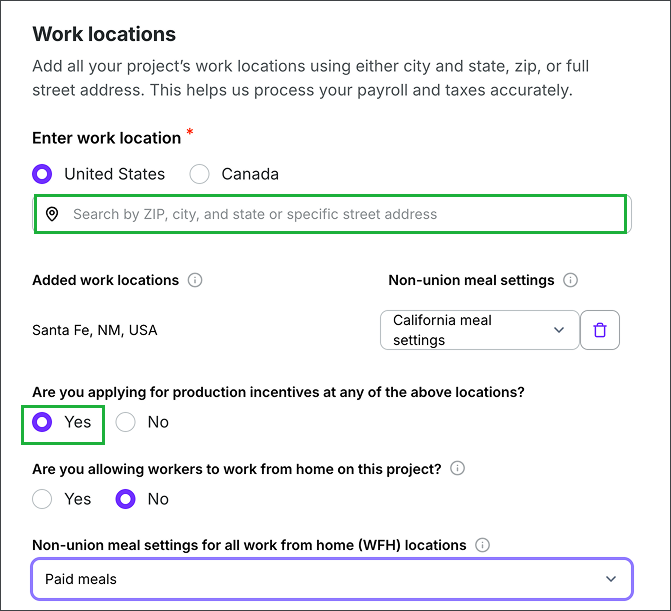
Under Work locations, click to choose United States, begin entering the NM address. In the list of address results, click to select the correct address. Work locations that have been selected will display under Added work locations. Under Are you applying for production incentives at any of the above locations?, click to choose Yes.
.png)
In the Tax Credits section, under Is this a New Mexico Tax Credit project?, click to choose Yes. Under New Mexico Office Location, enter the address of your production office in NM.
How to identify workers qualifying for NM tax incentives in Wrapbook
After you’ve invited workers to a NM tax incentive project in Wrapbook, you’ll need to use the steps below to identify those who are qualifying workers. Keep in mind that only non-resident workers that have been onboarded to the project will appear on the list. For this reason, you may need to periodically check for relevant workers, depending on your production schedule.
In most cases, workers who are non-resident "performing artists" or "front-of-camera" talent should be identified for the additional taxes that are required for the incentive. If you are a New Mexico Film Partner, you should select all above-the-line (ATL) workers on this list.
Go to the project’s People dashboard
At the top of the dashboard, click the Manage NM Tax Incentive Workers button
On the Manage New Mexico Non-Resident Tax Incentive Workers page, you can enable or disable worker withholdings, by clicking the checkboxes to select the worker(s), and then clicking the Action button at the bottom of the page. In the menu, you can click to select either Mark as enabled, or Mark as not enabled.
Payroll considerations for NM Tax Incentive projects in Wrapbook
Running payroll for a project that’s applying for NM Tax Incentives is relatively the same with the following exceptions:
You must agree to the NM Tax Addendum and enter your production’s NM office address in the project’s Payroll settings. If this is not done, an alert will appear next to the payables that cannot be processed on the Run payroll page.
After payroll is run for a NM Tax Incentive project:
The payroll will be reviewed for accuracy. Our team will reach out if we see any issues.
The Loan Out payments will be listed on the Payroll page. You can hover over your cursor over the information icon to see a breakdown of deductions, including the New Mexico State Tax Credit amount.
New Mexico GRT and SLO fees are itemized in the Summary section of the project’s Payroll page
The Payroll invoice from Wrapbook will itemize SLO payments on the first page of the invoice, and separately further down the page
.png)
Once payroll is run, you can hover over the information icon in the Loan-Out Payments section of the Payroll page to see a breakdown of deductions
.png)
New Mexico GRT and SLO fees are itemized in the Summary section of the project’s Payroll page
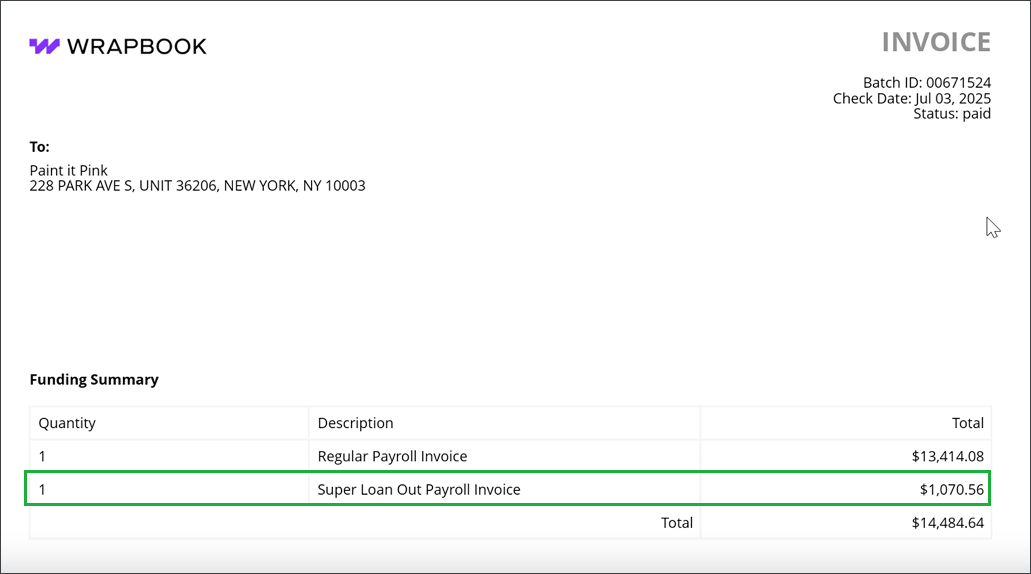
On the first page of the payroll invoice, the SLO payroll amount will be itemized under Funding Summary
.png)
Further down the invoice, SLO payroll will be listed in its own section, along with the Total amount