Overview
Adding information about unions, guilds, and agreements involved in your project ensures that worker payments are accurate and benefits, including pension and health contributions, are properly handled.
What to expect when setting up a union, film, or television project in Wrapbook
Union, film, and television projects in Wrapbook have a setup flow tailored to the way productions are structured — including episode configuration, FTV-specific payroll defaults, and union or guild agreements when applicable. These settings apply whether you're running a SAG-covered series or a fully independent film. Getting them configured correctly before onboarding workers ensures that pay, benefits, and reporting work the way your production requires from the start. If your project is under review and you have urgent questions or haven't heard back within a reasonable timeframe, contact the Wrapbook Support Team.
Setting up a film or television union project
After you add union agreements to your project, Wrapbook reviews your setup before you begin onboarding workers. You'll see a Unions, guilds, & health plans are pending review message on your project — this is expected. A member of our Contracts team will reach out to you directly. No action is required on your end at this stage.
Setting up a non-union film or television project
You may also see a Project under review message on your project at this step. In these cases, Wrapbook's Customer Success Team will complete the remaining setup steps on your behalf after the review. You'll hear from your Wrapbook team when your project is ready.
What’s configured for you:
PHBP
The Producers' Health Benefits Plan (PHBP) is a group health insurance plan for employees in the commercial production and post production industries
The plan is employer-funded and available to eligible staff and freelancers of participating companies.
If the project involves PHBP, click Yes. Otherwise, you can click No.
Unions & guilds
Click Yes if IATSE, Teamsters, DGA, or SAG-AFTRA are involved with your project. When you click Yes, you’ll be prompted to enter the Default hire state and city, and then click the dropdown menu to select Which unions & guilds are involved?
Based on your responses, you’ll be prompted to enter additional information required by the unions and guilds involved. You'll also have the option to connect a production entity if any have been created for the company.
If you are working with unions or guilds, be sure to upload your contract agreements with the union/guild, your workers, any timekeeping information, and any other information that is required specifically by the union/guild to the project’s Documents page
To view the Documents page, in the left-side navigation, click the dropdown menu to select the project, then in the Project menu, click Documents. If union/guild agreements are not uploaded, Wrapbook won’t be able to pay your project’s workers.
Production entity
Note: The production entity dropdown and contribution detail settings described below are only visible when your company has organizational hierarchy enabled.
For each union involved in your project, select the Production Entity responsible for paying wages under that union's agreement. Wrapbook uses this to apply the correct union or guild identifiers to contribution reports.
If you haven't set up a Production Entity yet, see Add a production entity.
Union and guild identifier fields
After selecting a production entity, Wrapbook will automatically populate the applicable union or guild identifier fields if the entity has that information on file:
If a union or guild identifier is on file, it displays as read-only. To update it, go to Contribution details in Company Settings.
If a union or guild identifier is not yet on file, the setting will be editable. The value you enter here will be saved to the production entity for future use.
The specific settings shown depend on the union:
Union | Identifier | Additional |
|---|---|---|
IATSE / Teamsters / Basic Crafts (MPI) | Employer ID | Production Title ID, Production ID |
DGA | Producer Number | Project ID |
SAG-AFTRA | Signatory ID | Production Title, Production ID, Business Representative (optional) |
WGA | Signatory ID | Project ID |
The sub-section includes an entity badge showing which production entity's details are currently displayed, so it's always clear whose identifiers are being used.
MPI unions (IATSE, Teamsters, Basic Crafts)
If the same production entity is selected across more than one MPI union section, the MPI Details settings — Employer ID, Production Title, and Production ID — will automatically sync in real time across those sections. You only need to enter these values once.
Use a different Signatory for contributions?
Some productions use a different legal entity as the signatory on their union agreement than the entity that pays wages — this is sometimes called a "borrowed signatory." If this applies to your project, check the Use a different Signatory for contributions? box within the relevant union section.
When checked:
A Contributing Production Entity menu appears. Select the entity whose identifiers and details should appear on contribution reports for this union.
If no Contributing Production Entity is selected yet, you'll see the prompt: Select a production entity above to continue.
The guild updates to reflect the Contributing Production Entity's data.
If the Contributing Production Entity has an identifier on file, it displays as read-only. If not, it can be edited and saved back to that entity.
To add a new production entity, click the Add production entity link below the dropdown menu.
When unchecked, the Contributing Production Entity reverts to reflect the primary production entity.
If you're unsure whether your project involves a borrowed signatory, contact your union or legal representative.
Paid sick leave
As the employer, you’re responsible for tracking all paid sick time for your employees, including work completed outside of Wrapbook. To help you manage this, Wrapbook provides a tool for tracking sick leave accrual and payment.
Notes:
Paid sick leave features in Wrapbook must be enabled for your company before you can select a paid sick leave policy for a project
Once you onboard a worker to a project, you won’t be able to change the paid sick leave policy. If you need help updating this, please contact the Support team.
Select or create a paid sick leave policy
Unlimited
In most cases, we recommend selecting Unlimited because it simplifies the administrative burden of tracking paid sick leave across projects. Workers can claim paid sick time when they have a valid reason to do so, as provided by applicable paid sick leave laws.
Minimum
Provides minimum-compliant paid sick leave accrual Based on the location where each worker’s shift is performed. This option supports projects with multiple work locations.
Tracked outside of Wrapbook
Select this option when paid sick leave is tracked outside of Wrapbook.
Custom
Select an existing custom policy when one is available.
If you need to configure a new custom policy, select Create a new policy. In the Create a custom policy drawer, enter the required information and select Save before closing the drawer. To learn more, see Add a custom paid sick leave policy to a project.
If your company uses Production Entities (PE)s, you can select the PE when setting up the paid sick leave policy so that it is tracked against the appropriate EIN.
If you add a union after selecting a non-union paid sick leave policy, the non-union selection remains unchanged. The union appears in its own section with its own Paid sick leave policy selector.
Review Minimum policy details by work location
When you select Minimum for a project with multiple work locations, Wrapbook displays the applicable minimum policy details for each supported location. Select a View [location] Minimum - Accrual details link to review the policy calculation and accrual details for that location.
If no minimum policy is available for a location, Wrapbook displays: There are no minimum policies for [location].
Add a work location after a project has started
You can add a work location to an active project from the project dashboard:
Open Project settings > Payroll and location management
In the Work locations section, select + Add work location
Enter the country and address
Complete the required non-union meal settings
Click Save
The meal-setting fields in this dialog are separate from the paid sick leave policy.
After the new location is saved:
Return to Project settings > Unions, guilds, & health plans
The existing Minimum policy remains in place, and Wrapbook adds the applicable minimum policy for the new location. You do not need to create a separate policy for the new location.
The new location affects paid sick leave accrual for work performed there going forward. Previously worked shifts are not recalculated.
If your project has locations with different paid sick leave requirements, review the resulting policy setup carefully. Contact the Wrapbook Support Team if you need help confirming which policy applies.
MPI
Motion Picture Industry Pension & Health Plans (MPI) is the benefits fund that administers health, pension, and related plans for IATSE and Teamsters. Productions contribute to MPI on covered wages, and MPI tracks those contributions.
When applicable, you can enter the following MPI details for your project:
Employer ID — If your selected Production Entity has an MPI Employer Account Number on file in Wrapbook, this will display as read-only. If it does not, enter the number here — it will be saved to the production entity for future projects.
Production Title ID and Production ID — Enter these for each project. These values are project-specific and are not stored at the production entity level. If the same production entity is active across IATSE, Teamsters, and Basic Crafts, these values sync automatically across those union sections.
Click here to read our blog post about how to get MPI IDs.
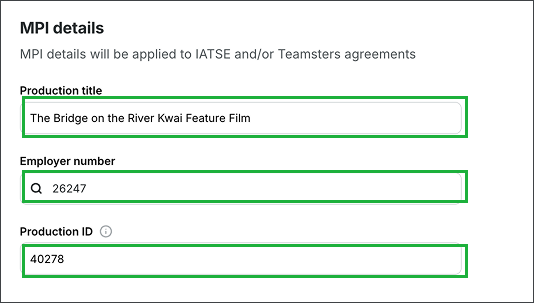
Example of a MPI details for a project that involves IATSE & Teamsters
Once you’ve finished entering the information in the Unions, guilds, & health plans section, click the Save & continue button.