Overview
In Wrapbook, manually collected or offline onboarding documents are documents completed outside of the Wrapbook platform, such as on paper forms or fillable PDFs. There are three types of onboarding documents that may need to be manually collected, and each is handled differently in Wrapbook:
Company-issued startwork (such as deal memos, crew agreements, training document requirements, and other production-specific documents)
Tax forms (federal, state, and locally required forms such as W-4 and W-9)
Form I-9 (employment eligibility verification)
Select the document type above to jump to the relevant instructions.
Company-issued startwork
When the manually collect startwork option is turned on for your company's Wrapbook account, authorized company team members can attest in Wrapbook that they'll manually collect onboarding documents on behalf of a project worker.
When this attestation is checked, the authorized company team member will be able to:
Download ready-to-sign startwork from Wrapbook, with the worker's information already filled in
Upload the completed and signed startwork to the documents to Wrapbook
View startwork documents that have been manually collected and uploaded to Wrapbook
When manually collect startwork has been enabled for a worker:
The setting is project-specific and will not automatically transfer to future projects the worker joins
Once you've attested to manually collect startwork, the worker must complete all required documents listed offline, including any new startwork documents that are added to the project
Any partially completed startwork that was started online will remain available for digital completion
How to enable manually collect startwork for a project worker
Once the option to manually collect startwork is turned on for your company's Wrapbook account, you can enable it for a project worker by doing the following:
In the left-side navigation, click the dropdown menu to select the project
In the Project menu, click People
On the project's People dashboard, click the View button next to the worker
Under the worker's details, scroll down to the Startwork section and click Edit
On the Required startwork page, click the toggle to enable Manually collect startwork
Note: This option will only be available if you've requested it from your company's Wrapbook Customer Success Manager or the Support Team
Click the checkbox to confirm the attestation
Click the Save button
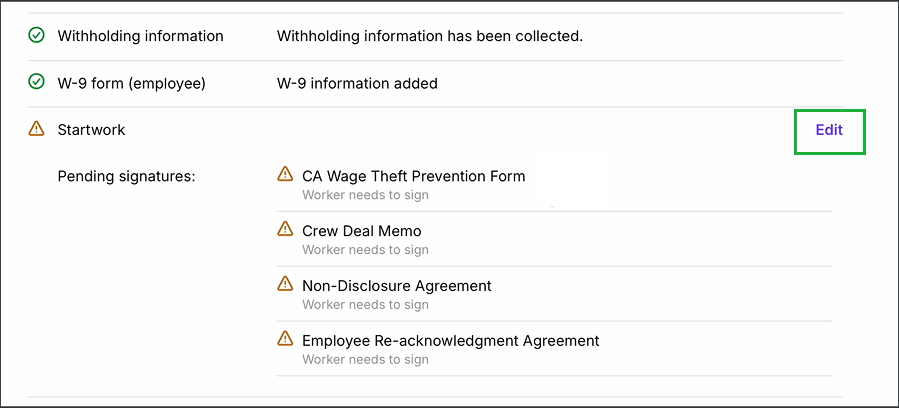
In the Startwork section, click Edit
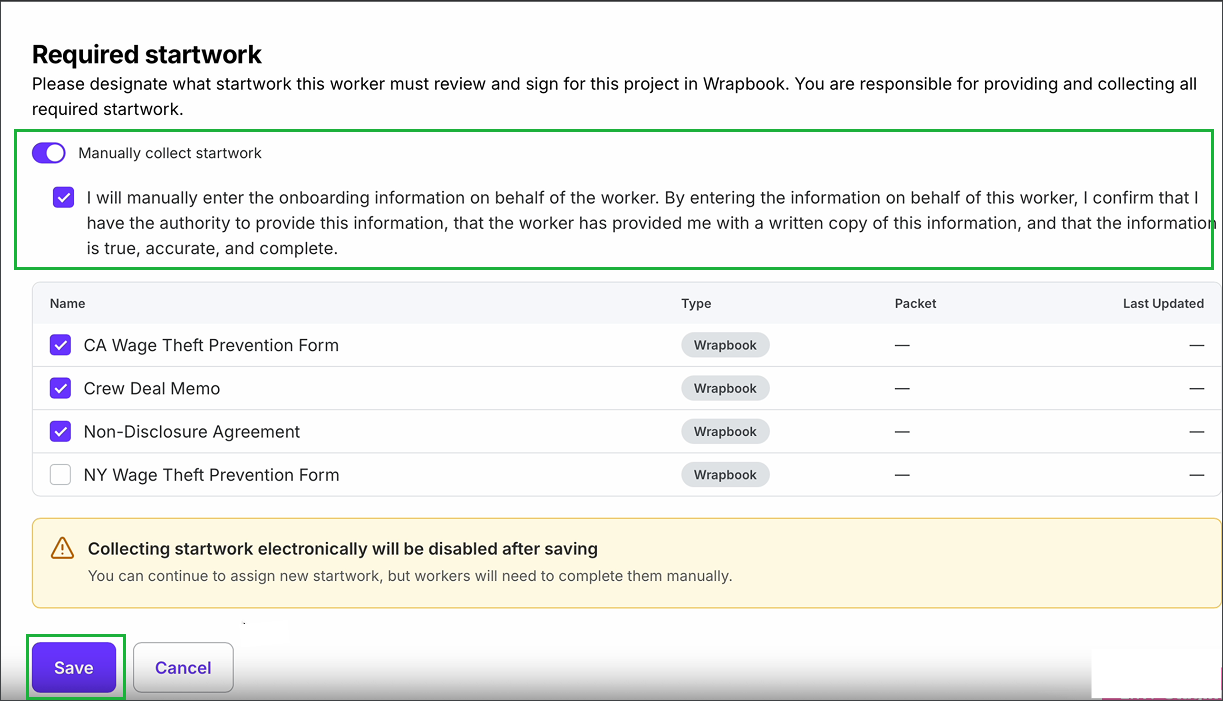
Click the toggle to enable Manually collect startwork, click the checkbox to confirm the attestation, then click the Save button.
How to download startwork for manual completion
When manually collect startwork is enabled for a worker with an existing Wrapbook profile, authorized members of your team will be able to download startwork documents so they can be printed or shared and completed off platform:
In the left-side navigation, click the dropdown menu to select the project
In the Project menu, click People
On the project's People dashboard, click the View button next to the worker
Under Startwork, click the download icon next to each form to download. Once downloaded, the forms can be printed or shared.
.png)
Click the download icons next to the startwork documents you want to save to your computer and print or share
How to upload manually collected startwork to Wrapbook
When manually collect startwork is enabled for a worker, you can upload the forms that they've completed offline to Wrapbook using the following steps:
Make sure you've saved copies of the completed startwork to your computer
In the left-side navigation, click the dropdown menu to select the project
In the Project menu, click People
On the project's People dashboard, click the View button next to the worker
Under the worker's details, scroll down to the Startwork section and then click Upload next to the startwork document you're uploading
In the popup, drag and drop the saved document, or click the Browse Files button to select the file
Once the name of the file appears in the popup, click the Upload button
.png)
Drag and drop the file, or click the Browse Files button to select the document that you want to upload
.png)
Once the name of the file displays in the popup, click the Upload button
How to view startwork documents that have been manually collected and uploaded
To view startwork that's been manually collected and uploaded to a project worker's details:
In the left-side navigation, click the dropdown menu to select the project
In the Project menu, click People
On the project's People dashboard, click the View button next to the worker
Under Startwork, click View next to the name of the completed document you want to see.
You also have the option to delete an uploaded document by clicking the trash icon
.png)
Under Startwork, you can click View to see the uploaded document, or the trash icon to delete it
Manually collecting tax forms
If a worker or their agent prefers to complete paper versions of tax forms (such as W-4 or W-9), follow these steps:
Invite the worker to the project
When paper forms will be used, you can skip Step 4: Assign Startwork
Collect the worker's completed paper tax forms
Create digital copies of each form using a document scanner
Add the scanned copies to the project's Documents folder
Notify your paymaster via email once you've uploaded the documents, or contact the Wrapbook Support Team
Manually collecting Form I-9
Form I-9 is handled separately from other startwork in Wrapbook. If a worker's Form I-9 has been (or will be) completed on paper outside of the platform, a production administrator can update the worker's Form I-9 settings to reflect this.
How to set a worker's Form I-9 to manually collected
In the left-side navigation, click the dropdown menu to select the project
In the Project menu, click People
On the project's People dashboard, click the View button next to the worker
Scroll down to the Form I-9 section and click Settings
On the Form I-9 Settings page, under Collect Form I-9 electronically for this worker? click to choose No
Click the Save I-9 Preferences button
Once saved, the worker will no longer be prompted to complete the Form I-9 through Wrapbook. The production administrator is then responsible for collecting, completing, and verifying the Form I-9 outside of the platform.
Important: This setting is project-specific and will not carry over to future projects.
Uploading a completed Form I-9 to Wrapbook
After the Form I-9 has been signed by both the worker and the employer representative, you have the option to upload a copy to the project’s Files & exports.
Uploading is optional but strongly recommended. Storing the completed form in Wrapbook keeps it accessible for future reference.