Vendor payments in Production Accounting are permission based
To use PAS to pay vendors, your account must have one of the following roles enabled:
Role: Company Admin, Accountant
Custom role with: Accounting & Cost Tracking / Vendor payments - Full access
Overview
With Wrapbook’s Production Accounting Suite (PAS) enabled, production accountants and administrators can generate PDF copies of payments for:
Documenting transactions
Audits
Vendor inquiries
Evaluating compliance
Project wraps
Types of payments you can generate copies for
With PAS enabled, you can generate copies of payments made via:
Manual checks — generates a PDF check copy with a Copy watermark
Wire transfers sent outside of Wrapbook — generates a proof of payment (not a check copy)
When you can generate PDF copies of payments
In Wrapbook, payment copies can be generated at the following times:
Immediately after issuing a batch of payments
At project wrap for audit prep
On demand to resolve vendor inquiries
PDF payment copy features
When you generate a PDF copy of a payment:
A Copy watermark will appear on check copies generated for manual check payments
For wire transfer payments, a proof of payment is generated
Payment information
PDF copies of payments include the following details:
Payer (production) info (company name/production entity/company address)
Vendor info (name/address)
Payment number, date, payment type
Associated invoice numbers/amounts (multiple per payment) and discount amounts
Total payment amount
Time and date stamp of the payment run
Name of the user processing the payments
How to generate PDF copies of payments
With PAS enabled, you can generate PDF copies of payments from the Accounts payable dashboard using the following steps:
In the left-side navigation, select the name of the project that you want to generate PDF copies of payments for
In the left-side navigation, expand the ACCOUNTING menu, and click Accounts payable
On the project's Accounts payable dashboard, click the More dropdown button and select Payment runs
On the Payment runs page, click the View button next to the run that you want to generate PDF copies of payments for. In the Payment run drawer, you can click either:
The Export details button next to a Payee (Vendor) that you want to generate PDF payment copies for
The Export all details button at the bottom to generate PDF payment copies for all payments in the Payment run
The PDF copy will automatically be saved to your Downloads drawer in Wrapbook and your computer.
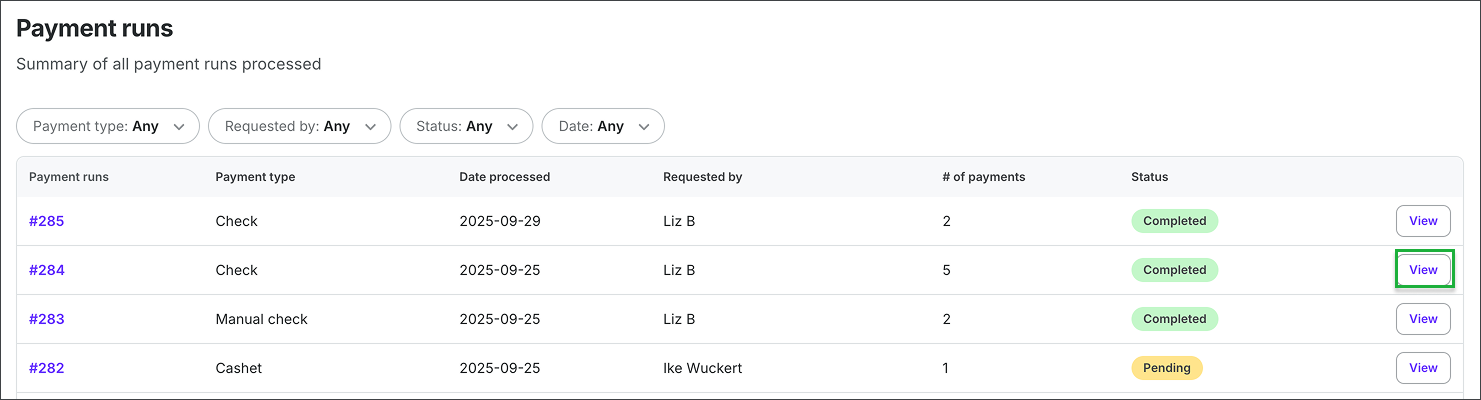
Click the View button next to the Payment run that you want to generate PDF copies of payments for
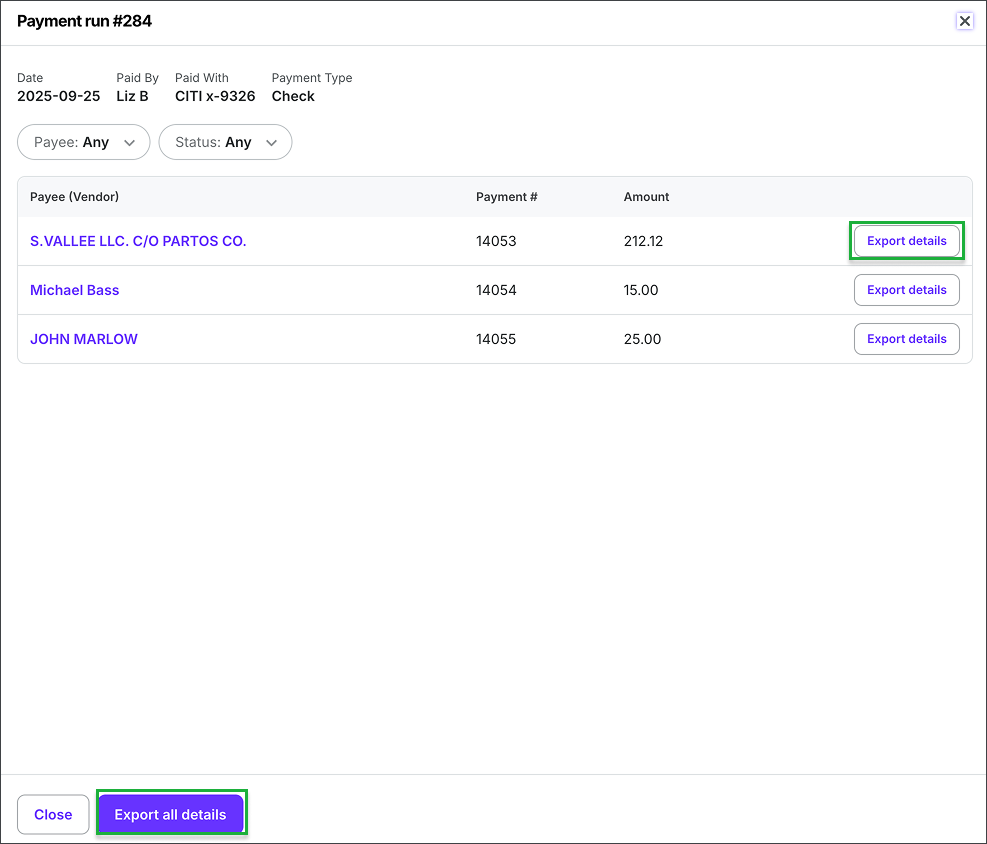
In the Payment run drawer, you can click either the Export details button next to a Payee (Vendor), or you can click the Export all details button at the bottom