Startwork packets are permission based
To hide a company-level startwork packet, your account must have one of the following roles enabled:
Role: Company Admin, Company Manager
Custom role with: Worker hiring and startwork - Full access
To hide a project-level startwork packet, your account must have one of the following roles enabled:
Role: Company Admin, Company Manager, Project Coordinator
Custom role with: Worker hiring and startwork - Full access, Project access only
Overview
In Wrapbook, authorized production administrators can mark startwork packets as Hidden (instead of deleting them).
When a startwork packet is Hidden:
You’ll still be able to access it from the Startwork dashboard Packets tab
The packet will not appear as an option in dropdown menus when inviting workers to a project
Hiding a packet at the Company level vs the Project level
Company-level hide
Hides the packet everywhere it could be used across the company, including all projects (and any lower levels that inherit company packets)
Use this when the packet is retired globally and should not be selectable for any project in that company
Project-level hide
Hides a packet only within that specific project context (it will not appear as an option in the packet dropdown menu for the project)
The same packet can still be available in other projects
You can also hide company-level packets at the project level. When this is done, they won't appear in that project's packet dropdown, but will still be available in other projects.
How to hide a startwork packet
Use these steps to hide a startwork packet:
At the top of the left-side navigation, click the dropdown menu
If you want to hide a startwork packet at the company-level, select All projects
If you want to hide a startwork packet at the project-level, select the project that you’re hiding the packet for
In the left-side navigation, click Startwork
From the Startwork dashboard, click the Packets tab
Click the three dots next to the packet you want to hide, and select Hide
How to unhide a startwork packet
When a startwork packet is hidden, the Hide option changes to Unhide
Click Unhide to restore the packet
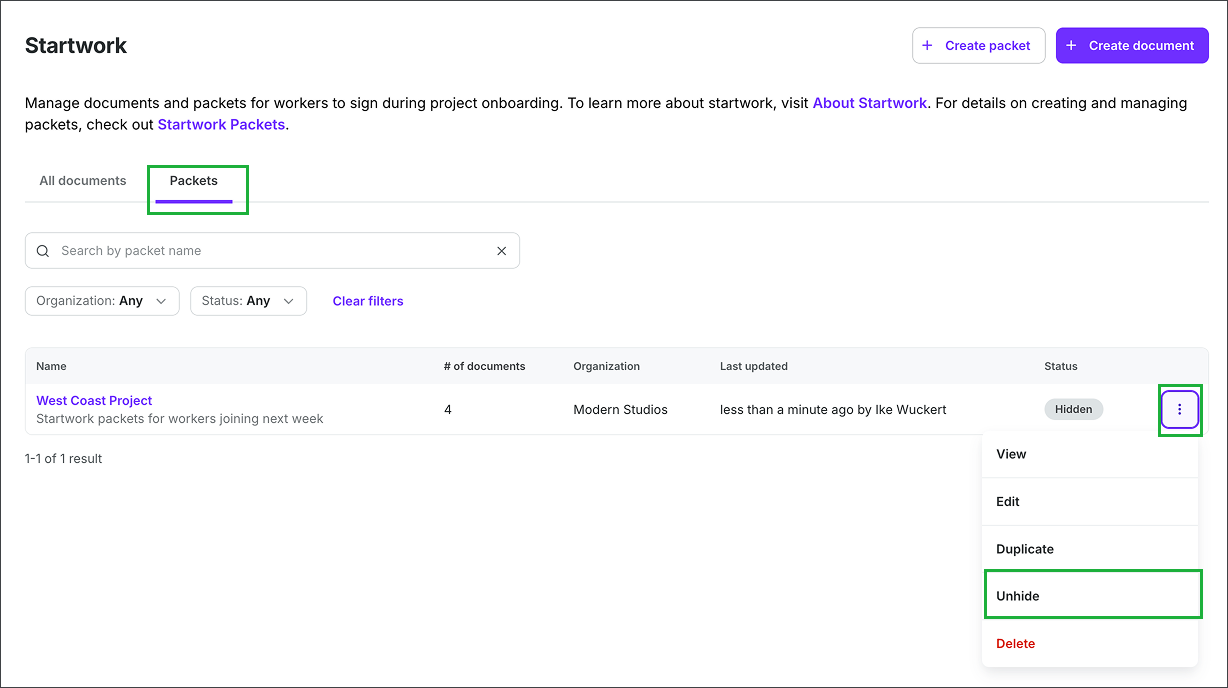
On the Startwork dashboard, click Packets, then the three dots next to the Hidden packet, and select Unhide