Overview
The EFC variance report compares the estimated final cost changes within a selected period. This report is similar to a cost report, but focuses exclusively on EFC changes by removing all PO and Actual amounts, while adding detailed explanations and identifying which team members made each modification.
This report provides production teams with clear comparisons between reporting periods, enabling you to:
Visualize exactly what changed between periods with intuitive highlighting
Understand the why behind every variance with detailed explanations
Identify potential budget risks before they impact your bottom line
Eliminate time-consuming manual tracking across systems
Customize views to match your specific reporting requirements
How to create an EFC variance report
In order to create an EFC variance report, Wrapbook’s Production Accounting Suite must be enabled.
Once PAS is enabled, you can begin creating your report by going to the Generate an EFC variance report page:
In the left-side navigation, click the dropdown menu
In the dropdown menu, select the name of the project that you want to access the EFC variance report for
In the left-side navigation, expand the ACCOUNTING menu, and click Accounting reports
On the Accounting reports dashboard, click the Create report button next to EFC variance report
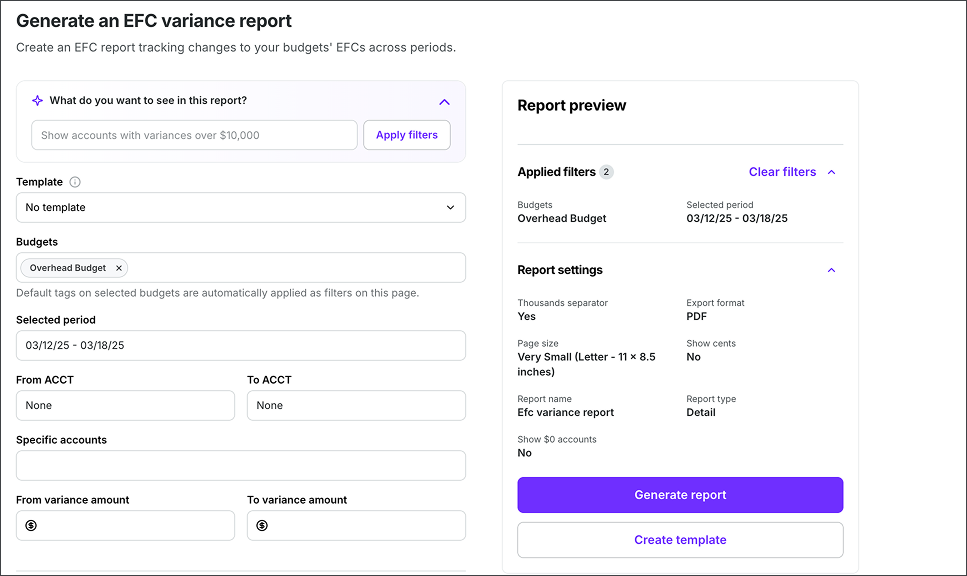
Example of the Generate an EFC variance report page
What do you want to see in this report?
On the Generate an EFC variance report page, under What do you want to see in this report?, you can use simple conversational language to describe what data you want to include in the report.
Here’s how it works
Under What do you want to see in this report? type a description of the data you want to show in the report
For example: Show me all accounts that had a variance of more than $1,000 last period
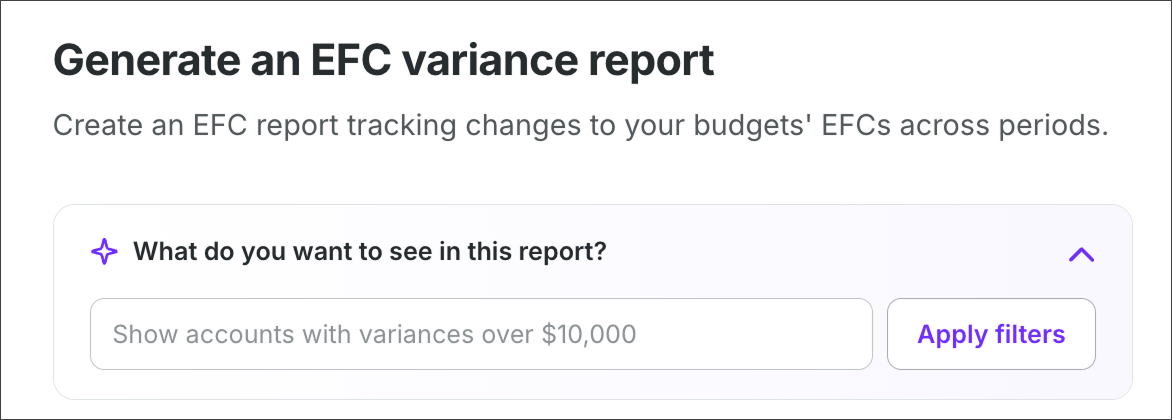
Type a description of the information that you want to see in the report
EFC variance report manual filters
You can also click on any of the filter fields listed to apply to the report.
Click the arrow to see the full list of manual filters available for EFC variance reports
Filter | Description |
|---|---|
Budget | The budget that you want to run the report for |
Selected period | The timeframe for the report |
ACCT range | The range of ACCT #s from the COA to be included in the report |
Specific accounts | The specific accounts to be included in the report |
Variance amount range | The range in dollar amount that you want to see report data for |
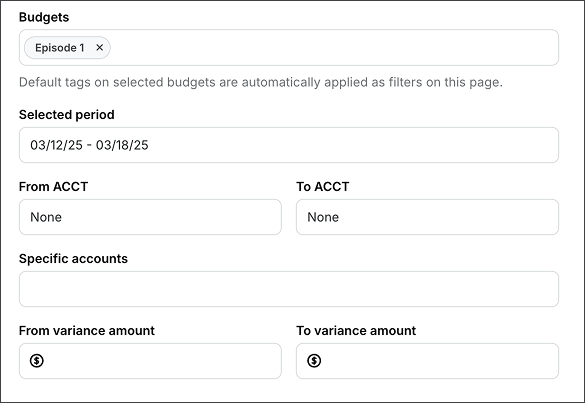
Screenshot of the manual filters available for the EFC variance report page
EFC variance report settings
In the Report settings section, you’ll have the option to configure the report in the following ways:
Thousands separator - If you want to display a thousands separator on your report amounts, click to enable this option
Export format (PDF or CSV)
Page size (Letter, Legal, Ledger/RA3 or 2x Ledger/RA2)
Show cents - If you want your report amounts to include cents, click to enable this option
Report name
Report type (Summary, Detail, Summary & Detail)
Customize
Under Report columns, you can click the Customize button to the following columns:
Account
Description
Budget
Approved Overages
Total Budget
Previous EFC
Current EFC
EFC Variance
Explanation
Changed by
After clicking Customize, use the customize Report Columns popup to:
Select or remove columns — check or uncheck the boxes next to each column name
Rename a column — click an existing column name and type a new one
Reorder columns — hover over the four-dot icon to the left of a column name, then drag it to a new position
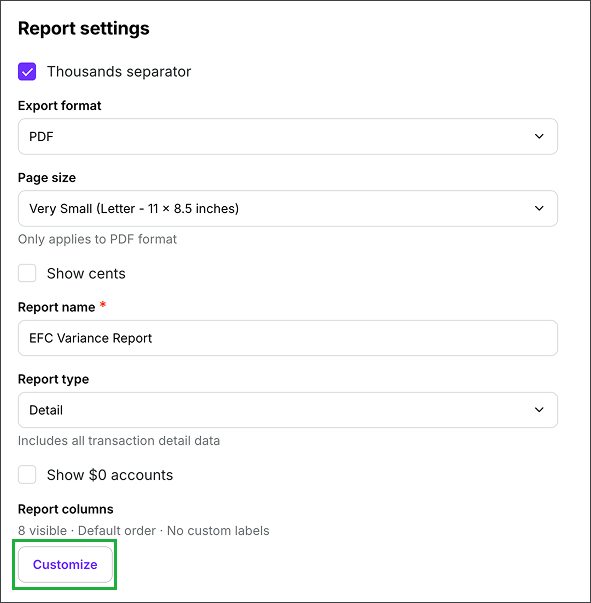
Screenshot of EFC variance settings options. Click the Customize button to choose which columns to include in the report, update column names, and change the column order.
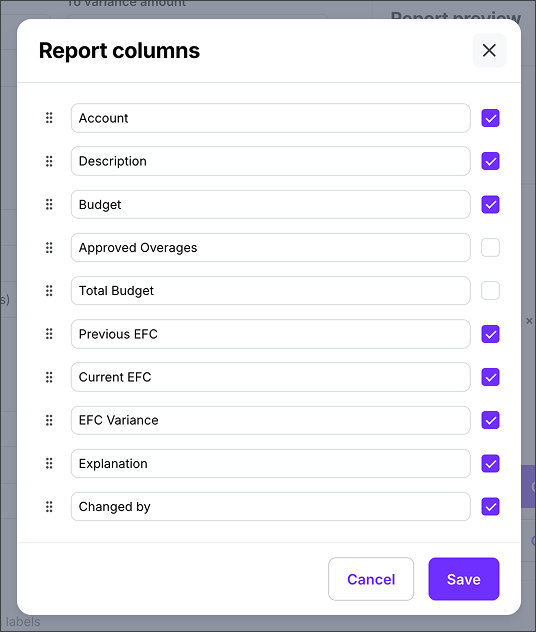
Check the columns you want to include, click a column name to rename it, and use the four-dot handle to drag it into a new position
Preview your EFC variance report
In the Report preview, you can see the types of data that will appear in the report based on the filters and settings you’ve applied.
Generate your EFC variance report
On the EFC variance report page, click the Generate report button
After you click the button, your report will begin automatically downloading to your computer. You’ll receive an email once it’s ready.
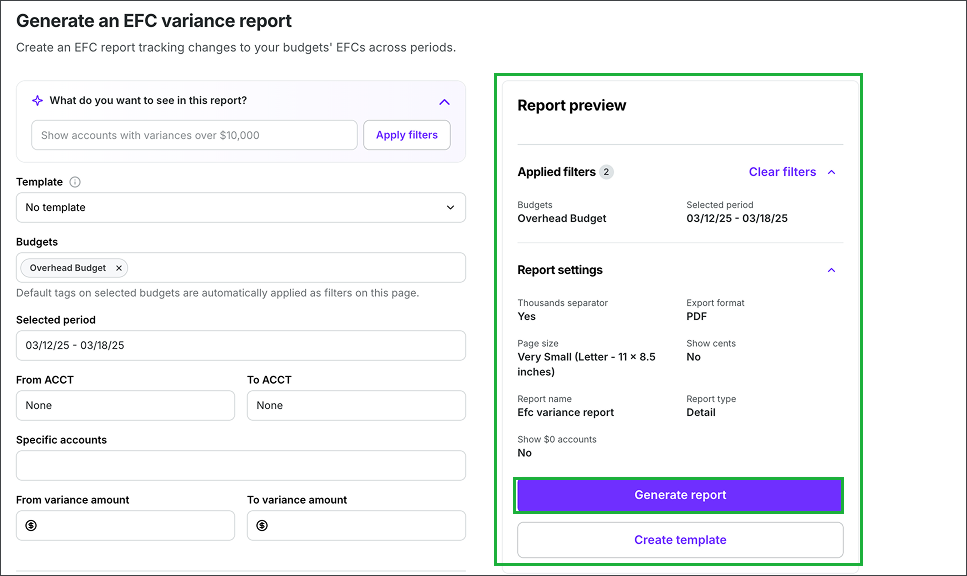
Example of a EFC variance report preview. Click the Generate report button to begin your download.
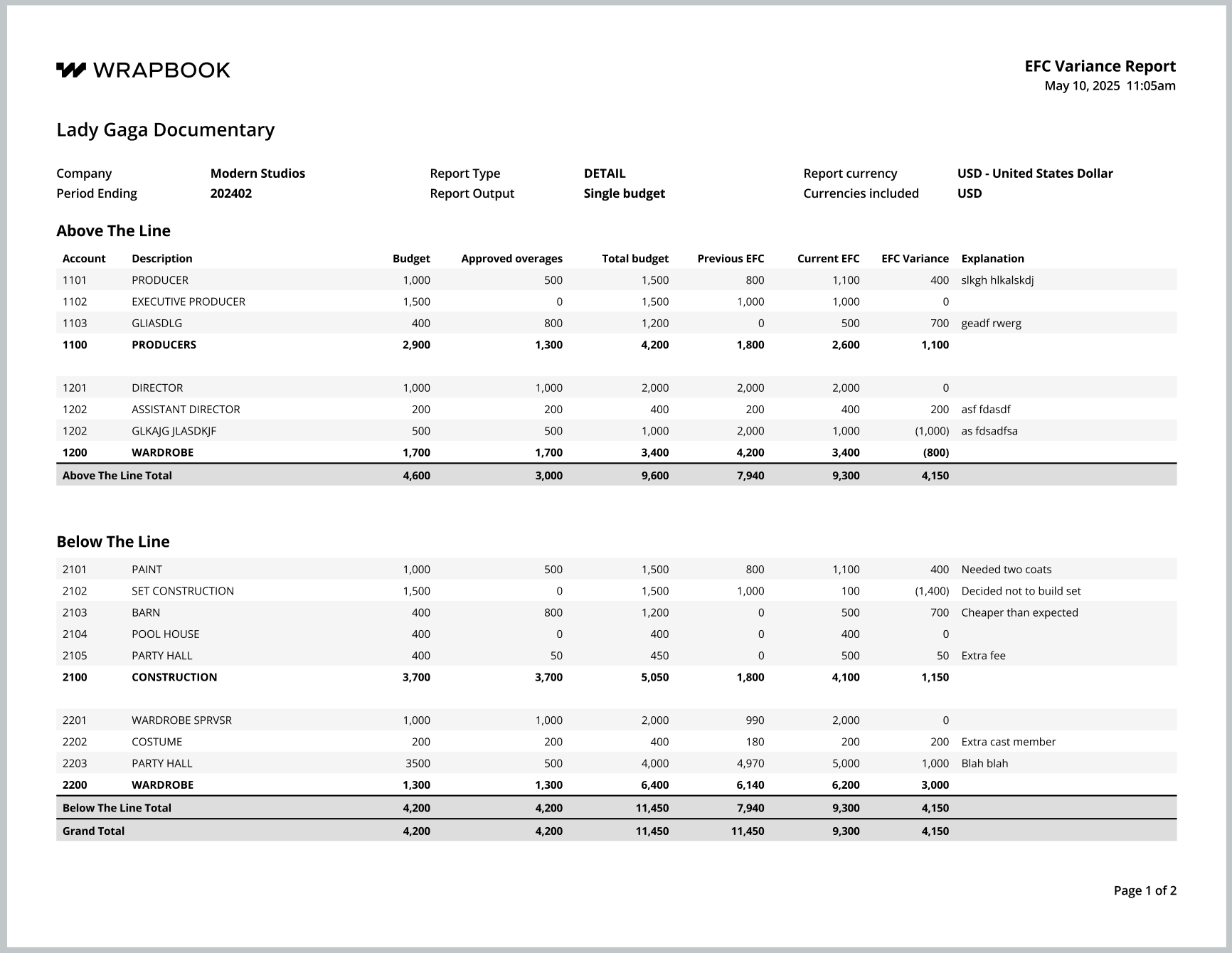
Example of a EFC variance report generated in Wrapbook
Create an EFC variance report template
Report templates allow you to save your preferred settings for your EFC variance reports. Instead of adjusting settings every time you generate a report, you can create and save templates for quick access to your preferred views.
Create a template
Go to the Generate an EFC variance report page
In the Apply filters section, add the filters that you want to use for your report template. Use the Report preview to see an overview of what will be included in the report.
Once you are satisfied with the way the report is configured, click the Create template button
In the Create template popup, enter a template Name. You can click the checkbox to Set as default (optional).
Click the Save button
The template that you’ve just created will now appear as an option in the Custom template dropdown menu when you return to the Generate report page. If you set the template to be the default, it will automatically be selected in the dropdown menu.
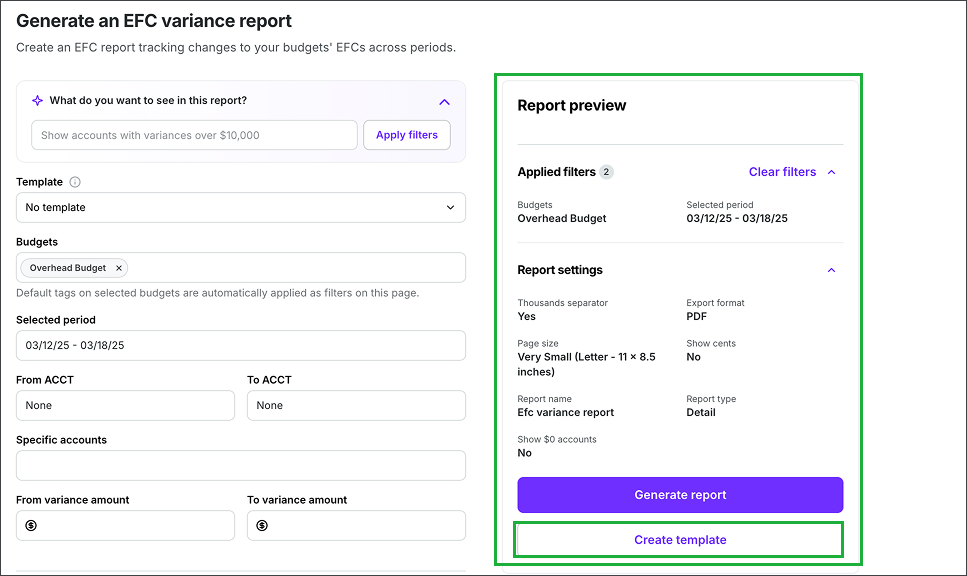
Click to apply filters, then click the Create template button
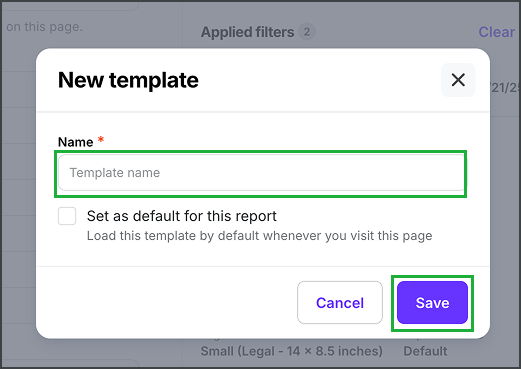
Enter a Name, click to Set as default for this report (optional), and then click the Save button
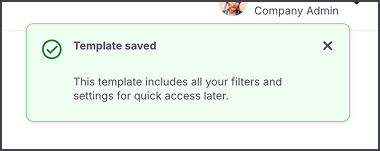
A notification will appear confirming that your template has been saved
Set as default, rename, duplicate, or delete an existing template
Once a template has been created, you can set it as the default, update its name, duplicate it, or delete it using the following steps:
Go to the Generate an EFC variance report page
On the Generate an EFC variance report page, under Templates, click the dropdown menu to select the template that you want to update
Click the gear icon, and then select an option: Set as default, Rename, Duplicate, or Delete
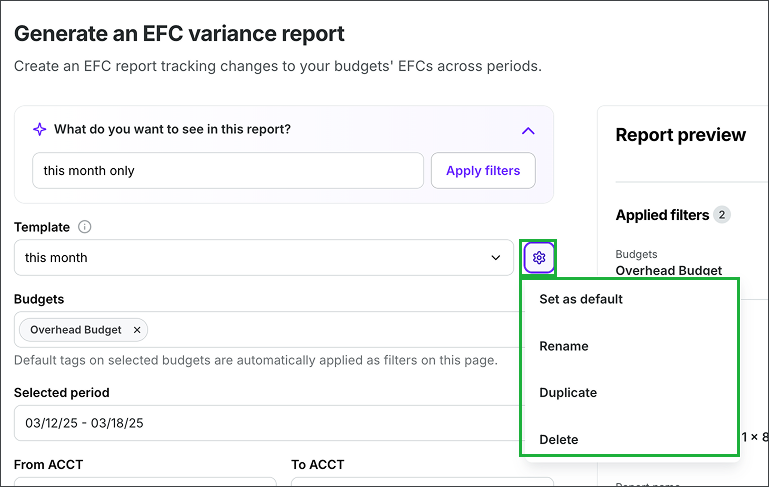
Select the template, click the gear icon, and then make your selection
Updating a template
If you make changes to a template, a Save changes button will appear next to the template’s name
To preserve the changes be sure to click the Save changes button before running a report or leaving the page

Click the Save changes button to update the template