When you can update a timecard
The timecard is in Draft status and hasn't been submitted yet
The timecard has been Submitted but hasn't been approved. Any updates made to the timecard will restart the approval process.
How to update a timecard before it’s been approved or paid
From the left-side navigation, click All projects
On your All projects dashboard, click the View Project button next to the project that you want to update a timecard for
In the left-side navigation, click Timecard. By default, the timecard for the most recent workweek will be displayed on the page, but you can click the dropdown menu to open and update a timecard from a previous workweek.
Click the Edit button
On the Editing Timecard page, click on the boxes to update the information
Once you’re finished making changes, click the Save and Review button
When you’re ready to send your timecard to your production team, click the Submit button on your timecard.
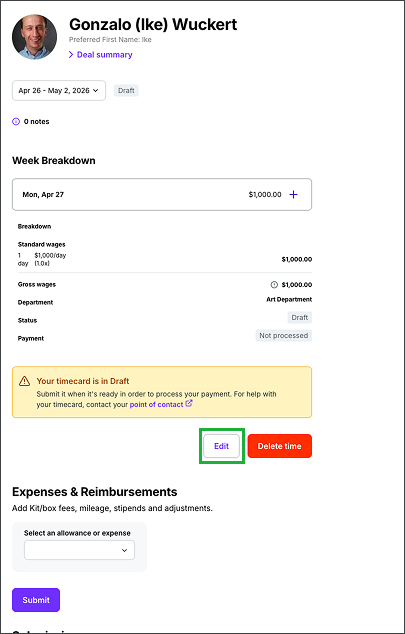
Click the Edit button to update your timecard draft

Click the Save and Review button
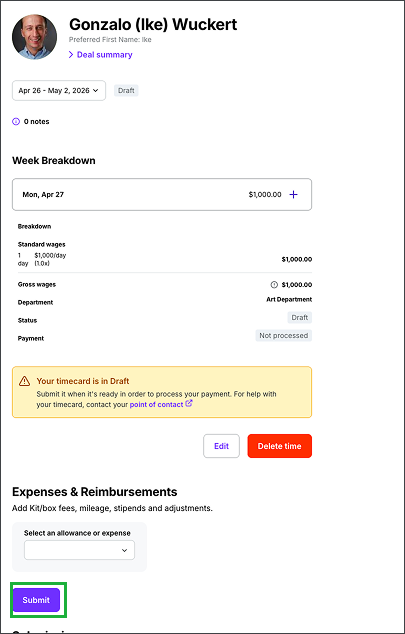
When you’re ready to send your timecard to your production team, click the Submit button
How to update a timecard that’s already been approved or paid
You’ll need to contact your production administrators to help make your changes
You can click the point of contact link to send an email to your production administrators to help with the updates
If additional time or allowances are added after approval, the timecard will return to Draft status and require re-approval from all previous approvers