Overview
Wrapbook lets you save your signature so you don't have to retype it each time you sign a document during startwork. Once saved, you’ll be able to add your signature to documents by clicking the signature line — making onboarding faster, especially when you have multiple documents to review and sign.
Your saved signature is legally compliant, and meets the same standards as a manually entered signature.
Saving your signature
You'll have the option to save your signature the first time you sign a document during startwork.
Open a document that requires your signature during the Review & sign startwork step
Enter your full name in the Please enter your full name to sign field
Check the Save signature for future use checkbox
Checking this box displays a consent statement confirming you agree to use this as your electronic signature for future Wrapbook documents. Removing your saved signature does not affect documents you've already signed.
Click the Save & continue button
Your signature is now saved. On any subsequent signing steps — within the same startwork session and across future projects — your signature will be filled in automatically.
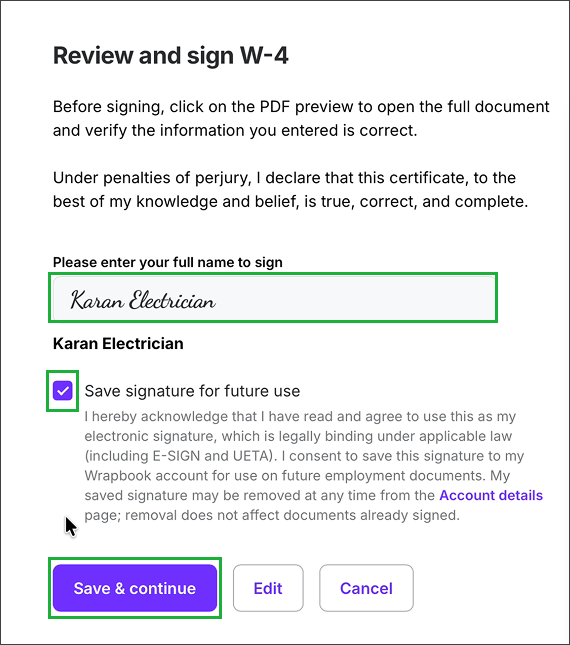
Enter your full name to sign, click to enable Save signature for future use, and then click the Save & continue button
Using your saved signature
Once your signature is saved, you don't need to do anything — Wrapbook automatically fills it in when you reach a signing step.
Open any document that requires your signature
Review the document
When you’re ready, click the signature line to add your saved signature
Click the Submit button (or Save & continue, depending on the form)
Removing your saved signature
You can remove your saved signature at any time from your Account settings.
Click your name or profile image in the top-right corner of Wrapbook to open your User menu
Select Account settings
Scroll down to the Privacy & security section
Next to Saved signature, click the Remove button and your saved signature will be deleted
Note: Removing your saved signature does not affect any documents you've already signed.
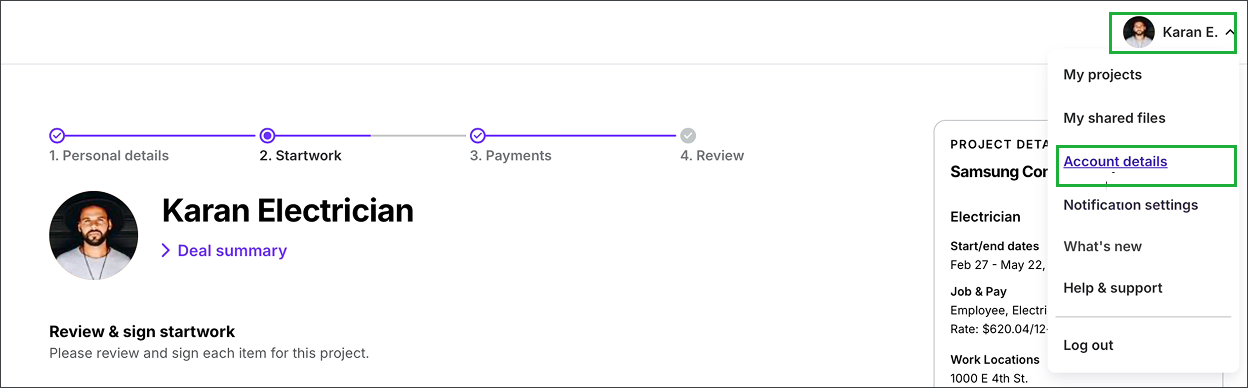
Click your name in the top-right corner and then select Account settings
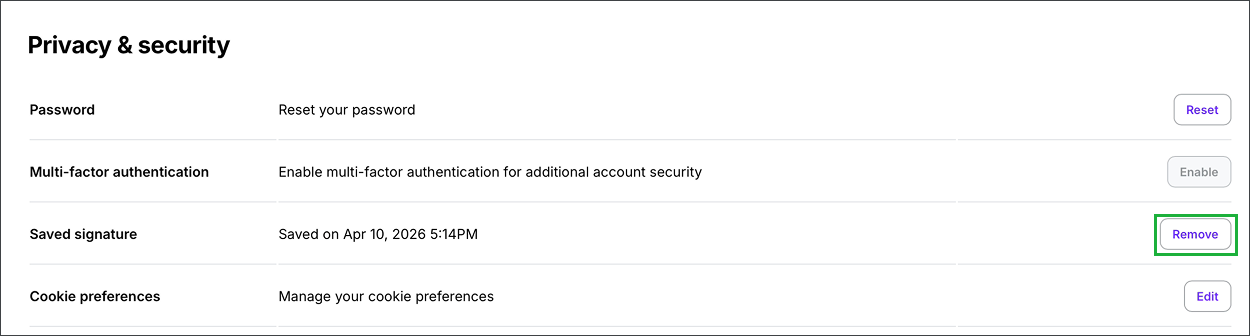
Under Privacy & security, next to Save signature, click the Remove button
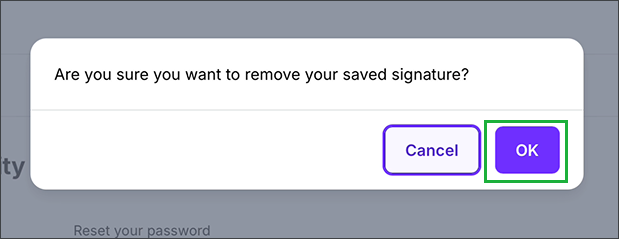
In the confirmation popup, click the OK button
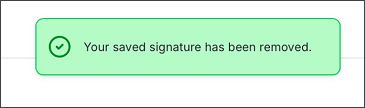
An alert will appear at the top of the page confirming that you’ve removed your saved signature