The People dashboard is your hub for managing worker profiles, project onboarding, permissions, and team organization.
From the People dashboard, you can click on a worker’s name to see their worker profile which contains their contact information, work details, payments, and the status of project onboarding.
Access the People dashboard
The People dashboard can be accessed at the company or project level:
All People is the company-level list of all the workers that have been added and includes the following details: Name, Location, and Job Title
People is the project-level list of all workers that have been added to that specific project
All People
To access the All people dashboard:
In the left-side navigation, under Company, click …More
In the …More menu, click All people
View and sort the All people list
On the All people dashboard, is a table listing every person that’s been added to your company or a company project along with the following details:
Name
Location
Job title
You can click on the first two column headers to sort the list alphabetically by:
Name
Location
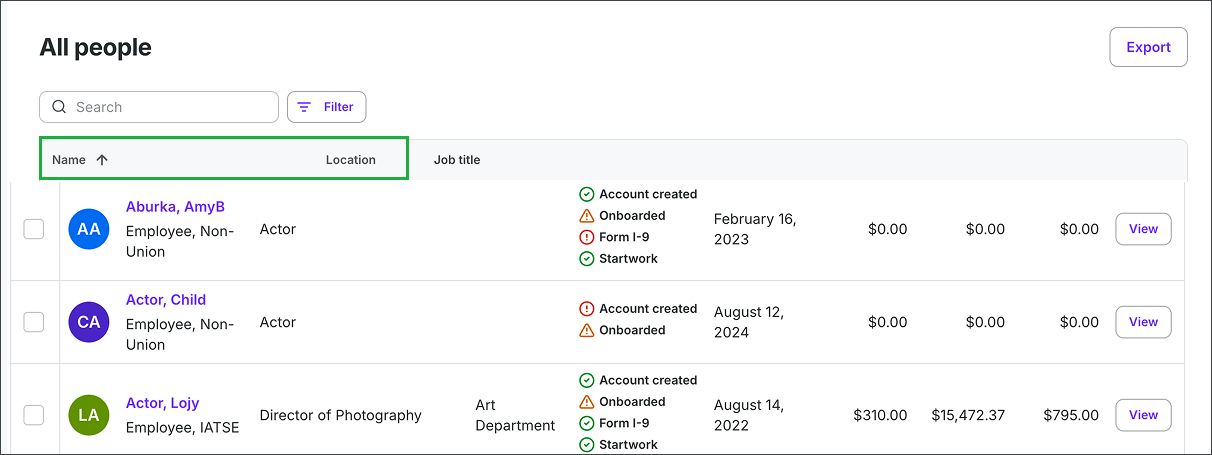
To sort by Name or Location, click the headers
Search and filter the All people list
You can use the Search bar at the top of the page to search for workers by name
Click the Filter button to filter the All people list by either:
State
Worker type
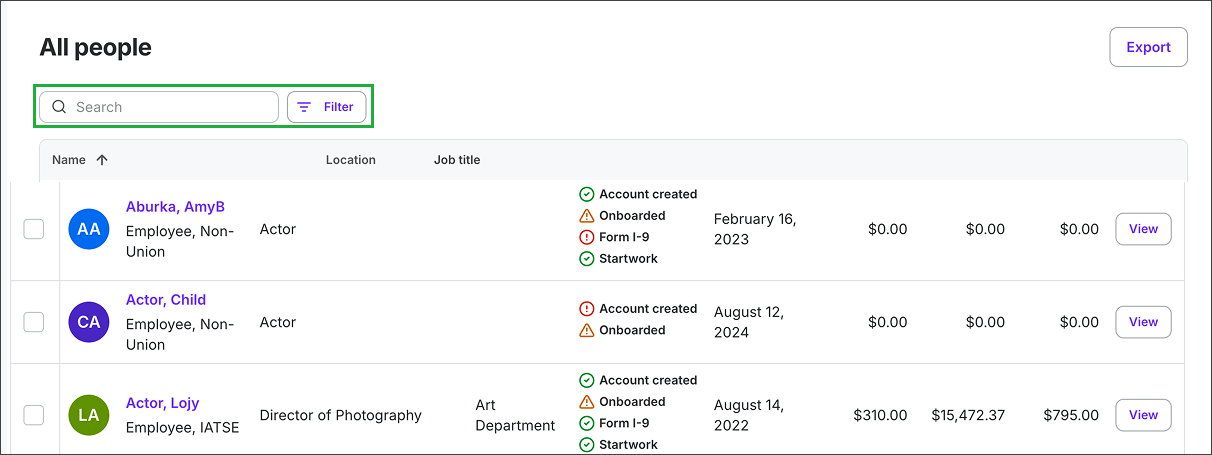
Use the Search bar and Filters to find specific workers
Access a worker’s profile
On the All people page, click the View button next to the name of the worker to see their worker profile
To learn more go to Worker profiles
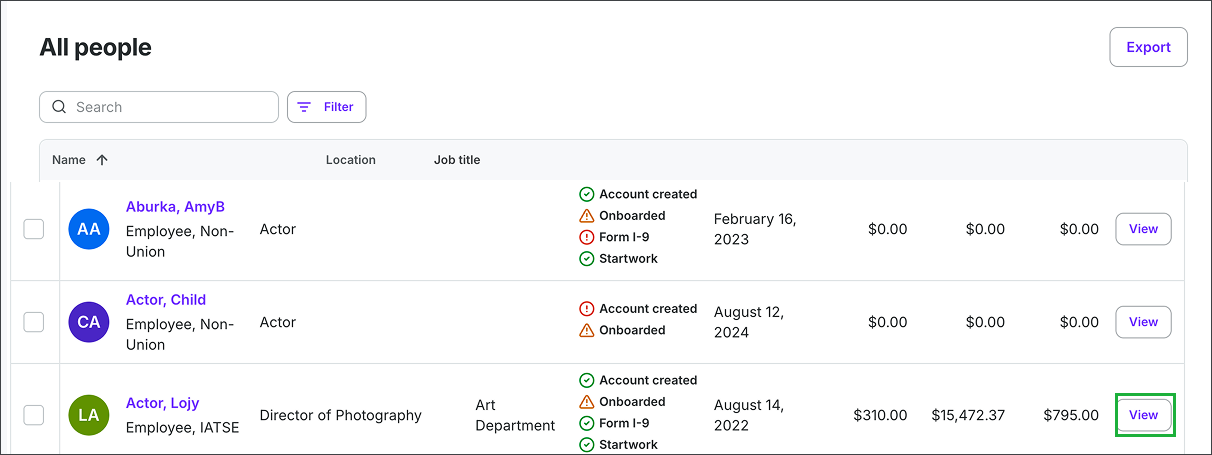
Click the View button
Project people
To access a project’s People dashboard:
In the left-side navigation, click the dropdown menu
Select the project you want to open
In the Project menu, click People
Search and filter the project’s People list
You can use the Search bar at the top of the page to search for workers by name
Click the Filter button to filter the All people list by either:
Department
Issue
Not onboarded
Started 7+ days ago without onboarding
Has an I-9 ready to be countersigned
Started 3+ days ago without a countersigned I-9
Startwork or document uploads incomplete
Startwork or document uploads ready for review
Employment authorization documents expiring in the next 90 days
Requesting agent representation
Out-of-policy-loan-outs
Scale rate changing in next 7 days
View and sort a project’s People list
On the project People dashboard, you’ll see a table listing every person that’s been added to a specific project along with the following details:
Name
Job title
Department
Status
Start date
Pending
Approved
Paid
You can click on the following column headers to sort the list alphabetically or numerically by:
Name
Job title
Department
Start date
Pending
Approved
Paid
Track project worker onboarding
Completion of the following onboarding tasks is shown in the Status column:
Account created
Onboarded
Form I-9
Startwork
Track project worker payments
You can see the total dollar amount of Pending, Approved, and Paid payments within the last three columns of a project People list.
See project worker rate information
If your account has permission to view worker rates, rate information will be displayed directly on the project People page.
Rate visibility on the People page is permission-based. If you don't see rate information next to a worker's name, your account role may not include rate-viewing access. Contact your company admin if you believe you should have this access.