Viewing and updating a project worker’s NYC ESSTA hours is permission based
To view and update, your account must have one of the following roles enabled:
Role: Company Admin, Company Manager, Project Coordinator, Project Assistant, Department Head
Custom role with: Project management - Full access, Manage
Overview
The New York City Earned Safe and Sick Time Act (ESSTA) requires employers to provide eligible workers with paid safe and sick leave. Wrapbook supports NYC ESSTA compliance by allowing authorized company team members to view and update ESSTA hours for individual workers directly within the platform.
Where to find a project worker’s ESSTA hours
When a NYC worker is eligible for unpaid leave, authorized company members will be able to see the workers ESSTA hours on their project-level worker profile.
To access:
In the left-side navigation, click the dropdown menu to select the project you want to open
In the Project menu, click People
On the project’s People dashboard, find the worker and then click View to go to their project-level worker profile
On the worker profile, click the Accruals & Leave tab
In the Unpaid Leave section look for the worker’s NYC Protected Time Off (Unpaid) balance
Update a worker's ESSTA hours
To update a worker's NYC ESSTA balance:
In the left-side navigation, click the dropdown menu to select the project you want to open
In the Project menu, click People
On the project’s People dashboard, find the worker and then click View to go to their project-level worker profile
On the worker profile, click the Accruals & Leave tab
In the Unpaid leave section next to NYC Protected Time Off (Unpaid), click the Edit balance button
In the Edit NYC Protected Time Off (Unpaid) Balance popup:
There is an option to Remove Time (default) or Add Time (this should only be used for corrections)
You may also select an effective Date for this adjustment
Then input the amount of Hours you would like to remove
In the popup, you will also see available hours listed and the requested hours to remove
Click the Save button
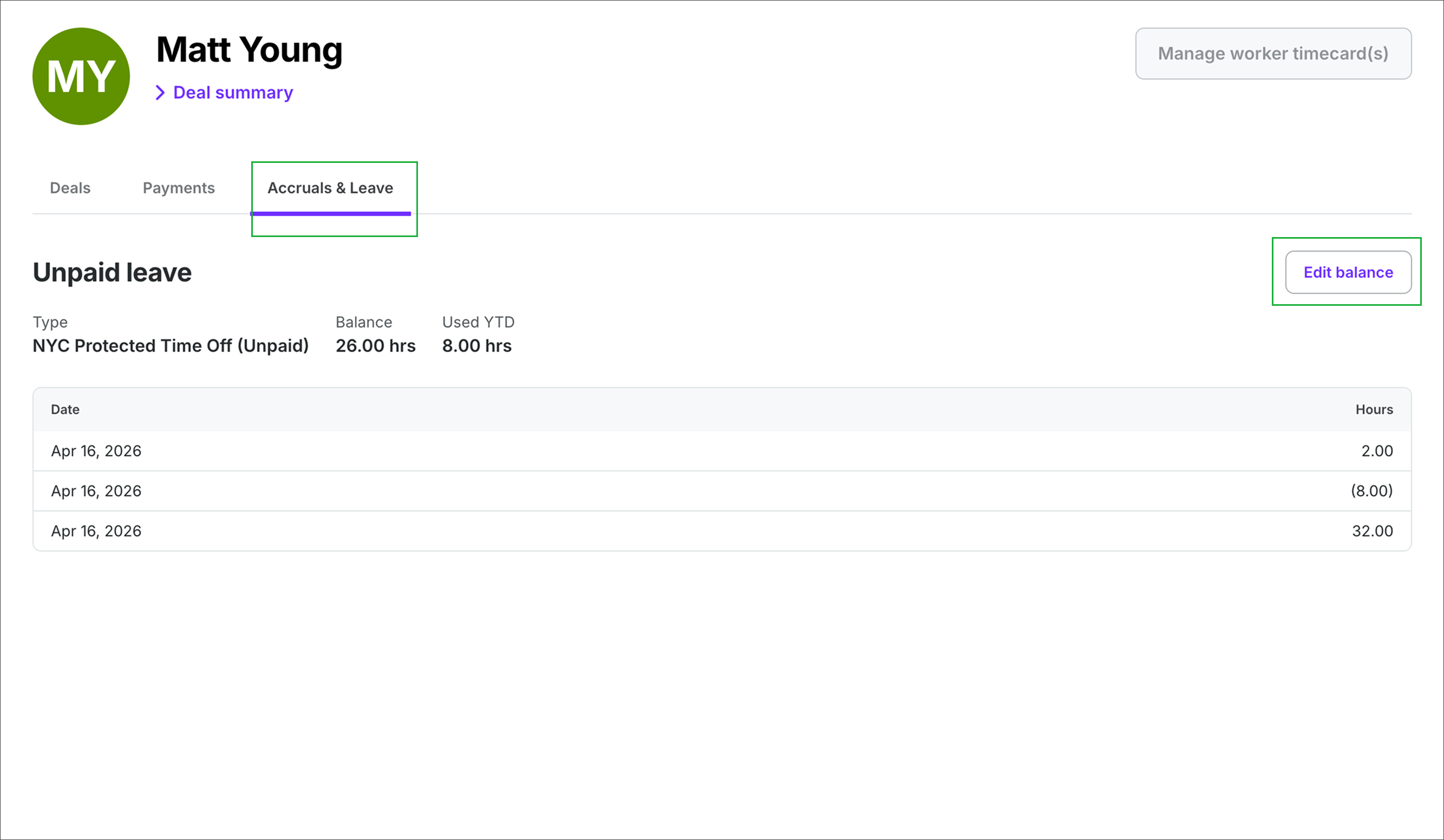
Click the Accruals & Leave tab, then click the Edit balance button
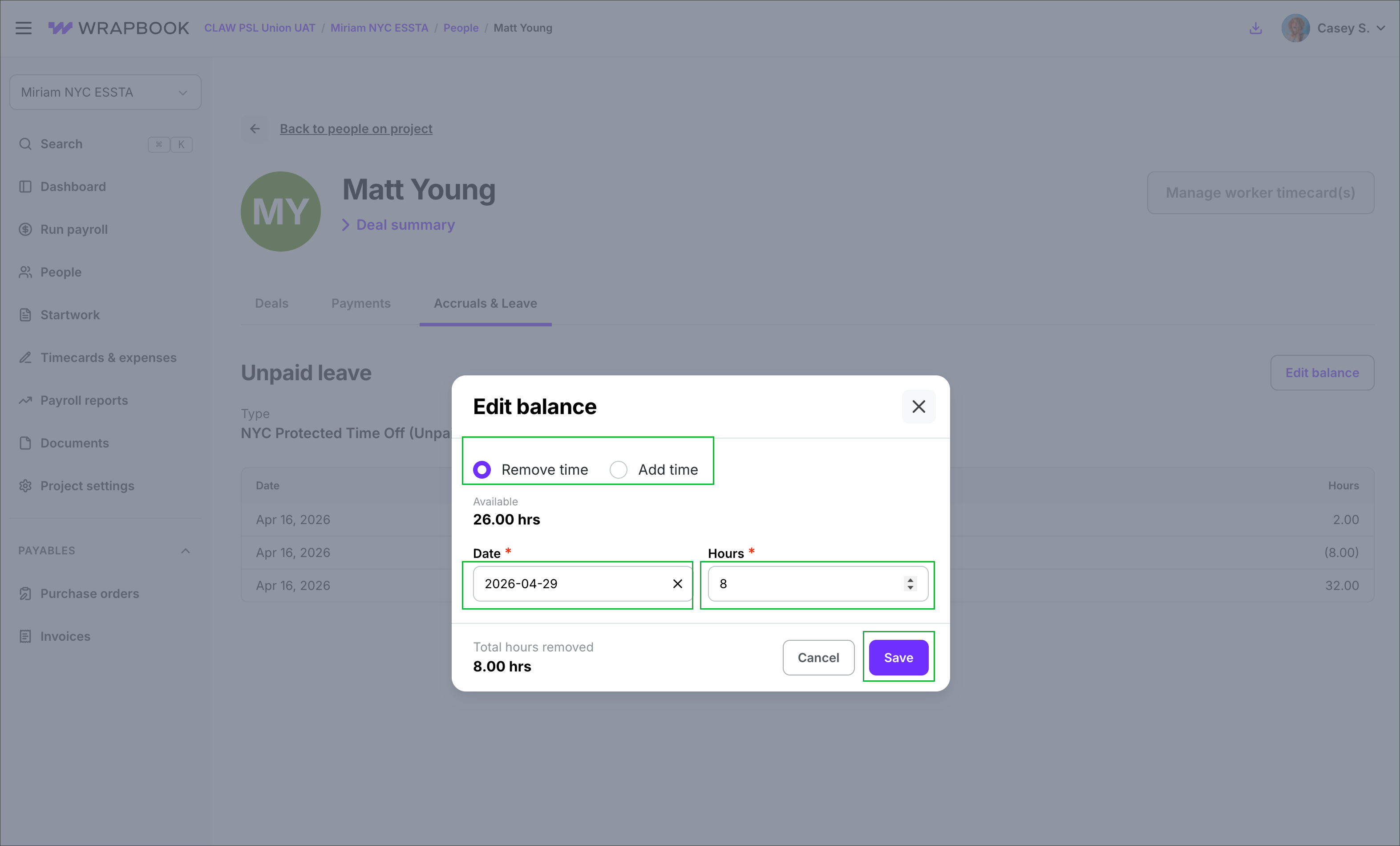
Click to choose Remove time or Add time, enter the Date, the number or Hours, and then click the Save button
ESSTA on project worker paystubs
Once ESSTA hours are updated, the project worker's current balance will be reflected on their paystub.