Overview
By default, Wrapbook prevents project workers who are also company team members from approving their own startwork.
When a company team member's turn comes up in a startwork approval workflow and they're the same person whose startwork is being reviewed:
Wrapbook will display an alert that says, self-approval denied
The startwork approval workflow stays in progress until a different, eligible approver is assigned and completes the step
Access Startwork preferences
Startwork preferences are permission based
To update, your account must have one of the following roles enabled:
Role: Company Admin
Custom role with: General settings - Full access
To access Startwork preferences:
In the left-side navigation, click the dropdown menu
In the dropdown menu, select All projects
In the left-side navigation, click Company settings
Scroll down the page until you see Project Preferences
Click the Edit button next to Startwork
How to update company Startwork preference options
If you want to allow team members who are part of a startwork approval workflow to approve their own startwork:
Click the toggle on the Startwork prefences page to enable
When this option is enabled, non-admin team members who are part of a startwork approval workflow will be able to approve their own startwork for projects where they are also a worker
If you make changes to Startwork preferences, be sure to click the Save button before leaving the page.
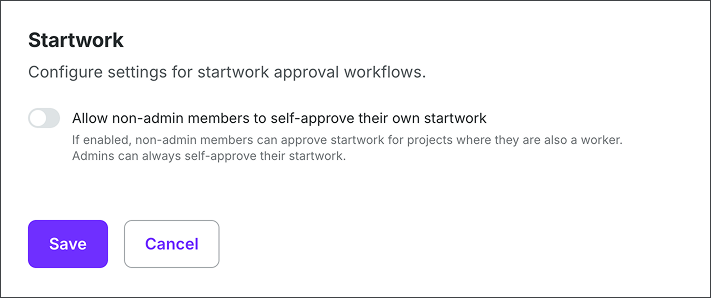
By default Startwork preference will be disabled (turned off)
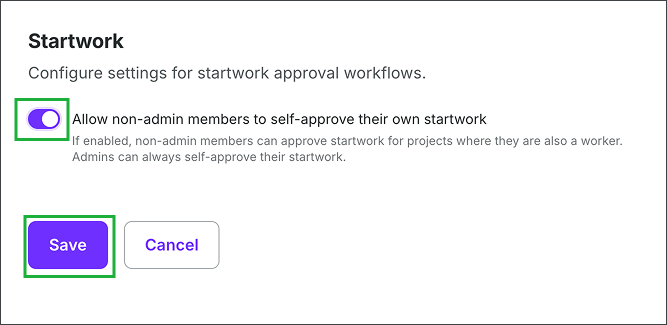
To allow non-admin members to self-approve their own startwork, click the toggle to enable (turn on). Be sure to click the Save button before leaving the page.